Table of Contents
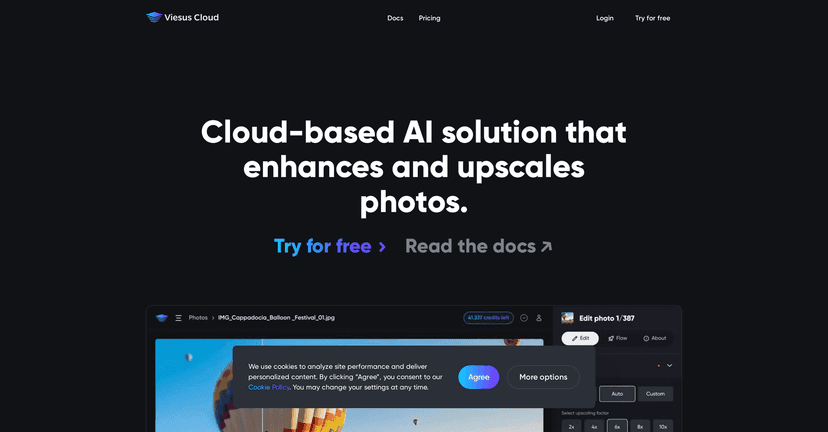
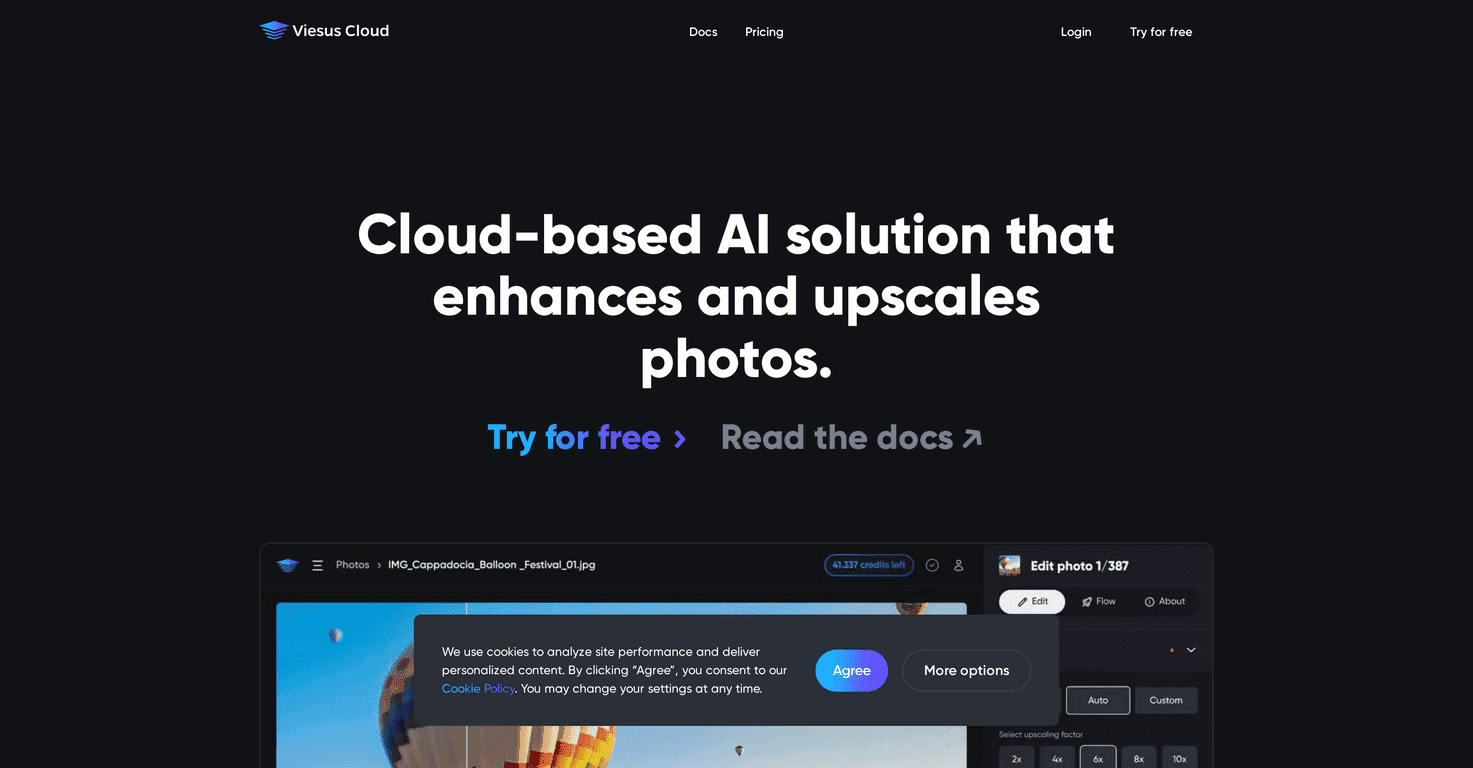
Have you ever pulled up a photo and thought, “Wow… this would be perfect if it wasn’t so blurry”? I’ve had that exact problem with old product shots and compressed social images. That’s why I tried Viesus—a cloud-based AI tool that’s built to enhance and upscale images (and PDFs) without making you jump through hoops.

What I liked right away is that it doesn’t feel like you need to be a developer to get results. You can use it through the web app, and if you do have a technical setup, there’s also API access so you can automate enhancements in your own workflow. The pitch is basically simple: upload something low-quality, and get back something sharper and more usable.
One feature that stood out to me during testing was the facial reconstruction option. If you’ve ever tried to restore a low-resolution headshot (or even a compressed screenshot of a person), you know how quickly details turn into mush. Viesus focuses on rebuilding and cleaning up those facial areas so the result looks more natural instead of just “sharpened.” It’s not magic—if the original image is extremely blurry, you won’t suddenly get studio-grade detail—but it can noticeably improve clarity and structure.
Viesus also offers multiple enhancement standards. Depending on what you upload, you can apply things like color correction, contrast adjustments, brightness tweaks, and other image refinements. I found this helpful because not every photo needs the same treatment. Sometimes the issue isn’t resolution—it’s that the colors look washed out or the contrast is flat.
Another practical touch: performance stats. After processing, you can see details related to your uploads and enhancements. It’s the kind of thing that matters if you’re doing this repeatedly (like for an e-commerce catalog or a batch of client images), because you can track what you’re running and how it’s performing.
Viesus Review: What It Does (and What You’ll Actually Notice)
Let me be honest: most AI image upscalers promise “high-resolution masterpieces,” but the results can be hit or miss depending on the input. With Viesus, I noticed the biggest improvements in two situations: (1) images that were already reasonably sharp but looked soft, and (2) photos that were compressed and needed color/contrast help.
When Viesus upscales, the goal isn’t just making the image bigger. It’s trying to rebuild detail so edges look cleaner and textures don’t look like they’ve been smeared. In my experience, you can usually see a difference in things like hairlines, product label edges, and text-like shapes—even if the original file wasn’t great.
For portraits, facial reconstruction is where it gets interesting. Instead of only boosting general sharpness, it targets facial regions. That means fewer “weird” artifacts around eyes and skin compared to some tools that just crank up clarity everywhere. Still, if your starting photo is heavily blurred or low-res to the point where facial features are basically guessing, you’ll get improvement—not perfection.
On the workflow side, Viesus is cloud-based, so you don’t have to install anything locally. If you’re handling bulk batches, that matters. You can run enhancements without constantly switching tools. And if you’re building something bigger, the API access is a big deal because you can connect Viesus to your own system and automate the whole process.
One more thing I appreciated: you can choose enhancement standards instead of being forced into a single “one size fits all” mode. That’s especially helpful when you’re working with mixed image types—like combining product photos, banners, and occasional portraits in the same project.
Key Features I Looked for in Viesus
- AI Upscaling for higher-resolution images — designed to improve clarity and detail instead of just resizing.
- API Access — useful if you want to automate enhancements inside your own platform or pipeline.
- Custom workflows for bulk enhancements — handy when you’re processing lots of files and want repeatable settings.
- Facial reconstruction — targeted improvements for portraits, especially when images are low resolution or compressed.
- Multiple enhancement standards — including color correction, contrast, and brightness adjustments.
- Performance stats tracking — so you can monitor what’s being processed and how your uploads are performing.
Pros and Cons (From a Real-User Perspective)
Pros
- Fast, automated enhancements — I didn’t have to babysit the process, which is a big win for batch work.
- Works well with API-based workflows — if you’re integrating into a system, Viesus is built for that.
- Flexible enhancement options — being able to adjust color/contrast/brightness makes results feel more “intentional.”
- Free trial available — enough to test whether it actually helps your specific image types.
Cons
- API integration may take some technical setup — if you’re not comfortable with APIs, you’ll rely on the web app.
- Cloud-based means you need reliable internet — no surprise here, but it matters if your connection is unstable.
- Results depend heavily on the input — extremely blurry images can only be improved so much. You won’t get details that weren’t there.
Pricing Plans: What I Could Confirm
When I checked, Viesus didn’t provide detailed pricing numbers directly in the content I reviewed. What I could confirm is that there’s a free trial so you can test the service before committing.
If you want the latest subscription options and costs, you’ll need to visit the Viesus site. That’s the best place to see what’s currently available, since pricing can change over time.
Tip: During the trial, test a few different image types—like one portrait and one product photo—and compare the results side-by-side. It’s the quickest way to know whether Viesus is a fit for your real use cases.
Final Thoughts
Viesus is a solid option if you’re trying to improve low-quality images without turning it into a complicated editing project. The combination of upscaling, facial reconstruction, and adjustable enhancement standards makes it practical for both personal use and business workflows.
If you’re mainly working with compressed portraits or product images that lost detail, I think you’ll probably like what you get—especially once you find the right settings. And if you’re processing a lot of files, the API and bulk workflow angle is where it really becomes useful.
Give the free trial a real test, though. That’s the only way to confirm the improvements match what you’re expecting from your specific images.