Table of Contents
Finding the right level of text difficulty can be a challenge, whether you’re teaching, learning, or simply trying to convey ideas clearly. That’s where the Text Difficulty Converter steps in to make things easier. By allowing users to adjust text from A1 to C2 levels, this tool opens the door to tailored reading experiences. Let’s explore what this innovative tool has to offer.
Text Difficulty Converter Review
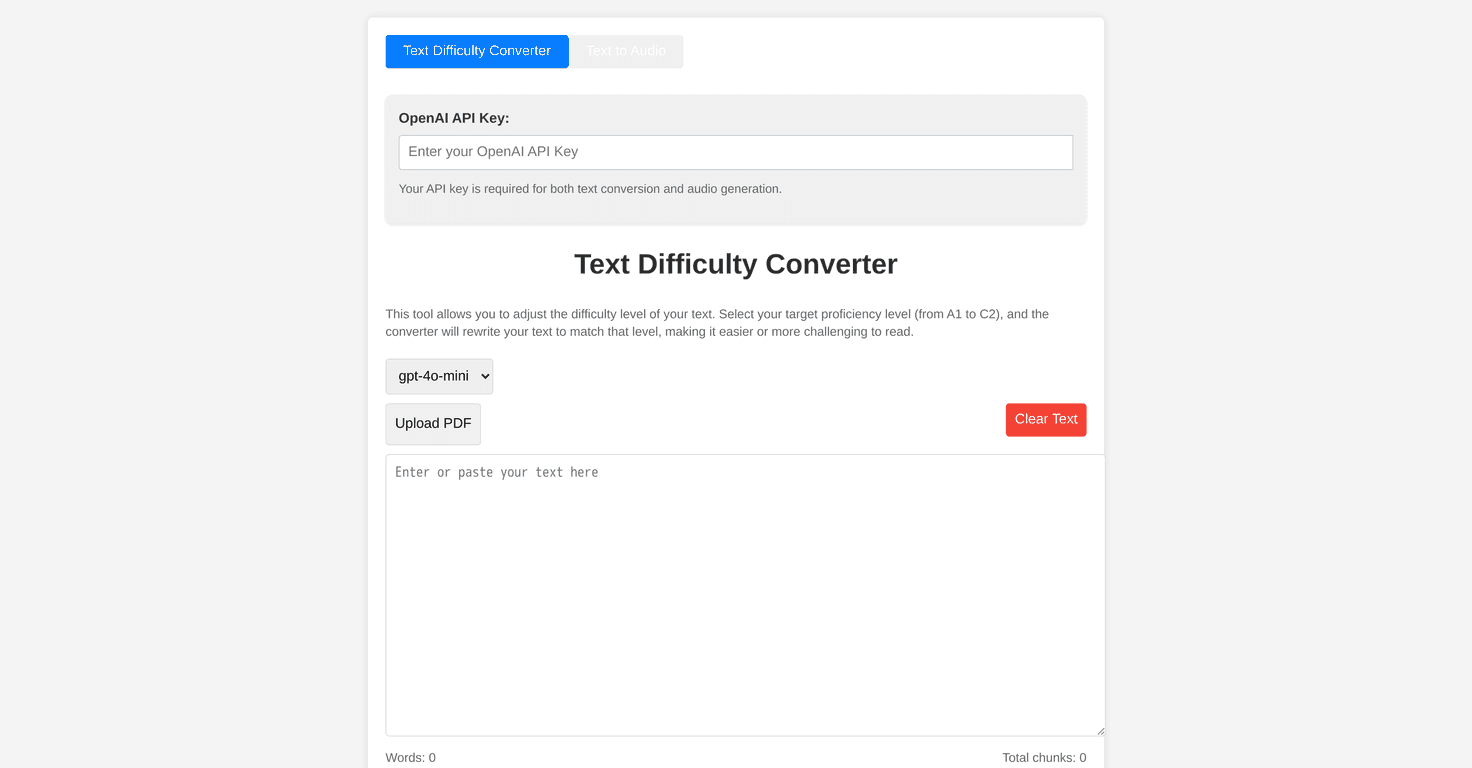
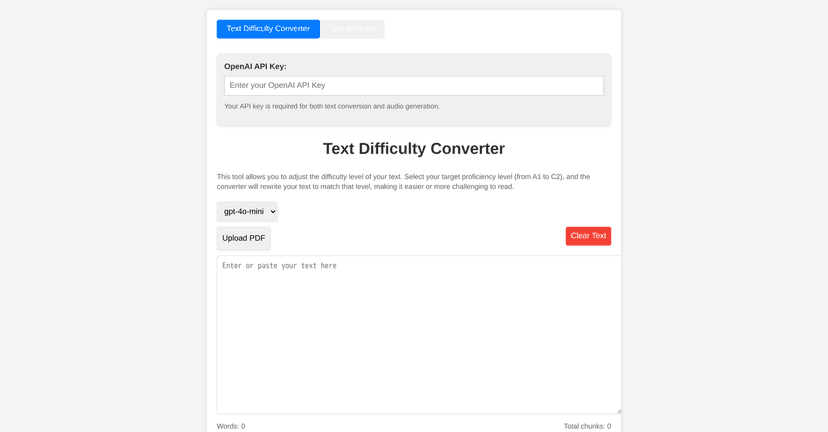
The Text Difficulty Converter is designed to help users create text that matches specific proficiency levels, catering to both beginners and advanced readers. With an easy-to-use interface, users can quickly input text and get a version tailored to their needs. Whether you’re a teacher simplifying materials for students or a learner seeking more challenging content, this converter is a fantastic resource.
Additionally, this tool allows users to enhance their comprehension by uploading PDF documents, making it extremely versatile. Users can also convert the adjusted text into audio, adding another layer of accessibility that can benefit everyone, from auditory learners to those with reading difficulties.
Key Features
- Adjusts text difficulty from A1 to C2 levels
- Allows the uploading of PDF files for versatility
- Sets chunk sizes and selects specific text parts for processing
- Outputs reformulated text with copy/download options
- Displays word count and progress during conversion
- Converts text to spoken audio using various TTS models
- Includes playback options for individual chunks or full text
- Offers control for generating and downloading audio files
Pros and Cons
Pros
- User-friendly interface for seamless text input and conversion
- Tailored text levels for targeted audiences
- Support for PDF uploads enhances usability
- Comprehensive audio functionality for flexible listening options
- Progress tracking during conversions keeps users informed
Cons
- Requires an OpenAI API key, which can be a hurdle
- Relies on online services, limiting offline access
- Users need to understand A1 to C2 levels for effective selection
Pricing Plans
Currently, specific pricing plans or subscription details are not available for the Text Difficulty Converter or Text to Audio tool, other than the requirement for an OpenAI API key.
Wrap up
In summary, the Text Difficulty Converter is an impressive tool that makes text accessible to everyone. By enabling users to adjust difficulty levels and convert text to audio, it caters to various needs and learning styles. While there are a few hurdles, like the need for an API key, the benefits far outweigh the downsides. If you’re looking to simplify or challenge written material, this tool is certainly worth a try!
Promote Text Difficulty Converter