Table of Contents
I’ve used enough “AI writing assistants” on macOS to know the pattern: you install, you get a few good rewrites, then you hit the parts that are annoying—formatting quirks, weird tone shifts, or it just not understanding what you meant. So when I tested RewriteBar, I tried to be practical about it. I used it for the stuff I actually write every week: email replies, short report paragraphs, and a couple of blog drafts.
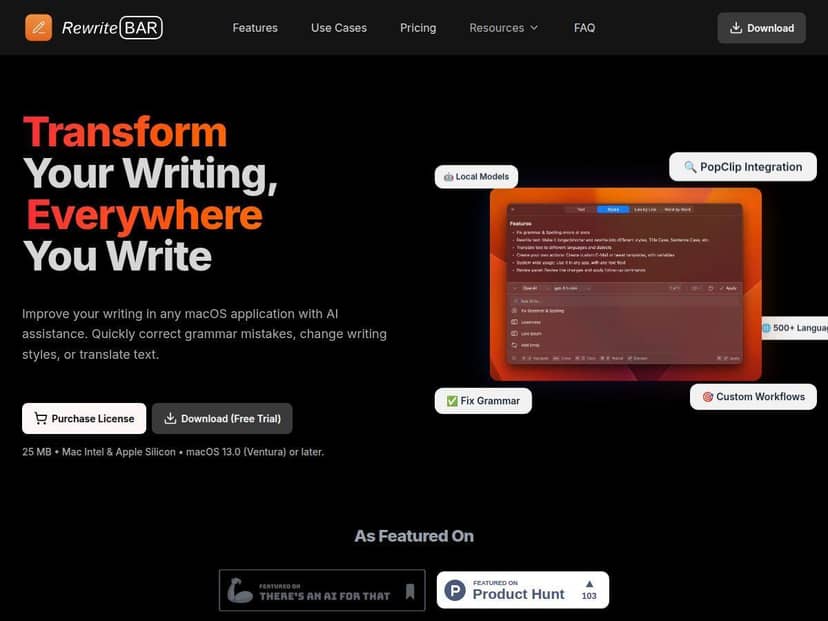
What stood out right away is how it lives in the workflow. Instead of opening a separate editor window, RewriteBar shows up in the menu bar, and you can trigger it after selecting text (or by typing directly into the tool when you want to rewrite from scratch). I’m not exaggerating when I say it felt “small and fast” rather than “big and distracting.” And when I clicked an action, the suggestions came back quickly enough that I didn’t lose my train of thought.
RewriteBar Review (What I actually noticed on macOS)
I tested RewriteBar for a little over a week, mostly in these situations:
- Email replies in Apple Mail (short paragraphs, quick turnarounds)
- Report-style writing in Notes/Google Docs (more formal tone, lots of repetition)
- Blog drafts where I wanted smoother phrasing without changing my meaning
Here’s what the workflow looked like for me. I’d select a chunk of text—usually 1–5 sentences—then run an action from RewriteBar. The output came back as a rewrite I could use immediately. No complicated “copy/paste into a web app” dance.
My first test: grammar + “tightening” without sounding robotic
One of the easiest wins for tools like this is fixing obvious grammar. RewriteBar did that, but the part I liked more was the “make it read better” angle. For example, I fed it this (from an email draft):
Before: “Just wanted to circle back on the timeline. We are working on it and should have an update soon.”
After (RewriteBar suggestion): “I wanted to follow up on the timeline. We’re working on it and expect an update soon.”
It wasn’t a huge rewrite, but it removed filler and made the sentence flow more naturally. That’s the kind of improvement I actually use.
Second test: tone change (formal vs. casual)
I also tried tone adjustments on a slightly awkward sentence. I wrote:
Before: “Can you please send the document when you get a chance? It would be really helpful.”
Then I switched to a more formal option. What I noticed is that it didn’t just add “please” and “kindly”—it changed the structure a bit:
After (more formal): “Could you send the document when you have a moment? It would be greatly appreciated.”
In my experience, that’s where tone tools usually fall apart (they either overdo it or flatten your voice). This felt closer to “professional but human.”
Third test: translation and meaning preservation
I’m not fluent in every language, so I can’t score translation quality like a native speaker. But I did test it on a short paragraph in a language I can read well enough to judge meaning. The important thing for me wasn’t perfect elegance—it was whether the translation kept the same intent and didn’t introduce accidental changes.
What I saw: RewriteBar handled the gist well, and the phrasing was consistent across sentences. If you’re translating technical notes or client-facing messages, it’s still smart to do a quick human review, though. AI translation is great, but it’s not “set it and forget it.”
Where it surprised me (and where it didn’t)
Two things stood out:
- Speed: responses were fast enough that I didn’t feel blocked. That matters when you’re writing and editing in the same sitting.
- Control: I could pick the action (grammar fix, rewrite, style change, translation) rather than being forced into one “AI mode.”
But I also hit a couple of limitations:
- Long text can get messy: when I pasted larger chunks (like half a page), the results sometimes felt more “summarized” than “rewritten.” If you want a line-by-line rewrite, smaller selections worked better.
- Formatting isn’t always perfect: if your source text has weird line breaks or bullet spacing, you may need to tidy up after pasting the suggestion back into your doc.
So, should you use RewriteBar? If you write lots of short-to-medium text and you want quick grammar + tone adjustments, it’s a solid fit. If you’re doing heavy formatting work (tables, complex layouts) or you only want cross-platform support, you’ll probably feel constrained.
Key Features (with real-world use cases)
- Real-time grammar and spelling correction
I used this on email paragraphs with typos and “almost-right” phrasing. The fixes were practical—spelling, punctuation, and a bit of sentence cleanup. - Tone and style adjustment for formal or casual writing
I tested it by rewriting the same request in two styles. The better results happened when I gave it 1–3 sentences instead of a full document section. - Text expansion and summarization
For summaries, I tried it on a short status update. It produced a tighter version without deleting key points. For expansion, it helped when I needed a slightly more detailed email, but I still had to skim for accuracy. - Translation support for 500+ languages
I translated a short paragraph and checked meaning consistency. It was good for keeping intent, but I’d still review anything that affects deadlines, numbers, or commitments. - Customizable AI actions and workflows
This is the feature I cared about most. Instead of manually choosing “rewrite + tone + length” every time, you can set up actions so one click handles your preferred transformation. For example, I set a workflow for “Email follow-up” that did: rewrite for clarity → slightly more formal tone → keep it short. That reduced the number of steps I had to repeat. - Support for local AI models for privacy
I didn’t go deep into local model performance benchmarking, but I did test the setup path enough to understand the tradeoff: local options can be more private, but they can also mean more configuration and potentially slower responses depending on your hardware and model choice. - Seamless integration with macOS apps and PopClip
My favorite part was being able to select text in whatever app I was using and run the action without leaving my current screen. PopClip-style selection workflows are the kind of “small convenience” that adds up. - Lightweight and fast with minimal system impact
I didn’t notice it bogging down my Mac during normal writing sessions. It felt like a background assistant rather than something constantly running in the foreground. - Keyboard shortcuts for quick access
Once I mapped shortcuts, I stopped reaching for the mouse. That’s the difference between “cool demo” and “actually useful.”
Pros and Cons (the honest version)
Pros
- Menu bar + selection-based workflow makes it feel native instead of disruptive.
- Good at the everyday stuff—grammar fixes and tone tweaks that don’t completely rewrite your meaning.
- Custom workflows help if you repeatedly write the same types of messages (follow-ups, summaries, requests).
- Lots of language/model options if you need translation or different styles.
- Fast enough for real writing sessions (not just slow “wait for the AI” output).
Cons
- macOS-only—if your team uses Windows or you bounce between systems, this won’t cover you.
- API key setup can be technical for non-technical users (especially if you want specific models).
- Free-tier limits can feel tight once you start testing multiple actions and rewriting longer passages. I hit the point where I had to be more selective with how I used requests.
Pricing Plans (and what I’d watch for)
RewriteBar includes a free trial with up to 100 requests. For me, that was enough to test grammar fixes, a few tone rewrites, and some translation on short paragraphs. If you’re going to try it, I’d recommend using that trial for your real writing tasks—not just “random prompts.”
The monthly plan is $5, and it includes access to 3 million words and 41 AI models. The annual plan is $40, which is about a 33% savings compared to paying monthly.
If you prefer not to subscribe, there’s also a one-time license for $29 that provides direct API access without recurring fees.
Quick decision tip: If you only need occasional rewrites, the trial might be enough to decide. If you’re rewriting emails daily or translating regularly, the word limits and model access on the paid plan are where it becomes worth it.
So… who is RewriteBar for?
I think RewriteBar is best for:
- Mac users who write a lot of emails and documents and want fast edits without switching apps.
- People who care about tone control (formal requests, friendly follow-ups, clearer phrasing).
- Anyone who likes workflows—one-click actions that match how you already write.
And I’d skip it if you:
- Need cross-platform support right now.
- Only want one perfect rewrite style (no need for actions/workflows).
- Don’t want to deal with any technical setup if you’re aiming for specific models or local options.
Wrap up
RewriteBar ended up being one of those tools that feels genuinely built for writing on a Mac. The integration is clean, the quick actions are useful, and the custom workflows are where it starts to save real time. It’s not magic—long pasted text can need a bit of cleanup, and formatting can require a quick pass—but for everyday grammar, tone, and translation, it performed well in my tests.
If you’re trying to write faster without sacrificing clarity (and you’re okay staying in the macOS ecosystem), it’s definitely worth a trial.