Table of Contents
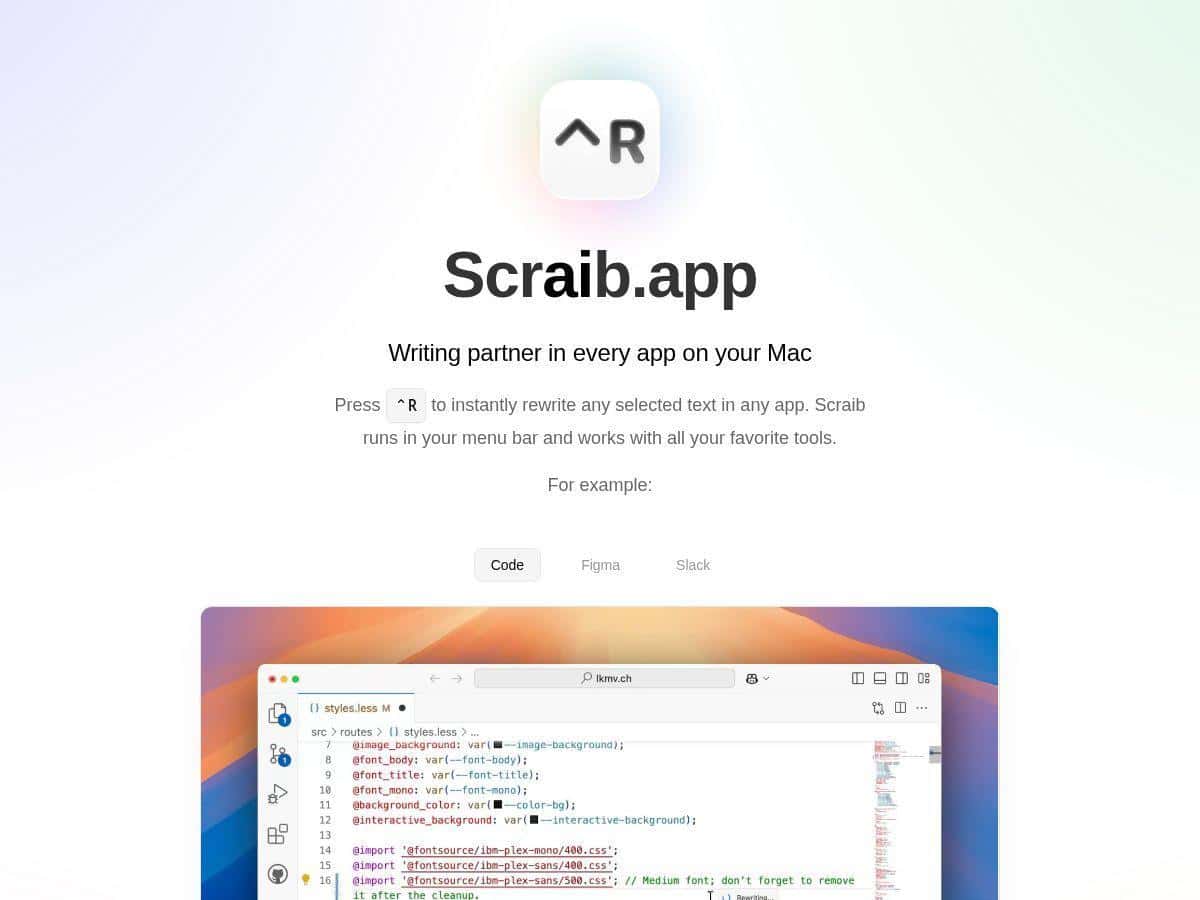
I’ve been using Scraib on my Mac for a few weeks, and I’ll be honest: the “menu bar + shortcut” setup is exactly the kind of thing I love because it doesn’t interrupt my flow. I’m not opening a separate web tool, copying/pasting 10 times, or hunting for a window. I just highlight text, hit Control + R, and Scraib rewrites it right where I’m working.
What I noticed most is how consistent it feels for quick edits—especially when I’m trying to tighten something, fix tone, or make a message sound more like me. I also tested it on a handful of real-world snippets (emails, Slack messages, and a couple of “please explain this better” comments). Some rewrites were great on the first try. Others needed a second pass because it slightly changed meaning or got a little too “polished.” Still, that’s normal for AI writing—what matters is how fast you can iterate.
Scraib Review: What It’s Like to Use on a Mac
Let me start with the part that actually matters: the workflow.
- Step 1: Open whatever you’re writing in (I used Notes, a couple of doc-style pages, and Slack).
- Step 2: Highlight the text you want to improve.
- Step 3: Press Control + R.
- Step 4: Scraib rewrites immediately using the style rules you’ve set.
It lives in the menu bar, so it feels “always there” instead of another app you need to manage. That’s a big deal for me—if an AI tool takes longer to open/configure than the time it saves, it stops being useful fast.
My test cases (real copy, real edits)
I ran the same kind of edits a few times so I could compare outputs. Here are the scenarios I tried:
- 1) Tightening an email update: I had a draft that was wordy and a little stiff. After a rewrite, the message got shorter and more direct. The best part? It kept the intent and didn’t randomly add new claims.
- 2) Fixing tone in a Slack message: I sent something that sounded too blunt. Scraib softened the tone and made it read more collaborative. What I noticed: it sometimes adds a “thanks” or a polite opener even when I didn’t ask for it—easy to delete if you prefer a more minimalist style.
- 3) Improving clarity in a “please explain” request: I used a messy paragraph with unclear structure. The rewrite was more organized, with cleaner phrasing. I still had to review because it occasionally rearranged the order of ideas.
- 4) Shortening code comments: I’m picky about comments. Scraib did a decent job making them more readable, but it’s not magic—if your comment needs a specific technical nuance, you’ll want to double-check.
Style rules: where Scraib actually earns its keep
One feature I really liked is the ability to tweak style rules so the output matches your voice. I tested a couple different “directions” (more casual vs. more professional), and the difference was noticeable. It’s not just changing wording—it changes how it sounds.
That said, I wouldn’t treat it like a perfect “set it and forget it” system. If your style rules are too strict, Scraib can over-correct and produce something that feels unnatural. My preference: start broad, then tighten after you see a couple rewrites.
Speed and reliability (what to expect)
In my experience, the rewrite is fast enough to feel like an editing tool rather than a waiting game. The menu bar approach also reduces friction—no switching tabs, no manual copy/paste loops. Still, there were a couple moments where the result needed another pass (mostly when the original text was ambiguous). That’s not a deal-breaker, but it’s worth knowing: garbage in = you’ll still get garbage with better formatting.
Limitations I ran into
- Meaning can shift slightly: On a few rewrites, the wording changed enough that I had to re-read for accuracy.
- It can “polish” when you don’t want it to: If you’re writing something short and blunt on purpose, you may need to trim the AI’s extra politeness.
- Advanced users may want more control: I didn’t see the kind of deep batch tools or export options you’d expect from a power-user writing suite.
Key Features
- Instant rewrite with Control + R for selected text
- Menu bar access so you can trigger rewrites without switching apps
- Custom style rules to steer tone and formatting
- Multiple AI provider options with API key support
- Works across common apps (I used it in places like Slack and doc-style editors)
Pros and Cons (Based on My Use)
Pros
- Fast, low-friction workflow: highlighting text and hitting Control + R feels natural.
- Style rules actually matter: output tone changes enough that it feels tailored, not generic.
- Good for everyday writing: emails, Slack updates, and “rewrite this so it sounds right” tasks are where it shines.
- API provider flexibility: the option to use your own keys is a plus if you prefer controlling your setup.
- Trial first: the 7-day trial (more on pricing below) is long enough to test whether you’ll use it weekly.
Cons
- Mac-only: if you work across Windows/Linux too, you’ll need something else.
- Subscription cost: it’s easy to try, but whether it’s “worth it” depends on how much you write per month.
- Still a newer app: compared to long-running tools, there’s less community/feedback to rely on.
- Power-user features feel limited: I didn’t see obvious batch rewriting, heavy template management, or advanced export workflows that advanced writers might expect.
Pricing Plans
Here’s what I found: Scraib includes a 7-day free trial. After that, it’s $3.99/month for the subscription option. There’s also a $10 one-time purchase option that lets you use your own API keys, while you pay the AI providers separately.
One thing to keep in mind: pricing can vary depending on the App Store region and how Apple handles local storefronts. I didn’t rely on a “global price” assumption—if you’re deciding today, check your local App Store listing.
Wrap up
So, is Scraib worth trying? For me, the answer is yes—mainly because it’s genuinely convenient. The menu bar + Control + R workflow makes it feel like part of editing, not a separate AI step. If you write a lot on your Mac and you want faster rewrites (especially for tone and clarity), it does the job.
But if you’re an advanced user looking for deep batch tools, heavy customization beyond style rules, or export/reporting features, you might find it a bit basic. In that case, it’s still worth a trial, but don’t expect it to replace a full writing platform.
If you want an AI helper that fits into your current workflow instead of forcing you to change how you work, Scraib is a solid pick.