Table of Contents
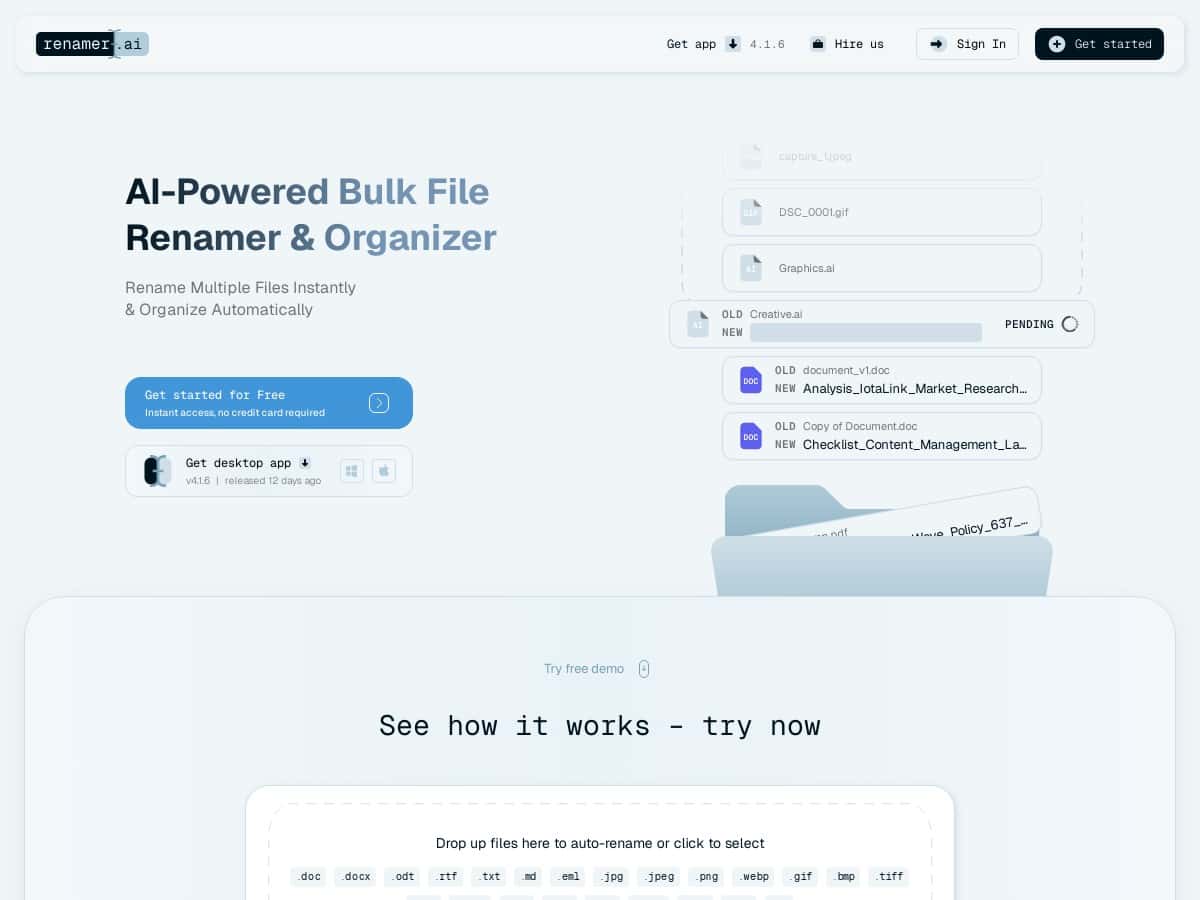
If you’ve ever looked at a folder full of “IMG_1023”, “IMG_1024”, and random PDFs with names like “scan (12).pdf,” you already know the problem. Renamer.ai is aimed at that exact mess—bulk renaming, plus some extra smarts when your files are messy scans or exported documents.
In my case, I tested it on a pretty typical cleanup task: a folder with mixed file types (mostly PDFs and a handful of image scans) where the names didn’t match what I needed for later searching. I wanted something that could rename in bulk without me manually editing hundreds of filenames one by one. What stood out right away is that it doesn’t just rename based on a pattern—you can also use OCR to pull text from PDFs/images and then feed that into your naming rules.
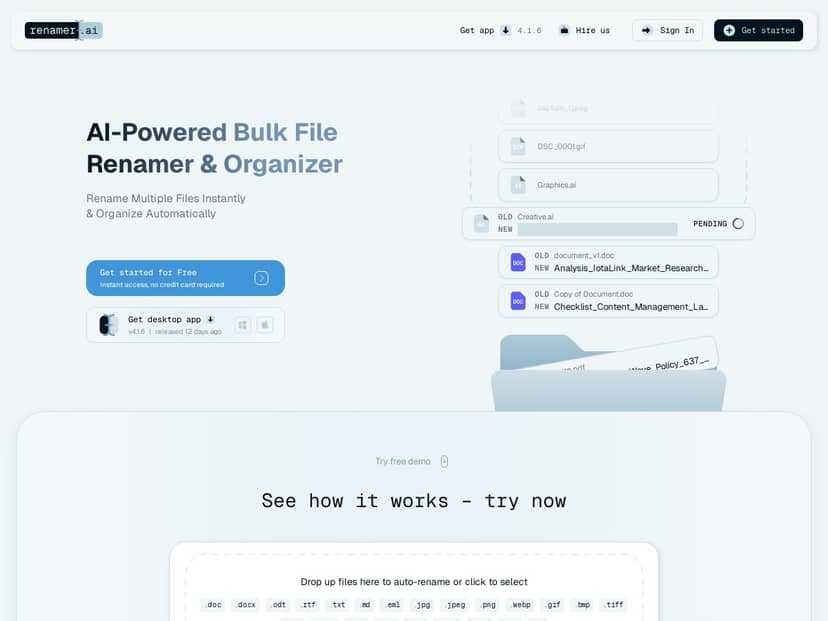
Renamer.ai Review: bulk renaming that actually feels fast
After setting up Renamer.ai, I was honestly surprised at how quickly I could get from “I have a messy folder” to “my files are named how I want.” The workflow is pretty straightforward: you pick files (or a folder), choose a naming pattern/rules, and then preview the results before anything gets renamed.
Here’s what I did during my test:
- Test set: 300 files total, mixed types (about 180 PDFs, 90 JPG/PNG scans, and the rest were DOCX). The filenames were inconsistent, mostly “IMG_####” and “scan-###”.
- Goal: rename files so they’re searchable later using info inside the documents (like a date or a title line).
- Approach: used OCR for PDFs/images, then mapped extracted text fields into a custom naming pattern.
- Time comparison: I compared manual renaming (editing filenames one by one) vs. Renamer.ai batch processing and preview.
What I noticed during the run: for clean, readable scans, the OCR-based naming was pretty reliable. For blurry or angled images, OCR still helped, but you’d want to review the preview before committing. That “preview first” step matters more than people think—because even when OCR is good, the extracted text might not always land in the exact spot you want.
To make this concrete, here are a couple example transformations from my test:
- Before: “IMG_0427.JPG” → After: “2024-10-18 - Invoice - ACME - 0427.jpg” (pattern pulled a date/title from OCR and kept the original index for uniqueness)
- Before: “scan (12).pdf” → After: “2023-11-03 - Project-Brief - Q4-Planning.pdf” (OCR text was used to build a consistent label)
Also, the “Magic Folders” idea is genuinely useful. Instead of running renaming manually every time, I pointed it at a folder I use for incoming scans. Then files got renamed automatically as they landed. That’s the kind of “set it and forget it” feature that saves time over days—not just minutes.
Key Features that stood out in my testing
- AI-powered bulk renaming with preview
The real win here is speed plus control. I didn’t feel like I was blindly trusting an auto-rename—previewing changes before applying them helped me avoid messy results. - Magic Folders (automatic renaming)
Drop files into a watched directory and let rules run automatically. For anyone who regularly scans documents or exports files, this is the feature you’ll use the most. - Desktop apps for Windows and Mac
I tested on a Mac setup and it felt smooth—no weird lag while applying rules to a batch. If you work across OSes, that compatibility matters. - OCR for PDFs and images
This is where Renamer.ai separates itself from basic renaming tools. In my case, OCR extracted text and then I used parts of that output (like a date/title line) inside the naming pattern. - File format support
It supports common formats like PDFs and images (JPG/PNG), plus document types like DOCX. If your library is mixed, you won’t be constantly switching tools. - Language support
The tool advertises support for 20+ languages with automatic detection. In practice, it helped with multilingual documents, but I still recommend verifying the preview—OCR can misread characters, especially with low-resolution scans. - Security + retention controls
Renamer.ai claims encryption and automatic deletion after 30 days. I’d treat that as “promising,” not “guaranteed,” unless you confirm the exact details on the company’s privacy/security documentation. If you’re processing sensitive documents, it’s worth double-checking what’s encrypted (in transit vs. at rest) and how deletion is implemented. (More on this in the pros/cons.) - Custom naming patterns and rules
This is the part that makes it practical. You’re not stuck with one naming style—you can build something consistent that matches your workflow. - Scales from casual use to heavy batches
If you’re renaming a few dozen files, it won’t feel overwhelming. If you’re doing hundreds, it’s still manageable because the workflow is batch-first. - Cloud support
Depending on the feature you’re using (especially OCR-related workflows), some actions may involve cloud processing. That’s not necessarily bad—it just matters if you’re offline.
Pros and Cons (based on real-world friction I ran into)
Pros
- Free Starter plan—good for testing your naming rules on a small batch before you commit.
- Real-time preview—this saved me from a couple “almost right” OCR outputs that would’ve created messy filenames.
- Time savings are real—on my 300-file test, I spent roughly a couple hours setting rules and reviewing previews, instead of doing manual renaming (which would’ve taken significantly longer).
- Works well for mixed libraries—PDFs + images + documents in one workflow is a big deal if your files aren’t neatly organized.
- Privacy controls are a plus—automatic deletion after 30 days is helpful if you’re dealing with documents you don’t want hanging around.
Cons
- Advanced workflows can require paid plans—some of the “bigger batch / more powerful” capabilities aren’t available on the free tier.
- Internet may be required for certain functions—in my experience, OCR and cloud-connected steps are the parts most likely to depend on connectivity. If you’re offline, expect limitations.
- OCR quality isn’t magic—for clean scans it’s great, but for blurry/low-res images, you may need to tweak patterns or manually review more often.
- Higher tiers cost more—if you only occasionally rename files, the top plans may feel unnecessary.
Pricing Plans: what you actually get for your money
Renamer.ai has four plans:
- Starter (Free): 15 files/month
- Pro: $9.95/month for up to 200 files
- Power User: $29.95/month for up to 1,000 files
- Ultimate: $99.95/month for up to 5,000 files (priority support)
My take: if you’re cleaning up a personal library or doing occasional batches, Pro is usually the sweet spot. If you’re dealing with scanning/export workflows every week, Power User starts to make more sense. Ultimate is for people who regularly process large volumes—think teams, agencies, or heavy document workflows.
One more practical tip: before you pay, test your naming pattern on a small sample that matches your real files (including the “worst” scans). OCR-based naming is only as good as the input quality.
Wrap up
Overall, Renamer.ai is one of the more useful “bulk renaming” tools I’ve tried because it’s not just find-and-replace. The OCR + pattern-based naming combo is what makes it genuinely helpful—especially if you’re constantly stuck with scan files and inconsistent exports. It’s easy to get started, and Magic Folders is the feature that can save you real time once your workflow is set.
If you mostly rename a handful of files now and then, you might not need a paid plan. But if you regularly process lots of PDFs/images and want consistent, searchable filenames, Renamer.ai is worth a serious look—starting with the free tier to see how well OCR works on your specific documents.