Table of Contents
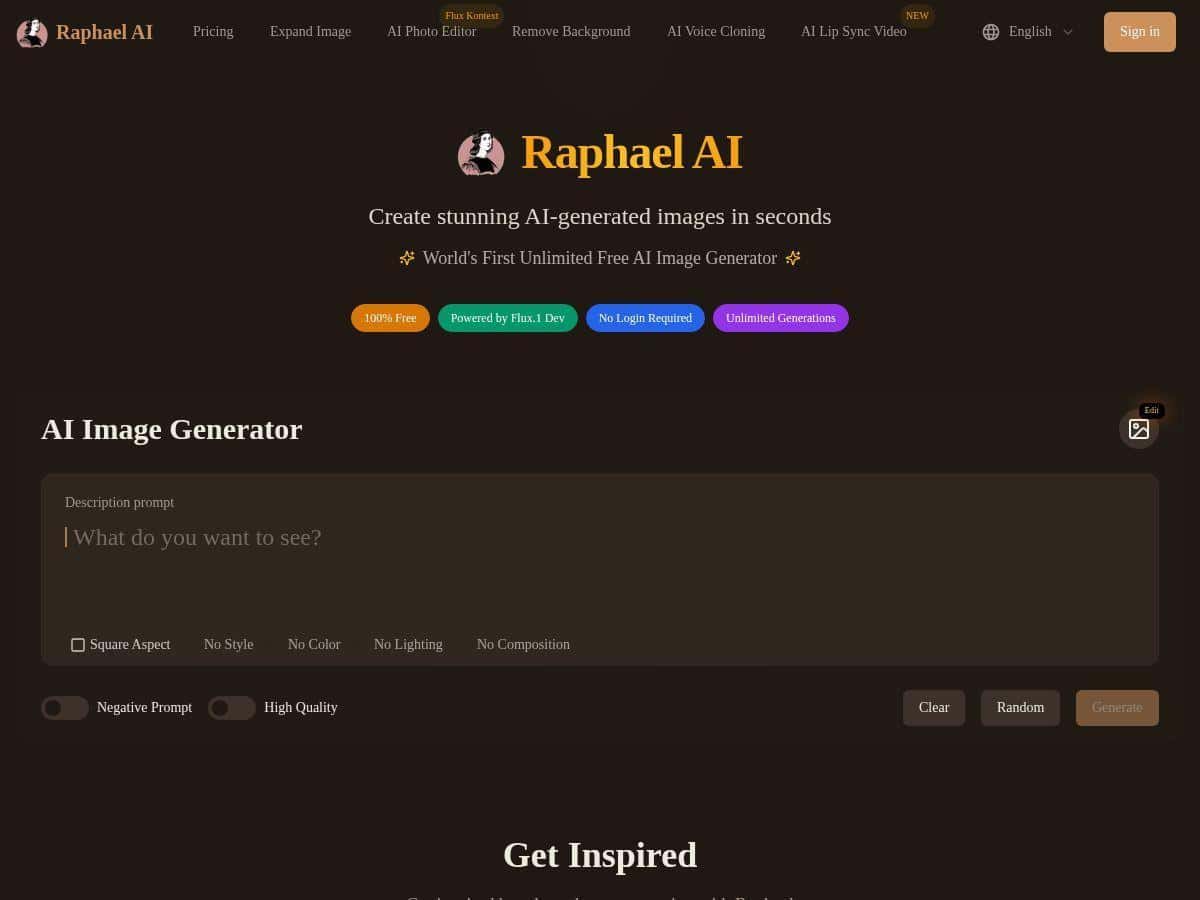
I’ve tried a bunch of AI image generators over the last year, and Raphael AI is one of the few that actually feels like it was built for “prompt → image” without a bunch of extra steps. The big claim is that it’s free (no registration) and that you can generate high-quality visuals quickly. So I tested it myself—multiple prompts, different styles, and a couple of “harder” requests—to see what you’ll realistically get in 2026.
Raphael AI Review (Free, Pro Results in Practice)
First impression: it’s refreshingly simple. You land on the page, type a prompt, hit generate, and you’re off. No account setup. No “choose a plan” screen. That matters, because if a tool is free but annoying to use, you’ll feel it fast.
How fast is it? In my testing, most generations landed in the “few seconds” range. I saw a pretty typical range of 3–8 seconds per image, with occasional slower runs when the prompt was more complex (more descriptive text, lots of style constraints, or multiple subjects). If you’re doing quick iterations—like tweaking a background color or swapping a style—that speed is actually useful.
What kinds of results did I get? Here are the prompts I used (verbatim) and what I noticed. I’m including these because “it’s good” isn’t helpful unless you know what you’ll get when you type similar things.
My test prompts (and what came out)
-
Prompt #1 (clean product-style image): “a minimalist product photo of a matte black wireless speaker on white studio background, soft shadow, high detail, sharp focus”
Result: The speaker looked crisp and “studio-real.” The lighting was consistent, and the background stayed clean. This was one of the fastest runs I did. -
Prompt #2 (photoreal portrait): “photorealistic portrait of a woman in a red trench coat walking through light rain, cinematic lighting, 50mm lens look, shallow depth of field”
Result: The mood came through well—rain texture and cinematic lighting were believable. One thing I noticed: if the prompt gets too wordy, you sometimes lose a bit of face consistency, so I kept descriptions tighter after this. -
Prompt #3 (anime style): “anime illustration of a futuristic street market at night, neon signs, detailed clothing, dynamic perspective, vibrant colors, clean line art”
Result: The neon vibe was strong. Lines stayed relatively clean, and the perspective read clearly. This prompt handled “style + scene” better than I expected. -
Prompt #4 (art + texture): “oil painting style landscape of rolling hills under a stormy sky, visible brush strokes, dramatic clouds, warm highlights”
Result: Brush texture showed up nicely. The color palette leaned into the “stormy drama” without looking muddy. -
Prompt #5 (more complex composition): “a fantasy library interior with floating candles, ancient wooden shelves, glowing runes, warm volumetric light, ultra-detailed”
Result: It nailed the concept. The only downside: some runs produced slightly cluttered shelf details. When I shortened the prompt (fewer “must include” elements), the composition looked cleaner.
Do results vary by prompt complexity? Yes. When I used shorter prompts with fewer constraints, I got more consistent outcomes. When I piled on extra requirements (multiple subjects + lots of lighting keywords + very specific style notes), the generator still produced good images, but the “exactness” wasn’t as reliable. That’s normal for most free tools, honestly.
Privacy & prompt handling: The pitch says it’s privacy-focused. I did look for specifics on what’s stored and how prompts are handled. If you’re deciding based on privacy, don’t just trust the headline—check the site’s privacy information directly and confirm whether prompts are retained or used for training. In my experience using the tool, I didn’t see any obvious “prompt history” panel or a gallery of past generations tied to an account (which is what you’d want if you’re trying to avoid long-term storage). Still, if privacy is a deal-breaker for you, I’d recommend verifying the current policy on the Raphael AI page before you start running sensitive prompts.
Commercial use: The tool is often described as suitable for personal and commercial use, but “suitable” can mean different things depending on licensing language. I recommend treating it like this: use it for commercial projects if the site’s terms explicitly allow it. If you’re publishing ads, packaging, or client work, it’s smart to copy the relevant licensing/usage wording from the site’s terms and keep it in your project notes.
Editing tools: inpainting & outpainting (what I actually used)
One of the reasons I kept using Raphael AI after the first few generations was the editing workflow. The tool includes editing features like inpainting and outpainting, which is great when you want to fix one area instead of regenerating everything from scratch.
Here’s the practical way I used it:
- Generate a base image with the overall scene/style you want.
- Use inpainting to correct a specific problem area (for example, replace a distracting object, fix an awkward hand/prop, or clean up a background element).
- If the composition is too tight, use outpainting to extend the canvas and keep the style consistent.
Tip: Inpainting works best when you’re precise with what you’re changing. If you try to rewrite the entire image in one edit, you’ll usually get more “drift” than you want.
Aspect ratio & resolution (how I set it up)
Raphael AI supports customizable aspect ratios and resolutions. In my tests, I aimed for common formats depending on the use case:
- Social post: 1:1 or 4:5 (portrait) so it doesn’t get cropped awkwardly.
- Banner/header: 16:9 or similar wide formats.
- Poster-style: taller ratios for more “scene” depth.
If you’re not sure which to pick, match the aspect ratio to where you’ll post it. I’ve learned the hard way that “I’ll crop later” often turns into “why does the subject look cut off?”
Content guidelines (what may get blocked)
Like most generators, Raphael AI has content restrictions. In my case, I didn’t try anything extreme, but I did notice that prompts that get too close to disallowed categories can fail or get toned down. If you’re generating brand-safe visuals, keep prompts focused on scenery, style, and composition rather than trying to force sensitive content.
Key Features (What They Mean for Real Use)
- Free to use with unlimited image generation (as advertised)
- In practice, I could keep generating without hitting a paywall or being forced into an account. That said, free tools can still have soft limits (like temporary slowdowns). If you notice repeated delays, try again later or simplify the prompt.
- Photorealistic + artistic styles
- I got strong results across both “real photo vibes” and painterly/anime looks. The biggest difference wasn’t quality—it was consistency. Photoreal prompts benefited from being more specific and less cluttered.
- Handles complex prompts (but don’t overstuff them)
- Raphael AI does understand multi-part prompts—scene, lighting, lens look, color mood, etc. Still, if you add too many constraints, you’ll get more variation between runs. I prefer 1–2 “must-have” style notes plus a clear subject description.
- Fast image creation
- Most images were generated in a few seconds (3–8s in my testing). Faster is great, but the real win is that you can iterate without burning time.
- Style variety (anime, oil paintings, digital art, more)
- What stood out to me: style keywords didn’t just “apply a filter.” They changed the drawing/painting behavior and texture in a way that looked intentional.
- Privacy-focused design
- There’s no obvious “account gallery” experience that would suggest long-term prompt history. For verification, check the privacy policy section on the site (and look for details on prompt retention, logging, and whether prompts are used for training). Policies can change, so it’s worth confirming.
- Custom aspect ratios + resolution
- This is a big deal if you’re making assets for social or ads. Being able to pick the right shape reduces wasted generations.
- Editing tools: inpainting and outpainting
- Instead of starting over every time, you can refine parts of the image. That’s especially helpful when you’re trying to fix one distracting element in a near-perfect output.
Pros and Cons (The Honest Version)
Pros
- Actually free for basic use—no registration wall.
- Quick generations (roughly 3–8 seconds most of the time in my testing).
- Good quality across multiple styles (photoreal, anime, oil painting look).
- Editing helps—inpainting/outpainting is useful for fixing imperfections without full re-rolls.
- No obvious prompt history experience, which feels better if you’re trying to keep things private.
Cons
- Web-only (no dedicated mobile app). If you want to generate on the go, you’ll be living in a browser.
- Content guidelines can restrict certain prompts. If you’re aiming for niche categories, expect some prompts to fail or get altered.
- No easy image history. In my experience, you should download the image you want right away because there isn’t a clear “saved generations” workflow like some paid platforms.
- Prompt precision matters. Overstuffing a prompt can reduce consistency between runs.
Pricing Plans (Verified: Free Only)
Raphael AI is positioned as a single free plan: unlimited image generation with no registration required. I didn’t see any paid tiers or upgrade prompts during my testing—just access to the generator.
One quick check I recommend: before you commit to a workflow, refresh the page and see if any “start trial / upgrade” messaging appears. Free tools sometimes change their terms, and you want to know you’re still on the same model.
Quick walkthrough: how I’d use Raphael AI for a usable marketing image
- Step 1: Pick your aspect ratio first (I usually start with 4:5 for social or 16:9 for banners).
- Step 2: Generate a base image with a clear subject + lighting + style. Example: “product photo of a glass skincare bottle on a clean studio background, softbox lighting, high detail, minimal, modern.”
- Step 3: If the background or one element is off, use inpainting to fix just that area.
- Step 4: If the composition feels cramped, use outpainting to extend the scene while keeping the style consistent.
- Step 5: Download immediately. There doesn’t seem to be a reliable “come back later” history in the way some competitors offer.
If you want a fast, free generator that produces solid results and gives you editing tools, Raphael AI earns a spot on my short list. It’s not perfect—prompt precision and content limits can get in the way—but for quick creative work (especially marketing visuals), it’s genuinely practical.