Table of Contents
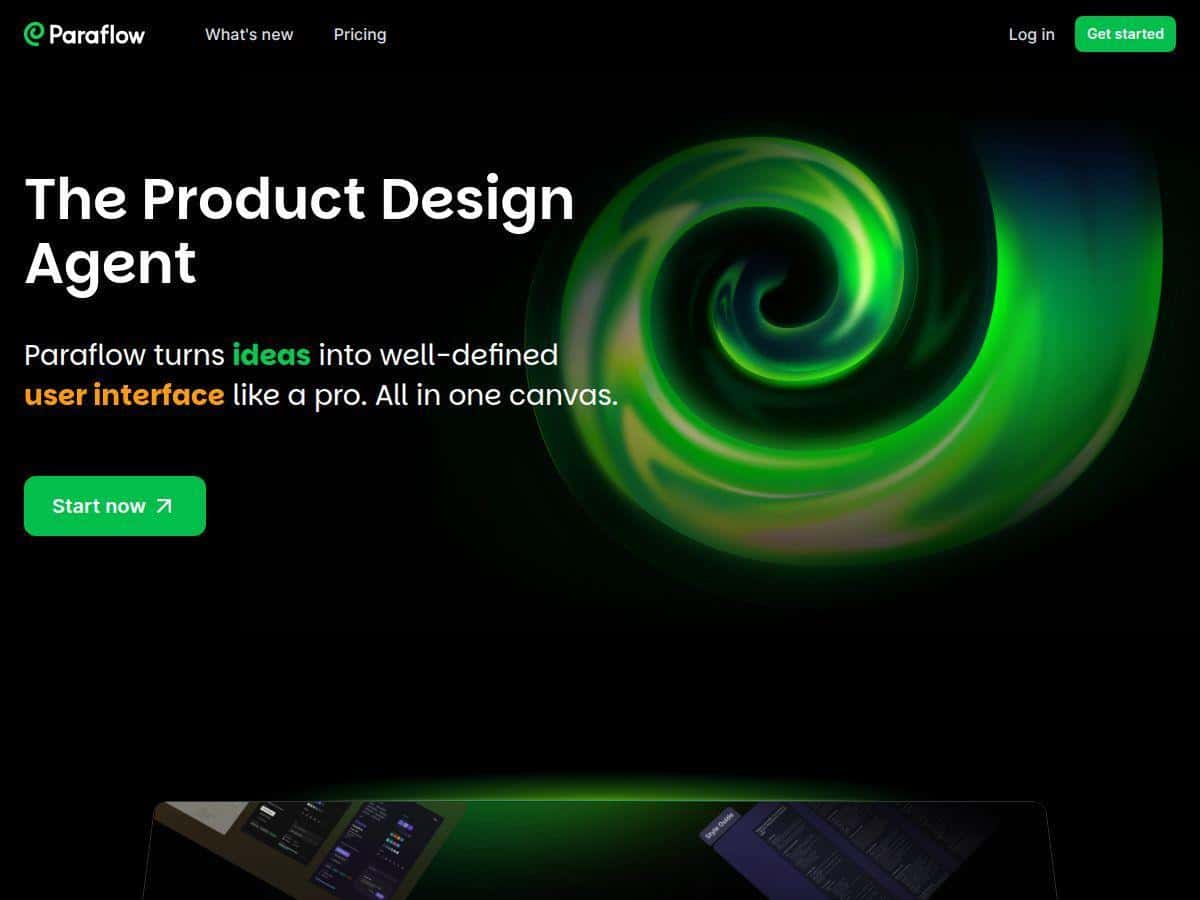
If you’re trying to get from “we should build this” to something your team can actually review, Paraflow is one of the more interesting AI product design tools I’ve seen. The big promise is simple: you describe an idea in plain language, and the platform generates the specs (PRD + user flows), helps you design the UI, and then generates frontend code you can export.
So… does it really hold up, or is it just another “AI will do everything” pitch? I tested it end-to-end on a small, realistic project and paid attention to the parts that usually eat time: writing requirements, turning them into flows, and translating UI decisions into working components.
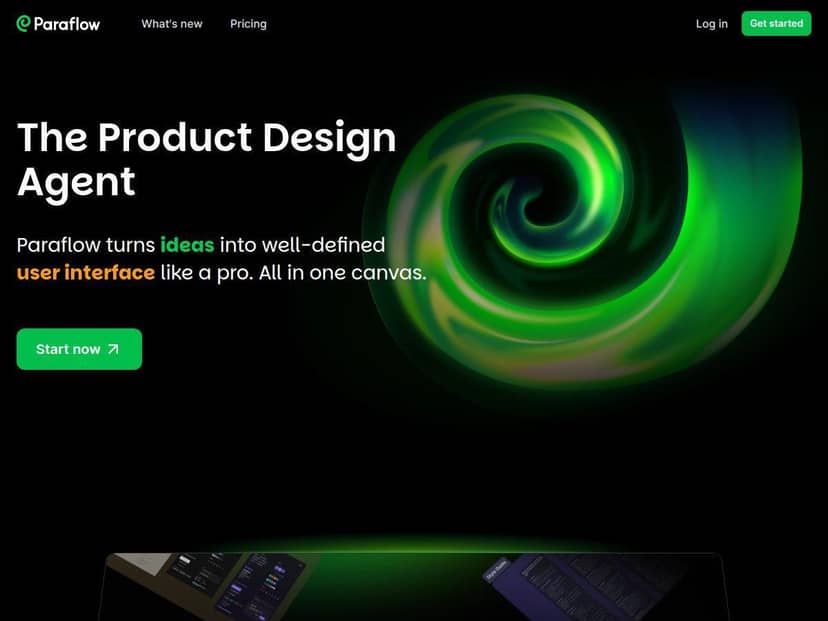
Paraflow Review: What I Tested (and What Actually Happened)
How I tested it: I spent about 45–60 minutes working through a full “idea → PRD + flows → UI → frontend export” pass. My goal wasn’t to build a full app—just to see if the tool could get me to something concrete fast enough to be useful in a real workflow.
Project I used: a simple web app concept: “Taskboard Lite” (create tasks, assign to a teammate, set a due date, and send a basic notification).
1) Natural language input → PRD (my prompt + what came back)
Instead of giving it a perfect spec, I intentionally started with a messy description. Here’s the prompt I used (roughly; I kept it short on purpose):
Prompt: “Create a product spec for a lightweight task board web app. Users can create tasks, assign tasks to teammates, set due dates, and mark tasks as complete. Include user roles (Owner, Member), key screens, and edge cases like unassigned tasks and overdue tasks. Keep it simple, focused, and ready for a developer to build.”
What I noticed: the PRD it generated wasn’t just a bunch of headings. It actually had the sections you’d expect in a real doc—problem statement, target users/roles, key user stories, and a breakdown of screens.
Example of what I considered “useful output”: the user flow draft included the expected sequence for “create task” and “update task status,” and it called out a couple of edge cases like overdue tasks. That’s the part that usually takes me the longest when I’m starting from scratch.
Time-to-first-usable PRD: about 2–4 minutes from submitting the idea to having a PRD I could skim and comment on.
2) User flows + UI workspace (where it helped, and where I had to steer)
After the PRD, I moved into the visual workspace to refine the user flows and the interface. This is where tools like this can either shine or fall flat.
What I liked:
- It was easy to map flows to screens (create task, task list, task details, and a simple “complete task” action).
- The UI side felt more like “designing with structure” than “painting pixels.” I didn’t have to fight to keep everything consistent.
What I had to fix manually: the first pass didn’t perfectly reflect the exact wording I wanted for labels and statuses. For example, the tool’s default status naming didn’t match my preferred copy (“Due Soon” vs. my “Upcoming” label). That’s not a dealbreaker, but it’s real work—especially if your team is picky about UX writing.
3) Frontend code generation (did it save time, or just spit out snippets?)
This is the section I cared about most. I’ve used “codegen” tools before that give you something that looks right in a screenshot but falls apart when you try to wire it up.
What I got: the generated frontend code was structured enough that I could recognize components corresponding to the key screens and actions. I didn’t have to start from absolute zero.
But here’s the honest part: I still had to do typical integration cleanup—adjusting state handling, wiring props, and making sure the actions behaved exactly how the flows described. In other words, it wasn’t “press button, ship product.” It was closer to “you’ve got a solid starting scaffold.”
My time estimate: for a small app like mine, I’d call the codegen portion a ~30–50% time saver compared to starting from scratch, assuming you’re comfortable doing the final integration pass.
4) Collaboration / feedback loop
I also tested the team-sharing side by imagining a teammate reviewing the PRD and flows. The big benefit here is that you’re not sending a random doc link and screenshots—you’re sharing a structured workspace.
What I noticed: when you iterate on requirements and flows together, reviews tend to be faster because everyone is looking at the same “source of truth.” Still, you’ll want a final UX + engineering review before anything goes into production.
Key Features: What You Actually Do With Them
Natural Language Input for Idea → Specs
This is the entry point. You describe the product in plain language and the system turns it into structured output. In my test, I used a short prompt and got a PRD that was immediately readable.
- What you do: write a project description, include roles/users, and mention key screens or actions.
- What you get: a PRD-style document with sections you can review and edit.
- Quality note: it’s fast and generally on-track, but you’ll want to refine terminology (status names, button labels, edge-case wording).
- Where it fails: if your idea is vague, the output can become “generic but formatted.” You’ll need to push more specifics (roles, constraints, success criteria).
- Real example: my prompt asked for “overdue tasks” and the PRD included that as an edge case—useful, not fluff.
Automatic Creation of PRDs and User Flows
This is where Paraflow tries to reduce the blank-page problem. After I generated the PRD, the flows were the next thing I used to turn requirements into navigation steps.
- What you do: iterate on the flow steps in the visual workspace.
- What you get: user flow structure tied to screens/actions.
- Quality note: the flows matched the core actions I described (create task, assign, complete), which is exactly what I want early.
- Where it fails: complex workflows (multi-step approvals, billing, permissions) may require more manual shaping than you expect.
- Real example: the “complete task” flow was straightforward, but I still needed to adjust how “overdue” behavior should be presented in the UI.
UI Design and Interactive Prototyping
Paraflow isn’t just a doc generator. The UI workspace is meant to help you move from requirements to interface decisions without switching tools constantly.
- What you do: design screens and refine the interaction logic.
- What you get: prototype-style UI tied to the earlier flows/specs.
- Quality note: it felt consistent with the PRD structure; that matters when you’re trying to avoid mismatches.
- Where it fails: if you need very custom layouts or a specific design system (your own components, spacing rules, typography scale), you’ll still do manual work.
- Real example: I changed copy for task statuses and it immediately clarified what the UI should communicate.
Frontend Code Generation and Export
This is the “show me the code” feature. I used it to see if it could generate something I could build on rather than something I’d discard.
- What you do: generate frontend code based on the designed screens/flows.
- What you get: component-like code that maps to the UI screens and actions.
- Quality note: the scaffold was recognizable, and it cut down the amount of boilerplate I would normally write.
- Where it fails: you’ll likely need to adjust state management and wiring so it behaves exactly like your flows. Expect some cleanup.
- Real example: after export, I still had to wire action handlers so “mark complete” updated the correct UI state.
Collaborative Workspace with Team Sharing
Instead of sending a PRD as a static file, the collaboration model is built around shared artifacts.
- What you do: share workspace content for feedback.
- What you get: a place where requirements and flows can be reviewed together.
- Quality note: feedback loops are smoother when everyone references the same flow/screen structure.
- Where it fails: if your team expects Git-style version control and detailed change history, you may still rely on external tools.
- Real example: I could see how a teammate could comment on the PRD sections before code ever starts.
Support for Importing Existing Design Files
If you already have design work, importing helps you avoid starting from zero.
- What you do: bring in existing design assets.
- What you get: a way to continue from what you already created.
- Quality note: this feature is most valuable when you’re iterating, not reinventing.
- Where it fails: mismatches between your design system and the tool’s generated structure might mean extra cleanup.
- Real example: I didn’t fully deep-dive imports in my test, but I can see how it would help if you already have screens mapped out.
Seamless Integration with GitHub
GitHub integration matters if you want your workflow to connect to real development instead of living in a “design-only” bubble.
- What you do: connect the output to your repo workflow.
- What you get: a path toward exporting code into a real codebase.
- Quality note: it reduces the friction between design and engineering.
- Where it fails: you’ll still need to confirm compatibility with your repo’s stack and conventions.
- Real example: even with export, I still had to do integration tweaks before everything behaved properly.
Pros and Cons: The Honest Version
Pros
- Fast spec generation: I got a skimmable PRD in roughly 2–4 minutes after submitting a clear prompt.
- Good “structure” for early iteration: PRD + flows + screens were consistent enough that I could review them without rebuilding everything.
- Frontend code is a real starting point: it saved me from writing all boilerplate from scratch, but it wasn’t turnkey.
- Collaboration is easier when artifacts are linked: sharing flows/screens makes feedback more specific and less “vibes-based.”
- Useful for quick prototypes: if you want something demoable and reviewable quickly, it’s strong.
Cons
- You still need to polish: expect manual edits for UX copy, edge cases, and exact behavior.
- Not ideal for highly complex products on day one: workflows involving permissions, billing logic, or complicated business rules may need more human direction.
- Code export still requires integration work: I had to adjust state/wiring so actions matched the flows.
- Pricing transparency: the exact plans aren’t clearly listed publicly, so you’ll need to evaluate cost based on how you’ll use it (more on that below).
Pricing Plans: How to Evaluate Cost Without Guessing
Paraflow’s exact pricing plans aren’t consistently published in a way I can quote directly here. If you’re considering it, don’t just ask “how much is it?” Ask the sales team for details tied to your workflow.
What to ask about (my checklist)
- Seat pricing vs. usage pricing: is it per user, per workspace, or based on generations/exports?
- Limits on exports/code generation: are there caps on how many projects you can export or how often you can regenerate code?
- Team features included: collaboration, sharing, and review tools—are those in the base tier?
- Supported stack: does code export match your frontend framework expectations, or is there a specific target?
- Onboarding/training: do they offer setup help if your team wants to adopt it quickly?
How I’d estimate ROI (quick math)
Here’s a practical way to judge whether the cost makes sense. If Paraflow saves you time on:
- PRD writing + flow drafting (even 3–5 hours per feature concept), and
- frontend scaffolding (even 30–50% of the initial setup time),
…then the tool can pay for itself fast for small teams. If you end up spending extra time correcting outputs, though, the ROI drops. That’s why it’s worth testing on one real project before rolling it out.
Wrap up
After using Paraflow, my take is pretty straightforward: it’s one of the better “idea-to-structured-output” tools, and it genuinely helps with the early stages—PRDs and flows especially. The frontend code export is also promising, but you shouldn’t expect fully production-ready code without an integration pass.
If you’re a startup team, a product designer working closely with engineering, or anyone who hates starting specs from a blank page, Paraflow is worth a serious look. Just go in with the right expectations: use it to accelerate drafts and scaffolding, then bring your team’s judgment to the last-mile details.