Table of Contents
Managing multiple files can be a tedious task, especially when it comes to renaming them all at once. Fortunately, LocalFile.io offers an innovative solution with its AI-Powered Automatic Bulk Rename tool. It promises to simplify your life by allowing you to rename files quickly and efficiently. In this review, we will explore how LocalFile.io works, what features it offers, and whether it lives up to its promises.
LocalFile.io Review
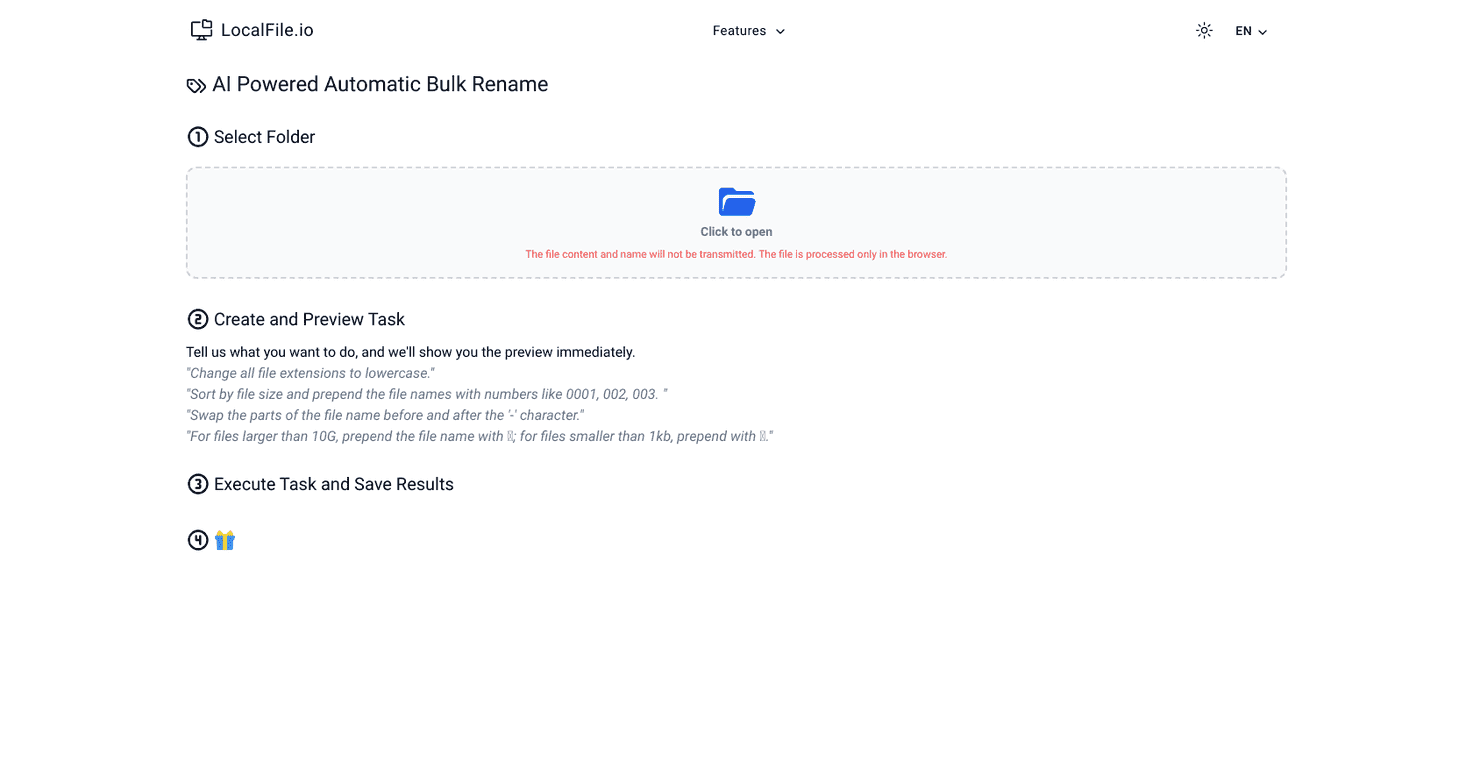
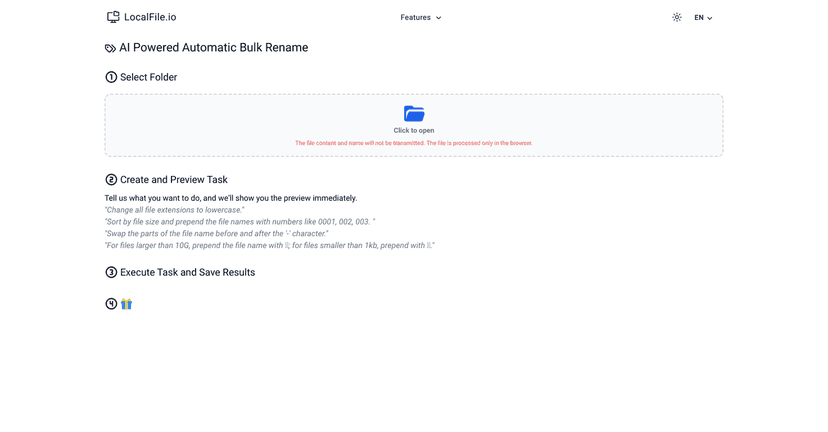
LocalFile.io is designed specifically for individuals and professionals who find themselves frequently juggling numerous files. The tool allows you to easily rename multiple files at once, saving you time and reducing the hassle of manual renaming. You can set specific rules based on your preferences, whether it’s changing file extensions or adding unique prefixes. Plus, the user-friendly interface makes navigating the tool a breeze, accommodating users of all tech levels. The preview function further adds to its usability, enabling you to see your changes before finalizing them.
Key Features
- File Rename in Bulk lets users rename multiple files based on custom criteria.
- Preview Function allows users to view changes before applying them.
- Customized Renaming Tasks accommodate various needs, such as changing file extensions to lowercase or sorting by size.
- Create Executable Files enables users to generate files for future renaming tasks.
Pros and Cons
Pros
- User-Friendly Interface simplifies the renaming process.
- Privacy Focused, processing occurs solely in the browser.
- Customizable Options to tailor renaming tasks to specific needs.
- Immediate Feedback through the preview feature.
Cons
- Limited to file renaming, lacking broader file management features.
- Requires Local Files, which might not suit users relying on cloud services.
Pricing Plans
Pricing information isn’t provided in the review content. It’s best to visit [localfile.io](https://localfile.io/en/price/) for the latest updates on pricing plans.
Wrap up
In conclusion, LocalFile.io stands out as an effective tool for anyone who routinely manages a large number of files. Its bulk renaming feature, combined with its user-friendly design and strong privacy focus, makes it an attractive option for personal and professional use. While it does have limitations in that it’s solely focused on renaming and requires local files, it excels in its specific niche. If you’re looking for a quick and reliable solution for renaming files, LocalFile.io is definitely worth trying out.
Promote LocalFile.io