Table of Contents
In today’s fast-paced world, managing documents can be daunting. Whether it’s invoices, receipts, or resumes, the need for quick and accurate data extraction is essential. FreeParser promises to simplify this process with its AI-powered capabilities designed for everyone. Let’s dive into this FreeParser review to see how it can streamline your document management.
FreeParser Review
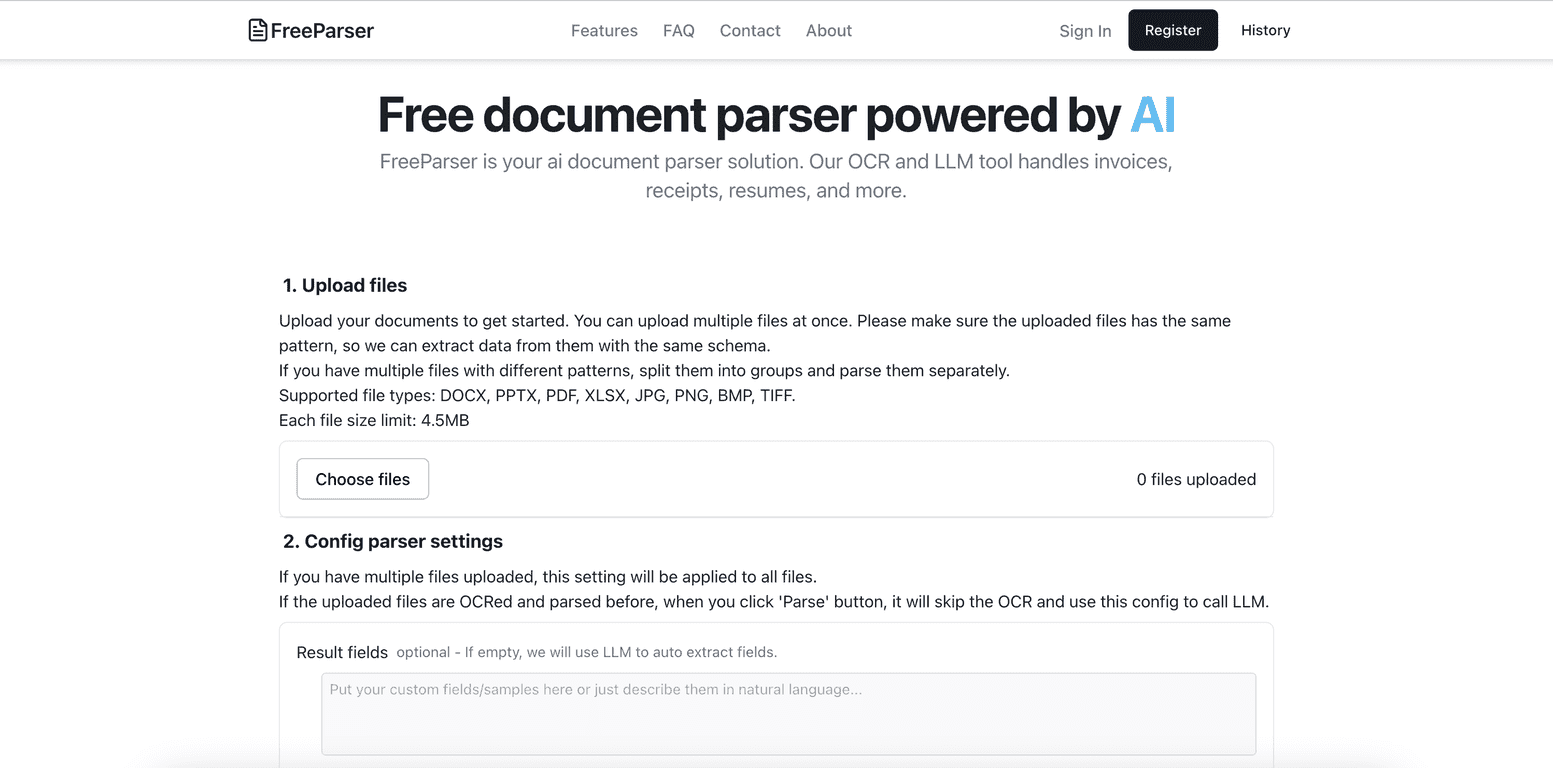
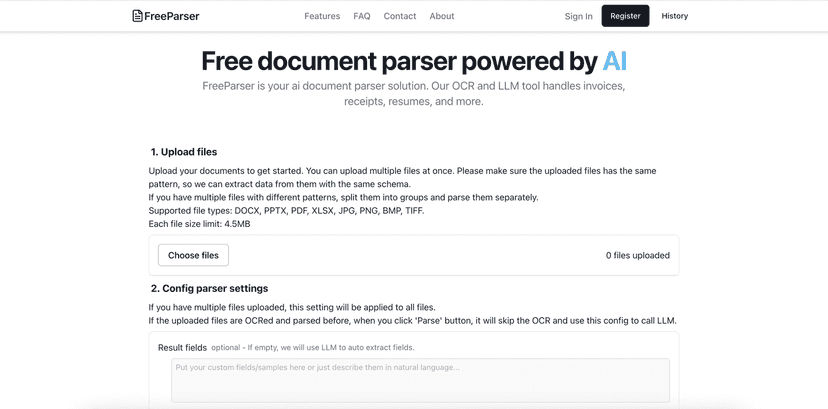
FreeParser stands out as a user-friendly tool that leverages cutting-edge AI technology to help you extract data from a wide range of document types. Its robust OCR and LLM features enhance the accuracy of text extraction even from low-quality images, making it suitable for various applications. You can upload invoices, receipts, or even CVs with ease. Plus, the platform is designed to cater to both individuals and businesses, whether you’re a freelancer managing your paperwork or a company dealing with numerous documents. What’s more, FreeParser allows you to customize the types of data you want to extract, adding a personal touch to automated processes.
Navigating through FreeParser is a breeze thanks to its user-friendly interface. You don’t need to be tech-savvy to make the most of its capabilities. Just upload your document, define your extraction fields, and let the intelligent AI handle the rest. With various pricing options and a free tier to get started, FreeParser offers a flexible solution for all data extraction needs.
Key Features
- Comprehensive document support for invoices, receipts, resumes, CVs, and passports
- Versatile compatibility with file formats like PDF, DOCX, PPTX, JPG, and PNG
- Precision OCR for accurate text extraction from low-quality images
- Intelligent AI extraction utilizing LLM capabilities
- Customizable extraction options for tailored results
- User-friendly interface accessible to all skill levels
Pros and Cons
Pros
- Free tier available to start using the service
- Transparent pricing with no hidden fees
- High accuracy across multiple document types
- Customizable data extraction options
Cons
- Limited to a specific number of pages based on the plan
- Some advanced features may require technical knowledge
Pricing Plans
FreeParser offers three pricing plans:
1. Starter Plan: $5 for 20 credits, processing up to 20 pages.
2. Plus Plan: $20 for 100 credits, processing up to 100 pages.
3. Pro Plan (Most Popular): $80 for 500 credits, processing up to 500 pages. All plans include advanced OCR, LLM processing, and email support; credits are valid for 180 days.
Wrap up
In conclusion, FreeParser is a powerful yet accessible tool for anyone seeking to simplify document data extraction. With its array of features and flexible pricing plans, it’s a fantastic option for individuals and businesses alike. If you’re tired of managing documents manually, give FreeParser a try – the accuracy and efficiency it brings to your workflow are well worth it.
Promote FreeParser