Table of Contents
If you work in a creative team, you already know the pain: one person is updating the file, another is commenting in a different place, and somehow “final” becomes a moving target. I’ve been there—so when I came across Workflow.Design, I was genuinely curious how well it could keep projects organized without turning into yet another heavy project-management tool.
Workflow.Design Review
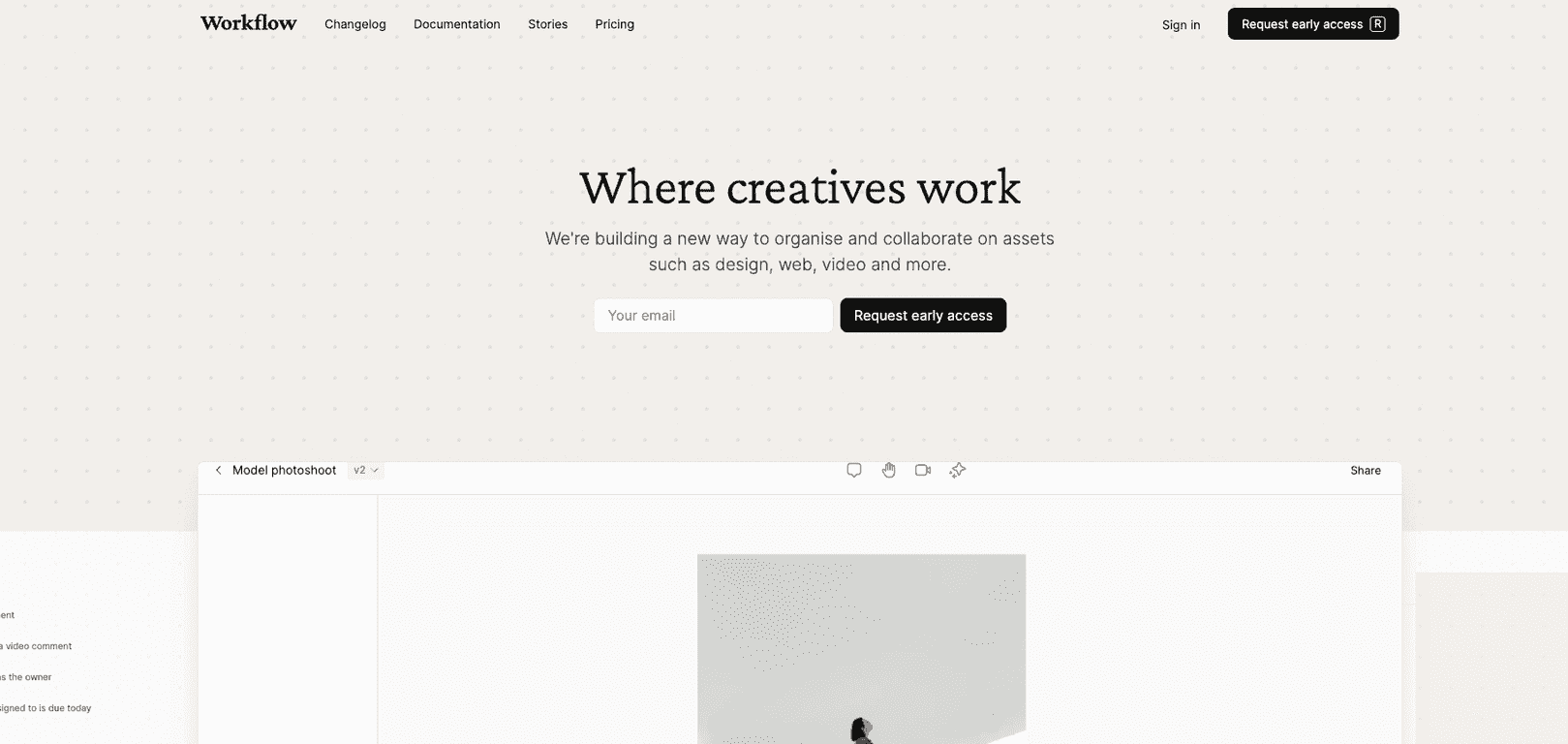
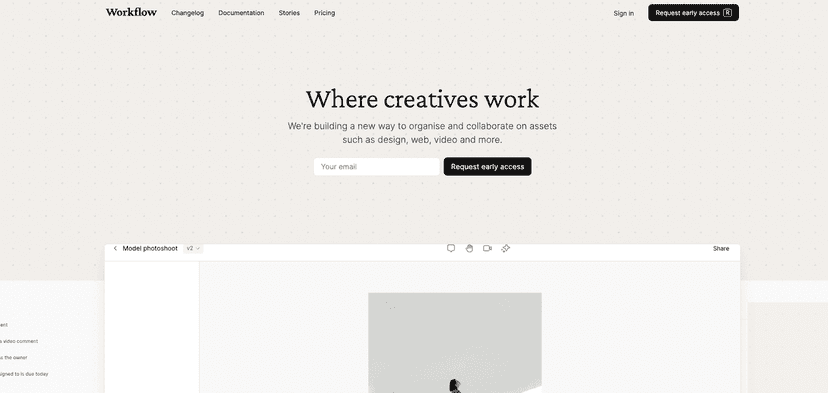
Workflow.Design is built with creative teams in mind, and you can feel that in the layout. It doesn’t try to overwhelm you with dashboards and admin screens. Instead, it focuses on the stuff creatives actually use every day: tasks, feedback, and keeping work organized as it evolves.
One of the first things I noticed is how the platform frames collaboration around “assets” and decisions. The interface makes it pretty easy to create tasks for different projects, then attach the creative work to those tasks so feedback doesn’t get scattered across random chat threads. And honestly, that alone can save hours per week—because fewer “Where did you put the updated version?” messages is a win.
AI Reviews are the headline feature, and I tested them on a few common review scenarios (spacing consistency, hierarchy clarity, and general usability checks). What I liked is that the feedback is quick and easy to act on. It’s not just vague “improve the design” comments. It pushes you toward specific fixes, which helps when you’re juggling multiple iterations. That said, I wouldn’t treat AI feedback as final authority—if you’re dealing with brand constraints or accessibility requirements that are stricter than generic checks, you still need a human designer to sign off.
Workflow.Design also makes communication feel more “attached” to the work. Team members can share ideas inside dedicated workspaces and comment directly on tasks. I found this reduces the usual back-and-forth where someone comments in one place, then the change request gets lost when the file gets updated elsewhere. If your team likes to keep discussions close to the actual deliverable, this style is a good fit.
Project Overviews are another feature I appreciated. Instead of digging through tasks one by one, you get clear summaries of what’s happening across ongoing projects. When you’re running multiple client deliverables (or internal campaigns), that “at a glance” view matters. I also noticed it helps during handoffs—someone can quickly understand the project status without asking for a full recap.
Workflow.Design supports integrations, including Figma. That’s important because most creative teams don’t want to export files manually and re-explain the context every time. With Figma in the mix, sharing work and collecting external feedback is smoother, and reviewers can focus on the design instead of the logistics.
Notifications are handled in a way that’s actually practical. You can get updates via Workflow, Slack, or email. I like having options—Slack is great for fast feedback loops, and email works well for longer review cycles or when someone’s not glued to chat. The key is that you’re not guessing whether someone saw your comment.
Since it’s early access, there are some rough edges you should expect. In my experience, the biggest “early stage” limitation is that workflows can still shift as the product evolves. But even with that, it already feels like a thoughtful tool rather than a generic collaboration app.
Two things that stand out for teams shipping real work: version control and accessibility checks. Version control is huge when you have multiple revisions—designers want to move fast, but clients (and stakeholders) want clarity on what changed. Accessibility checks are also a welcome add-on. They won’t replace a full accessibility audit, but they can catch issues early, which is exactly when it’s cheapest to fix them.
Overall, Workflow.Design feels like it was made for creative work—not just for project tracking. If your team is tired of feedback getting lost between tools, it’s worth a serious look.
Key Features
- Task Management for efficient project tracking (so work stays tied to deliverables)
- AI Reviews that provide quick, actionable feedback on creative assets
- Collaboration tools like workspaces and task-level commenting
- Project Overviews to keep the whole team aligned on status
- Integrations, including Figma, for smoother sharing and external feedback
- Notifications that can go through Workflow, Slack, or email
- Version control to manage revisions without losing context
- Accessibility checks to support usability best practices
Pros and Cons
Pros
- Creative-friendly interface — it doesn’t feel like a spreadsheet wearing a suit
- AI Reviews are fast — helpful for catching issues early in the iteration cycle
- Better organization for feedback — comments stay attached to tasks/assets
- Project Overviews reduce status-meeting overhead
- Version control makes “which version is this?” way less painful
- Accessibility Checks add value before you hand things off
Cons
- Early access means bugs are possible — I’d expect some rough corners while features mature
- Web-based dependency — if your internet is shaky, it can slow you down
- May not replace heavy PM tools — if you need complex dependencies, reporting, or enterprise workflows, this might feel limiting
- AI feedback still needs human judgment — use it to speed up review, not to avoid design thinking
Pricing Plans
At the moment, Workflow is in early access, and pricing details aren’t fully public. From what I’ve seen, access may be free or limited depending on the current rollout. The practical move is to request access through the platform and watch for updates in their communication channels so you don’t miss any launch pricing.
Wrap up
If you’re looking for a collaboration tool that actually fits the way creative teams work, Workflow.Design stands out. It focuses on tasks, feedback, and keeping versions straight—plus the AI Reviews and accessibility checks are genuinely useful for speeding up early iterations. It’s not perfect (early access always comes with tradeoffs), but it already feels like a promising option for teams that want fewer tool-hopping moments and more clarity.
Promote Workflow.Design