Table of Contents
I’ve tested a bunch of “AI creative” tools over the last year—some are great at generating images, but then you’re stuck exporting files and rebuilding your workflow somewhere else. That’s why I was curious about Weavy. My goal wasn’t just to see if it could make AI outputs. I wanted to build an actual editing workflow end-to-end: generate something, mask/adjust it, composite it into a scene, and keep everything organized without bouncing between apps.
After spending time setting up a few test flows, here’s what changed for me. Instead of treating AI like a separate “generate then pray” step, Weavy lets you chain models and editing operations inside one node-based canvas. That matters when you’re iterating—because you can go back, tweak a prompt or mask, and re-run the later nodes without starting over from scratch.
Weavy Review: What It’s Like to Build Real AI Editing Flows
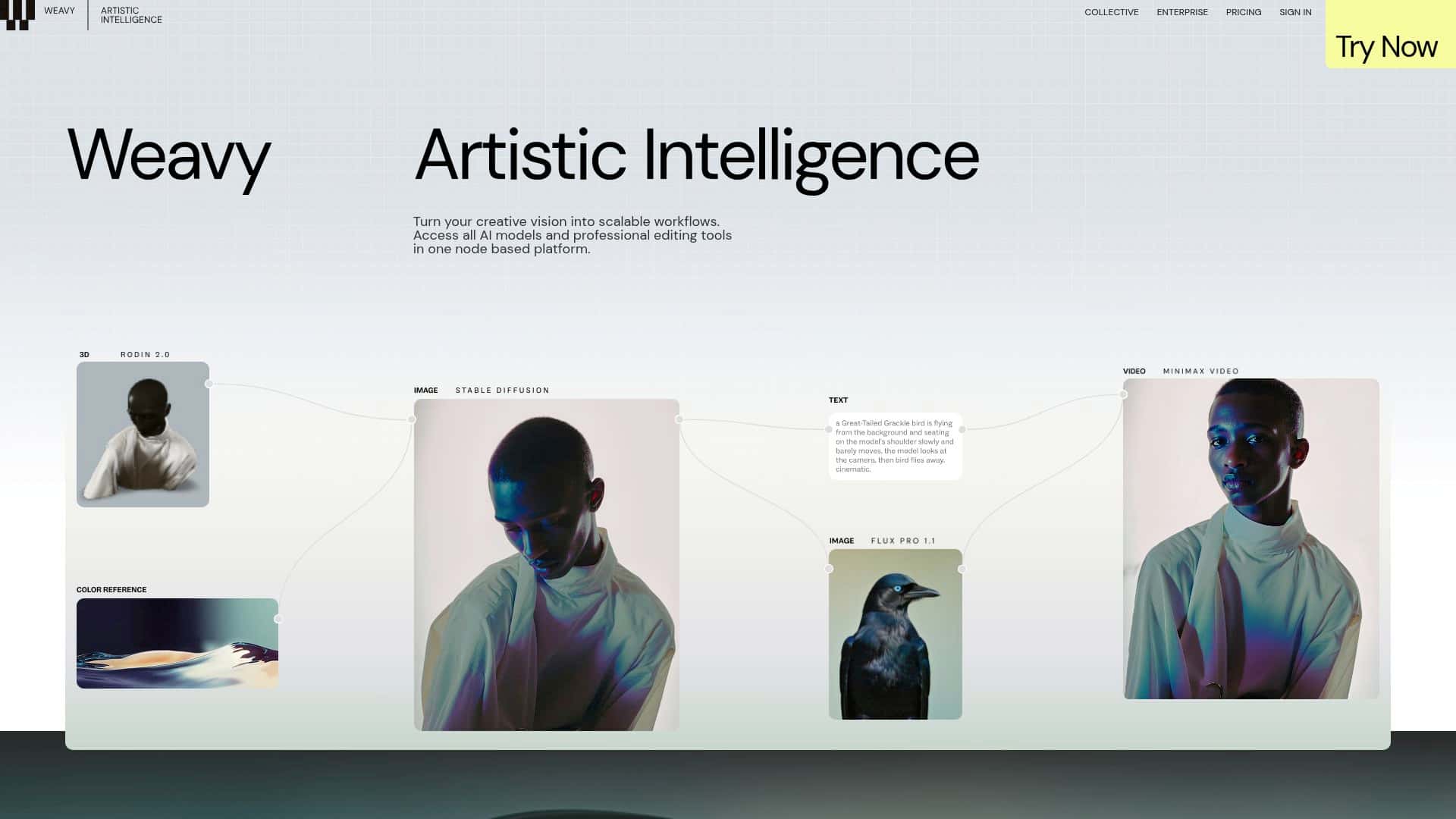
When I opened Weavy, the first thing I noticed was how “workflow-y” it feels. It’s not just a prompt box. It’s a node-based setup where you connect model steps to editing steps—so you’re building a pipeline, not just clicking Generate and hoping.
My test setup (baseline + goal)
Before Weavy, my usual approach looked like this: generate an image in one tool, export it, then do masking/compositing in another editor, and finally re-export for the next iteration. For this test, I wanted to compress that loop. My target workflow was simple on paper:
- Generate an image using an AI model.
- Apply masking/compositing to place elements into a base image.
- Optionally run an inpainting or “edit inside the mask” step.
- Keep the whole thing editable so I could iterate without restarting.
What I actually did inside Weavy
I built a small chain with a generation node first, then followed it with editing nodes (masking/compositing style steps). The practical benefit showed up fast: when I changed a prompt or adjusted a mask region, I could re-run the downstream nodes instead of repeating every stage manually.
And yes, I connected different AI models during the same workflow. For example, I tested a setup that included SD 3.5 and GPT img in different branches so I could compare outputs. That comparison part is huge—because some prompts look better in one model, and different styles (or composition choices) pop more in another.
What “seamless” means in practice
“Seamless” is a word people throw around, so here’s my more honest version: the UI stays organized while you chain steps, and the outputs from one node flow into the next node without weird format juggling. What I found smooth:
- Layer-style editing feels like you’re still working like an editor, not just a generator.
- Masking is the key—once your mask is right, re-running the AI edit is much faster than recreating the mask elsewhere.
- Compositing lets you build multi-layer scenes without leaving the workflow canvas.
Limitations I ran into
It’s not perfect, though. The node-based approach is powerful, but it also means you need to think a bit more like a pipeline designer. If you’re used to a standard layer editor, the first hour can feel like “where do I put this step?” I also noticed that some outputs require prompt tweaks and mask refinements—especially when the model tries to “help” by altering areas you didn’t intend to change.
In other words: Weavy helps you iterate faster, but it doesn’t remove the need for creative direction.
Key Features (and How They Worked for Me)
- Integration of multiple AI models (GPT img, SD 3.5, Runway, Kling)
- I liked that I could swap models without rebuilding the whole workflow. In my test, I ran one generation path, then another, and compared results side-by-side by keeping the rest of the pipeline consistent (same base/composite steps, different model outputs). That made it obvious which model produced the look I wanted.
- Professional editing tools: layering, masking, compositing, inpainting
- Here’s the mini-example I kept coming back to: I generated an element, masked the area where it should appear, then used a follow-up edit/inpaint-style step to refine what was inside the mask. The big win was that I didn’t have to export/import between tools just to fix one region.
- Node-based interface for scalable workflows
- What I noticed: it’s easy to keep things organized once you name/structure your nodes. If you’re building a repeatable workflow (like “generate → mask → composite → final touch-up”), nodes make that repeatability real. If you’re not used to node graphs, give yourself time—my first workflow took longer because I was figuring out how the nodes expected inputs.
- Multi-layer compositing, matte manipulation, and 3D design support
- This is where Weavy starts to look more “production-ish.” I didn’t go deep into 3D for this test, but the compositing/matte workflow felt like it was designed for more than single-image edits. If you’re compositing multiple elements (foreground/background, cutouts, mattes), you’ll probably feel at home faster.
- Automatic UI generation for team collaboration and consistency
- I tested the collaboration angle by thinking like a team: if you can package a workflow so others don’t have to rebuild your node chain, you get consistency. Instead of “everyone uses their own settings,” you can guide the workflow inputs. That’s a big deal for teams that need repeatable results.
Pros and Cons
Pros
- Real workflow chaining: You can connect generation and editing steps without constantly switching apps.
- Organized node layout: It’s easier to understand what happens where once you build a few pipelines.
- Multiple AI models in one place: I could compare outputs by swapping model nodes while keeping the rest of the pipeline stable.
- Collaboration-friendly: Workflows can be shared so teams can keep settings consistent.
Cons
- Learning curve: If you’re new to node graphs, expect some trial-and-error. In my case, the first workflow took longer than it should have because I was mapping which node should come before the mask/composite steps. After that, it got quicker.
- Pricing clarity: I couldn’t confirm exact pricing tiers from the content I reviewed, so you’ll want to check the official pricing page before committing.
Pricing Plans
Weavy’s exact pricing tiers weren’t clearly listed in the material I reviewed. Because pricing can change and plans may depend on usage limits, I recommend checking their official pricing page directly (or contacting support) to confirm what you’ll pay and what limits apply to your workflow.
If you’re comparing tools, I’d also pay attention to whether pricing is tied to:
- AI usage (generations/runs)
- render/export limits
- team seats or collaboration features
That’s usually where “cheap on paper” tools get expensive in practice.
Wrap up
So, is Weavy worth your time? If you’re doing anything beyond one-off image generation—especially if you’re masking, compositing, or iterating with multiple AI models—Weavy feels like it’s built for that. It’s the kind of tool where the value shows up after you’ve made a workflow you can reuse.
On the flip side, if you just want a simple generate-and-download experience, the node interface and workflow mindset might feel like overkill. And since pricing details weren’t concretely visible in what I reviewed, you’ll definitely want to verify tiers/limits before you commit.
For creators who want fewer app-switches and a more organized pipeline, though? I’d say Weavy is worth a serious look.