Table of Contents
If you’re anything like me, productivity tools are great… until you’re stuck doing the same boring stuff again: rewriting emails, turning messy notes into something readable, or trying to summarize a long article without losing the point. That’s where Voilà AI Assistant caught my attention.
I’ve been testing it for writing help and “right-now” assistance while I’m actually working (not just in some demo window). The big idea is simple: it gives contextual help on top of whatever website you’re using—so you’re not constantly switching tabs or copy-pasting everything into a separate tool.
So what does that look like day to day? For me, it comes down to three things: drafting, editing, and speeding up the small tasks that quietly eat your time. Voilà can help you draft an email, brainstorm ideas, and even summarize or translate text without making you start from scratch. And yes—there’s also image generation from text descriptions, which is a nice bonus when you need something visual for a slide, post, or quick concept.
One thing I genuinely like is the expert prompt library. I’m not always in “create the perfect prompt” mode. Having a set of ready-to-use prompts means I can get moving faster—especially when I’m staring at a blank document thinking, “Okay… what do I even write first?”
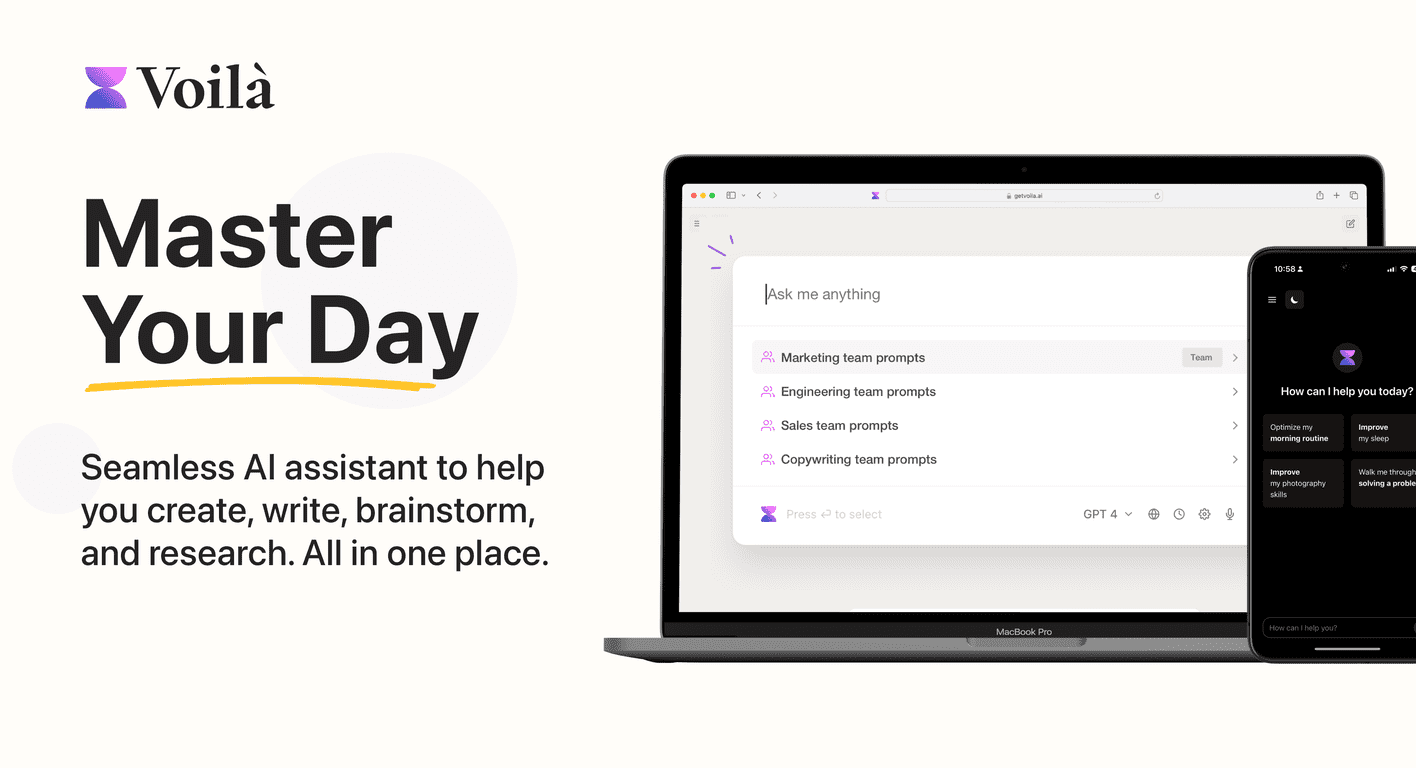
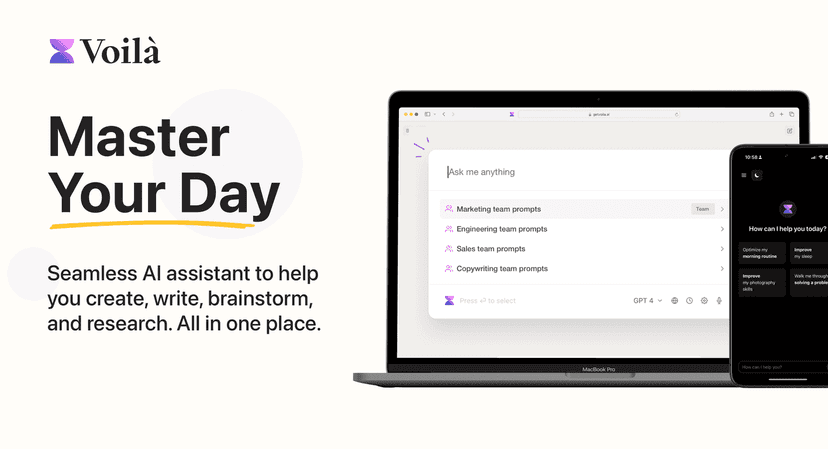
Also, Voilà is available on both desktop and mobile. That matters more than people think. I’ll be honest: I don’t always do work in neat blocks. Sometimes I’m on my laptop, then I’m away from my desk, then I need to keep momentum on my phone. Cross-platform support helps you not lose the thread.
Voila Review
Voilà AI Assistant is built for people who want help while they’re already working. Instead of treating AI like a separate writing app, it overlays features across the web, so you can get contextual assistance wherever you are.
When I used it for writing, the most useful moments were the ones where I didn’t want to start over. Like when I had a rough email draft with the right intent, but the tone was off. Voilà helped me tighten it up and rephrase sections without completely changing what I was trying to say.
It also supports brainstorming and research support. If you’ve ever had to pull together talking points from a few sources, you know that “summarize this” is really “summarize it without losing the key argument.” Voilà’s summarization and translation features are designed for that kind of quick cleanup.
And the image generation is a fun add-on. I don’t use it for everything, but it’s handy when you want a quick visual concept from text—especially for social posts, lightweight marketing ideas, or internal slides.
Key Features
Here’s what stood out to me most when I tested Voilà:
- AI Integration (works on any website): Contextual help right where you’re reading or writing.
- Content creation: Draft emails, blog outlines, and social posts without starting from a blank page.
- Instant reply assistance: You can get response templates and quick rewrites when you’re short on time.
- Expert prompt library: Ready-made prompts that help you get unstuck fast.
- Summarization & translation: Useful for turning long text into shorter takeaways and for translating content on the fly.
- Image generation: Create images from text descriptions when you need something visual.
- Cross-platform availability: Use it on Windows, Mac, iOS, and Android (so you’re not chained to one device).
- Team collaboration: Shared workflows for teams—helpful if you’re trying to standardize how people draft and respond.
Pros and Cons
Pros
- Multi-platform support: I liked being able to keep working from my phone instead of waiting until I got back to my desk.
- Time savings for everyday writing: Rewriting, summarizing, and drafting are faster when you can use the tool directly in your workflow.
- Multiple tools in one place: Summarization, translation, drafting, and even image generation reduce the need for switching between apps.
- Prompt library is actually practical: It’s not just fluff—having examples makes it easier to get good results sooner.
Cons
- Not perfect for niche expertise: If you’re working on highly specialized content, you’ll still need to review carefully. It can get close, but it won’t replace subject-matter knowledge.
- Internet required: If your connection is spotty, the experience suffers—no way around that.
- Customization can feel limited: I wanted a bit more control over tone/style settings for consistent outputs across different tasks, and that’s not always as flexible as I’d like.
Pricing Plans
Voilà offers a free version for basic functionality, and it also has paid plans for more advanced features. The exact pricing can change, so I’d recommend checking Voila’s official website for the most up-to-date numbers.
In my experience, the real question isn’t “Is it expensive?”—it’s “Will it save you enough time each week?” If you write emails, summarize articles, or draft content regularly, it can pay for itself pretty quickly. If you only use AI once in a while, the free tier may be enough.
Wrap-up
Voilà AI Assistant is one of those tools that feels most valuable when you use it like a daily helper, not a one-time experiment. The biggest win for me is the contextual workflow—getting assistance while I’m on the page I’m already working in. If you’re trying to cut down the time spent rewriting, summarizing, or translating, it’s worth a serious look.
Just remember: you still need to review outputs. AI can speed things up, but it can’t fully replace your judgment—especially for anything that needs to be accurate, on-brand, or technically precise.