Table of Contents
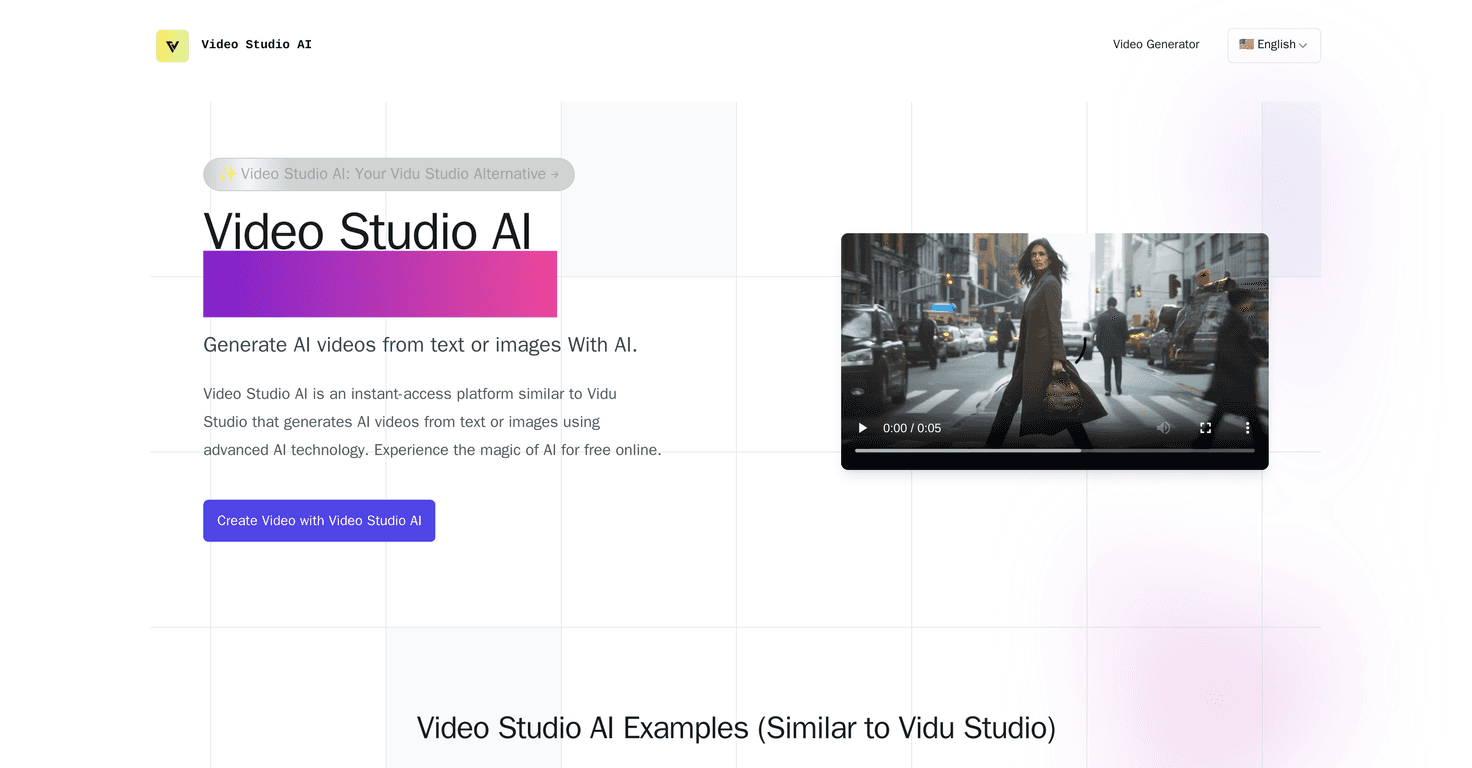
Video editing usually takes time. Lots of it. So when I came across Video Studio AI, I decided to test it the “easy mode” way—using a couple of images and some simple text prompts—and see what I actually got after a few minutes.
Here’s the quick takeaway: Video Studio AI is built for fast video creation without needing to learn editing software first. You can turn an image into an animated clip or generate a video from a text prompt. And yeah, it’s pretty impressive when it works well—faces look lively, expressions shift naturally, and the motion feels more “intentional” than random.
That said, it’s not magic. If you feed it low-quality photos, the results won’t look high-end. And group photos? I noticed the animations can get a bit uneven—some people look more animated than others, and the composition doesn’t always stay perfectly consistent.
The good news is the platform feels beginner-friendly. The interface doesn’t drown you in settings, and you can usually get from upload/prompt to a first draft quickly. If you want to explore AI video creation without paying upfront, the free basic options are a solid way to test whether it fits your style.
Video Studio AI Review (What I Noticed After Testing It)
I’m not going to pretend AI video tools are all the same. Video Studio AI stands out because it’s quick to get a usable result. In my tests, I could go from a prompt or uploaded image to an animated video draft pretty fast—fast enough that it feels more like “generate and iterate” than “wait and hope.”
Here’s what I liked most:
- Image-to-video works well when the photo is clear. If the subject is sharp and well-lit, the animation looks more natural.
- Text prompts are flexible. I tried simple descriptions and got clips that matched the general vibe. You don’t need to write like a scriptwriter, but being specific helps.
- Character integrity is a real priority. Faces and key features don’t completely fall apart the way they sometimes do in cheaper tools.
Now the stuff that surprised me (in a not-so-great way): group photos. When I used an image with multiple people, the animations weren’t equally strong across everyone. Some faces looked more “alive” than others, and the overall motion can feel a little off compared to single-subject images.
Also, if you’re expecting perfectly polished cinematic output every time—don’t. You may still need a couple of attempts to get the motion and pacing you want. And occasionally, you might see minor artifacts in the animation. Nothing catastrophic, but it’s noticeable if you’re picky.
Still, if your goal is quick marketing clips, social posts, or “wow” demos without editing from scratch, this is one of the easier tools to try.
Key Features That Matter (Not Just Buzzwords)
- Instant video generation from images or text — You can upload a photo or start with a prompt, then generate a video draft without building a project from scratch.
- High-quality animations with natural movement — In my experience, motion looks more believable when the image has a clear subject and decent lighting.
- User-friendly interface — It’s straightforward. I didn’t feel like I needed a tutorial to get my first result.
- Versatile input options — Images and text prompts both work, so you can choose based on what you already have.
- High character integrity — The tool tries to keep faces and key details consistent during animation.
- Lightning-fast processing times — Drafts come back quickly enough that you can iterate without losing your momentum.
Quick practical tips (from what worked for me):
- Use high-resolution images. Blurry photos almost always lead to weaker animation.
- For prompts, add simple direction like “smiling,” “turning slightly,” or “subtle camera movement” instead of vague phrases.
- If the first result isn’t right, don’t keep the same image settings—try a different crop or a new prompt variation.
Pros and Cons (Real Talk)
Pros
- Free to use with basic functionalities — I like that you can test it first instead of jumping straight to paid plans.
- Fast video production — Generating drafts doesn’t feel painfully slow.
- Realistic animations — Motion and expressions can look surprisingly lifelike, especially with single-subject images.
- Intuitive design — It’s easy to navigate, even if you’re not technical.
- Supports diverse input methods — Image-to-video and text-to-video both give you options.
Cons
- Group photos can be hit-or-miss — Animations may not be consistent across multiple people.
- Occasional artifacts — Sometimes you’ll spot small glitches in motion or details.
- Results depend heavily on input quality — If your original image is low quality, you’ll feel it in the final clip.
Pricing Plans (How It Usually Works)
Video Studio AI uses a pricing model similar to a lot of AI video platforms: the basic functionality is free, and premium plans unlock more features and typically remove limits like generation caps or access to advanced options.
If you want the exact numbers (and they can change), it’s best to check the Pricing section on their website directly. Start with the free tier if you’re just testing ideas—you’ll quickly see whether the output quality matches what you’re trying to post.
Wrap up
Video Studio AI is a practical option if you want to create animated videos without turning your life into a full-time editing project. In my experience, it shines with single-subject images and clear photos, and it’s fast enough to encourage experimentation. Just go in knowing group photos and low-quality images can be a weak spot, and you might need a couple tries to get a truly clean result. If you want to experiment with AI video creation today, it’s definitely worth giving the free basic features a shot.
Promote Video Studio AI