Table of Contents
I’ve been testing Vid AI for a bit, and honestly? It’s one of those tools that makes video editing feel less intimidating. You know how traditional editing can turn into a whole rabbit hole—cutting, trimming, color tweaking, matching audio, fixing captions—and suddenly it’s 2 hours later with nothing posted? Vid AI tries to cut through that mess with AI-assisted steps and a pretty straightforward layout.
Vid AI Review
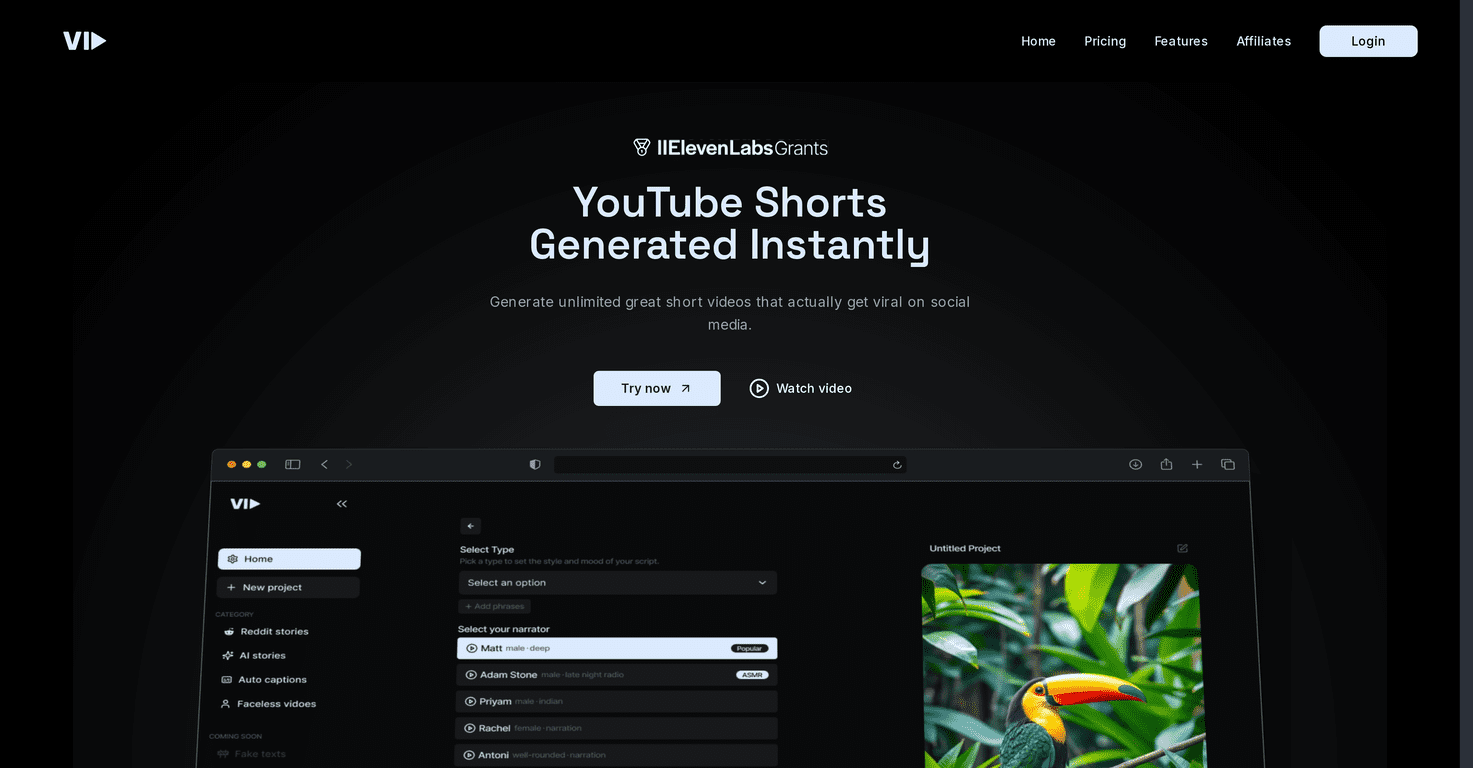
Vid AI positions itself as an AI video editing platform, and that’s exactly what it feels like once you start working in it. The interface is clean, the steps are guided, and it doesn’t assume you already know every editor shortcut under the sun.
What I liked most is the “get to something usable fast” vibe. I tried building a short social clip (think 30–60 seconds) using a template first instead of starting from scratch. Within minutes, I had a basic structure—clips placed, text overlays ready, and a layout that didn’t look like a first draft. Is it as flexible as a full pro editor? No. But for most people posting consistently, speed matters more than perfection.
It’s also the kind of tool you can use for different video types without feeling like you’re constantly rebuilding your workflow. Promo videos, vlogs, and even quick announcement-style edits all work because the templates and editing blocks are pretty plug-and-play.
Quick example of how I’d use it: I’d upload footage, pick a template, add/adjust text, then use the voiceover or text-to-speech option to get narration in place. After that, I’d do a pass to make sure the pacing feels right—especially around transitions and where the captions land.
Key Features
- AI-driven editing tools that save time
When I used the AI-assisted editing parts, the biggest win was how quickly it helps you assemble a video. You’re not staring at an empty timeline wondering where to start. It nudges the process along—cuts, structure, and suggested edits—so you can spend more time on the message instead of the mechanics. - Extensive library of templates and stock footage
This is one of Vid AI’s strongest selling points. I’m picky about templates, and I noticed the library is built for real use cases (social clips, marketing-style layouts, and general content formats). If you don’t have a lot of stock footage yet, the built-in library helps you avoid delays. - Easy-to-use interface suitable for all levels
Even if you’re not an editor, you can still follow what’s happening. The controls feel intuitive. I didn’t have to hunt through menus for basic tasks like adding text, switching layouts, or adjusting the order of clips. - Voiceover and text-to-speech options
This feature is great when you want to publish quickly. I tested text-to-speech by adding a script, and it got me a clean narration track without recording anything. That said, if you’re going for a very specific tone or heavy emotion, you’ll still want to review the output—sometimes the pacing sounds a little “robotic” depending on the voice and the wording. - Collaboration features for team projects
If you’re working with a small team, collaboration matters. Vid AI’s collaboration options make it easier to keep feedback inside the project instead of bouncing files around via email or chat.
Pros and Cons
Pros
- Time-saving with AI automation
In my testing, the biggest payoff was speed. I could go from “idea” to “publishable draft” faster than I usually can with traditional editing. - Beginner-friendly without feeling overly basic
The learning curve is real, but it’s not overwhelming. Most people can get a solid result without spending weeks learning editing software. - Templates and resources actually help you finish
The template library isn’t just decoration—it gives structure, so you’re less likely to end up with a half-finished project. - Pricing can be reasonable depending on your output
If you’re producing content regularly, the paid plans can make sense fast.
Cons
- Limited advanced controls for pro-level editing
If you’re used to fine-tuning effects, audio waveforms, and advanced timeline workflows, Vid AI may feel restrictive. You can do a lot, but it won’t fully replace a dedicated pro editor. - Occasional lag with larger files
I noticed delays when working with heavier uploads. It wasn’t constant, but it did slow the editing experience when scrubbing and previewing. - Some advanced functions take a bit of figuring out
Even though it’s user-friendly, certain settings (especially around polish—like text timing or more detailed adjustments) may require a few tries before you get the result you want.
Pricing Plans
Vid AI has a pricing setup that’s pretty typical for tools like this: a basic free tier and then paid plans once you want more features and more room to create.
Free plan: Good for testing things out, but you’ll be limited in features and output. I’d use it to confirm the workflow fits your style before committing money.
Paid plans: Paid tiers start at $15 per month, and that’s where you typically get access to premium templates, more advanced editing tools, and increased storage.
If you’re deciding whether to upgrade, I’d ask: how often am I actually publishing? If you’re making multiple clips a week, paying for the higher tier usually feels worth it. If you only need an occasional video, you might be better off sticking with the free plan until you’ve got a clearer routine.
Wrap up
Vid AI is a solid choice if you want to create videos without getting stuck in traditional editing complexity. In my experience, it shines when you’re working on social content, promo-style clips, and anything where templates and quick assembly matter. You get a faster path to a polished draft, and that alone is a big deal.
Just go in knowing its limits: it’s not trying to be a full replacement for advanced pro software. If you want deep control over every frame and audio detail, you may still need a more traditional editor. But if your goal is to publish consistently and keep the process simple? Vid AI does a lot right.
Promote Vid AI