Table of Contents
Ever upload a video and think, “Wow… why does this look so soft?” Yeah, I’ve been there. Low light, shaky footage, old camera exports—sometimes your clip just doesn’t have the crispness you want, even if the content is great. That’s where UpscaleMy.Video comes in.
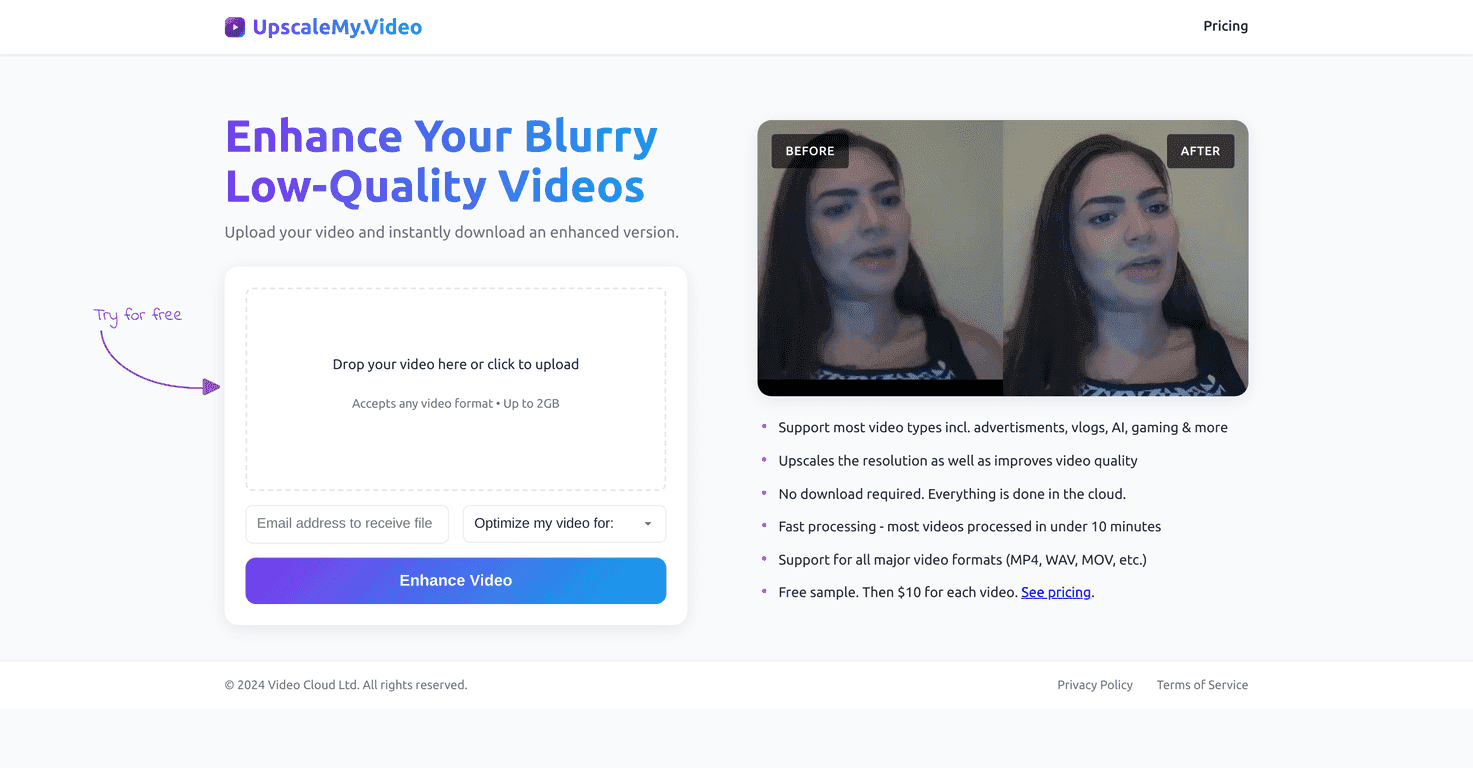
In my testing, UpscaleMy.Video is a pretty straightforward web tool that upscales lower-quality footage to HD 1080p using AI. You don’t download anything, and you don’t have to wrestle with settings. You upload, it processes in the cloud, and you get an improved version back. Most jobs I ran were finished in under 10 minutes, which is honestly fast enough that you can do something else while it works.
One thing I liked right away: it’s built for normal people. No “pro workflow” required. You can also use it for different video types—MP4, WAV, and MOV are supported—so you’re not locked into one export format. If you’re cleaning up personal videos, upgrading content for social media, or polishing something you filmed on a phone, that flexibility matters.
Below, I’ll break down what it does well, what it doesn’t, and whether the pricing makes sense for you.
UpscaleMy.Video Review: What I Noticed After Testing It
Let me start with the basics. UpscaleMy.Video is an online video enhancement tool that uses AI to upscale low-quality videos to 1080p. It’s cloud-based, so there’s no installation. In practice, that means you can go from “upload” to “enhanced output” without setting up any weird software on your computer.
In my experience, the workflow is simple:
- Upload your video (no special prep needed)
- Wait for the cloud processing
- Receive the enhanced result (the service sends it to you)
What I noticed most is how quickly it gets you a usable upgrade. Most processing I saw was under 10 minutes. That’s a big deal if you’re trying to fix a batch of clips and don’t want to sit there babysitting a render queue.
It also supports multiple formats—MP4, WAV, and MOV. I tried different exports and didn’t run into the “unsupported file type” headache that some tools love to throw at you.
Now, I’ll be honest: upscaling won’t magically turn a blurry video into perfect HD. If your original footage is extremely compressed or heavily blurred, the AI can improve clarity, but it can’t recreate details that were never captured. Still, for the typical “my video looks a little rough” situation? This tool does a decent job.
Key Features That Matter (Not Just Buzzwords)
- Upscales to 1080p so your output is easier to use for modern platforms
- AI-based enhancement aimed at improving clarity and overall video quality
- Fast processing, typically under 10 minutes depending on the file
- Cloud-based workflow (no downloads, no installs)
- Supports major formats like MP4, WAV, and MOV
- Free sample so you can test the results before committing
One practical tip: if you’re deciding whether it’s worth paying, use the free sample on the “worst” video you have. If it improves that one noticeably, you’ll probably be happy with the rest.
Pros and Cons (Realistic Expectations)
Pros
- Simple upload process—I didn’t have to hunt for settings or learn a new interface
- Noticeable quality improvement on lower-resolution or softer-looking clips
- Good format coverage (MP4, WAV, MOV) which reduces friction
- Flexible pricing options depending on whether you upscale occasionally or a lot
Cons
- The free enhancement is limited—it’s basically one video, so don’t plan a whole project on the trial
- Extra videos cost money after the initial free attempt
- Email is required to receive the enhanced videos, which might not be ideal if you’re protective of privacy
Also, keep your expectations grounded. If your footage is heavily artifacted (think strong compression blocks), the AI can smooth things out, but it won’t fully “restore” missing detail like a true re-capture would.
Pricing Plans: Free Sample, Then Either Per-Video or Subscription
Here’s the pricing setup as I understand it:
- First upscale is free (so you can try the results quickly)
- Additional videos: $1.99 each
- Subscription option: $9.99/month for unlimited video enhancements
If you only have a couple clips to improve, paying $1.99 per video is pretty reasonable. But if you’re cleaning up a whole library—like old family footage, content you repurpose often, or a set of client uploads—the $9.99/month option can make more sense fast.
Wrap up
UpscaleMy.Video is a solid choice if you want an easy way to enhance videos without installing anything. The 1080p upscaling, quick turnaround (often under 10 minutes), and support for common formats like MP4, WAV, and MOV are the main reasons I’d recommend it.
Just remember: the free sample is limited, and you’ll need an email address to get the output. If you’re okay with that—and your source material isn’t hopelessly blurry—this is one of those tools that can genuinely save you time.