Table of Contents
I’ve been testing a bunch of “all-in-one” AI tools lately, and Toolgo is one of the few that actually feels built for daily use—not just a demo page. If you’re the type who constantly bounces between a chat bot, a translator, and a PDF tool, this is the kind of platform that can save you time. I like that it keeps everything in one place, so you’re not hunting for the right feature every time you need it.
In this Toolgo review, I’ll walk through what it does well, where it still falls short, and what you should watch for before you commit.
Toolgo Review
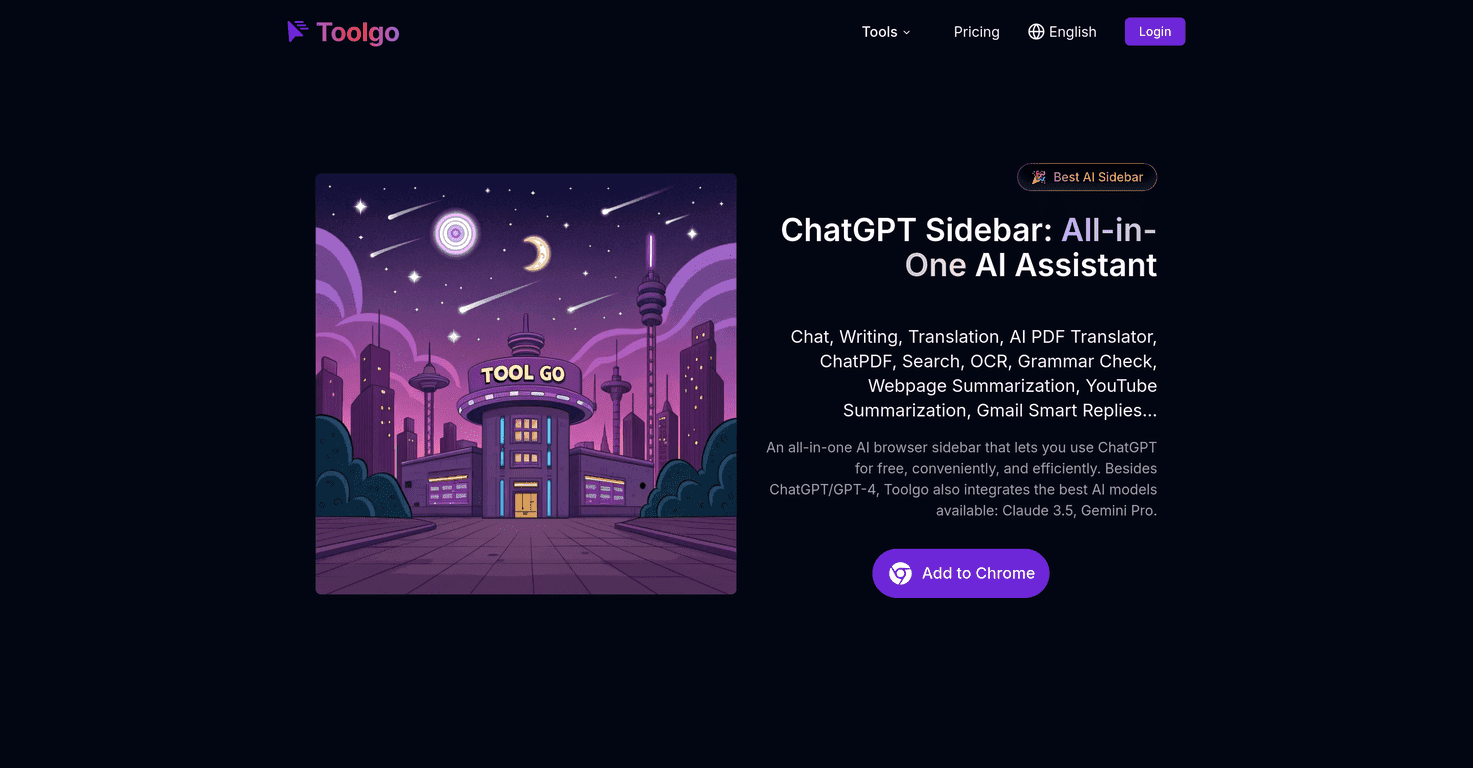
Toolgo is basically an all-in-one AI toolbox. For me, the biggest draw is that it covers a bunch of everyday tasks—writing, translating, summarizing, and working with documents—without forcing you to jump between separate apps. If you’ve ever had to copy/paste text into five different tools, you already know the pain.
Here’s what I tried right away: writing a quick email draft, translating a paragraph, and then testing the “AI PDF Translator” idea on a document. The layout is simple—sidebar navigation, clear tool names, and you don’t feel lost trying to figure out where things live.
And yes, it’s useful for casual stuff too. Need help turning messy notes into something readable? Want a multilingual chat to practice? Toolgo covers that lane as well.
Key Features
- Engaging AI chat for multilingual conversations
When I tested it, the multilingual chat felt like the most “natural” starting point. You can switch languages depending on what you’re working on, and it’s handy for quick back-and-forth without opening another translator tab. - Multi-functional writing assistant with grammar checks
This is the feature I use the most. I ran a few rough drafts through it and noticed it doesn’t just “rewrite”—it also helps clean up grammar and awkward phrasing. If you write emails, proposals, or even posts, that alone can be a time saver. - Accurate language translation tools
I used it on short paragraphs and longer sentences. Short translations were usually spot-on, while longer text sometimes needed a second pass to keep the tone consistent. Still, it’s faster than doing it manually. - AI PDF Translator that keeps the original format
This is a big deal. In my experience, most translators mess up layout. Toolgo’s “keep the original format” approach is exactly what I look for when I’m translating PDFs for work or school. - ChatPDF for intelligent PDF interactions
Instead of only translating, you can interact with a PDF like it’s a source you can query. I found this useful for pulling key points without reading every page. - Summarization features for videos and webpages
I tested webpage summarization by pasting a chunk of content and asking for a shorter version. It generally captures the main idea, and it’s great when you’re trying to decide if a source is worth your time. - OCR for text extraction from images
OCR is one of those features that can be hit-or-miss depending on image quality. When the text is clear, it works well. When the screenshot is blurry or the font is tiny, you’ll probably need to clean up the image first.
Pros and Cons
Pros
- Lots of tools in one platform
You’re not juggling multiple websites just to do translation + writing + summarizing. - Sidebar interface is easy to navigate
I didn’t have to “learn” the UI for long. The tool list is straightforward, and it’s quick to switch between tasks. - Multi-language support
If you work with global clients or study another language, this is a real advantage. - Good for academic research and business use
Summaries, PDF interactions, and writing help are exactly what I’d want when reviewing documents or drafting professional messages.
Cons
- Some features need internet
If you’re offline, you won’t get the full OCR/PDF experience. Not surprising, but it’s worth knowing. - Free version is limited
In my tests, advanced usage (and some “more frequent” tasks) tends to push you toward premium. If you’re a casual user, you might be fine. If you’re doing this daily, you’ll likely feel the limits.
Pricing Plans
Toolgo offers a free version with basic functionality, which is great if you just want to try the workflow. For heavier users—especially if you’re doing lots of PDF work, OCR, or frequent writing assistance—you’ll probably want the premium subscription.
Pricing can change over time, so I’d recommend checking the official page for the latest details before you sign up: Toolgo.
Wrap up
Overall, Toolgo feels like a practical productivity tool rather than just another chat interface. I like that it combines chat, writing help, translation, and PDF features in one place—so when I’m working on something (like translating a document or summarizing a page), I don’t have to switch tools constantly.
Would I call it perfect? Not really. OCR depends on image quality, and the free plan won’t satisfy everyone if you’re using it a lot. But if you want an AI toolbox for everyday tasks—especially writing and document work—Toolgo is definitely worth a look.
Promote Toolgo