Table of Contents
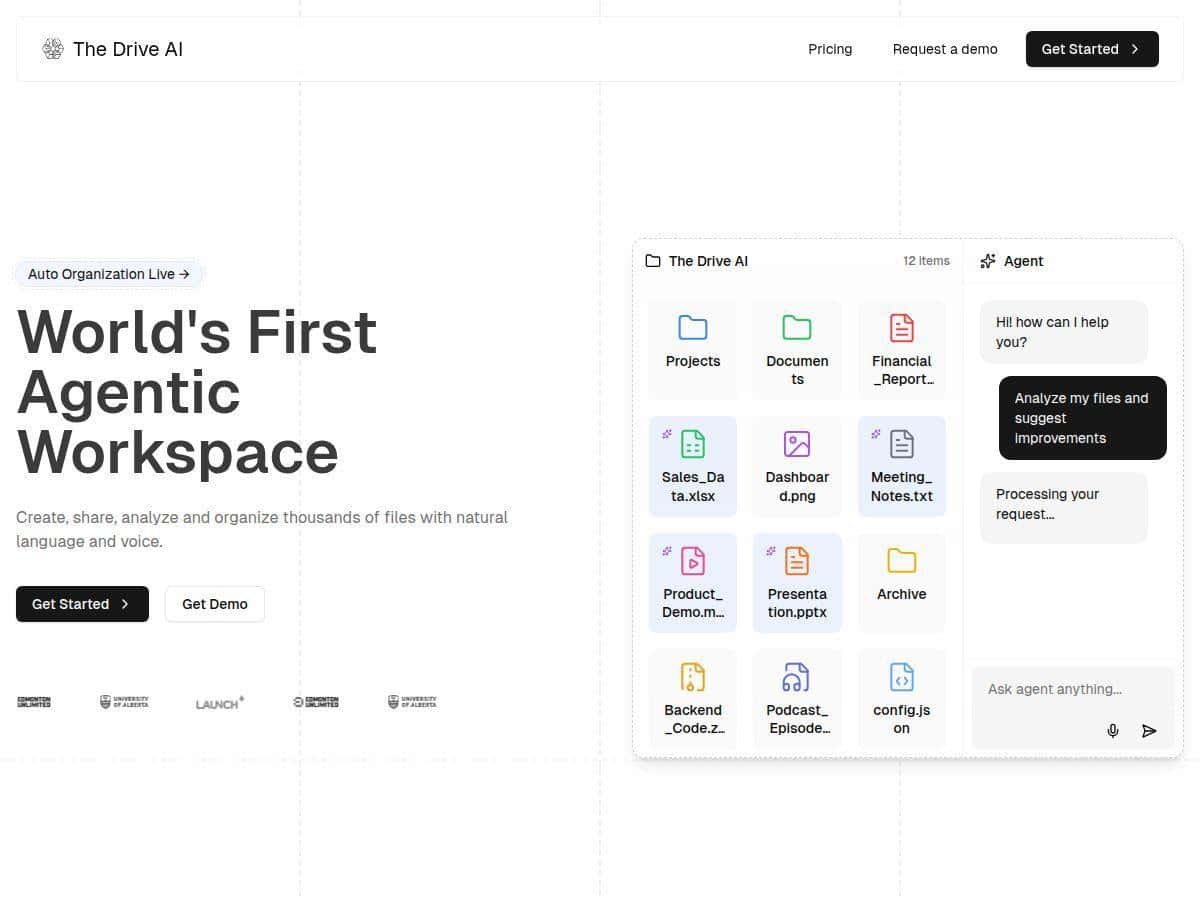
If your computer (or Google Drive) has turned into a chaotic pile of PDFs, screenshots, and “I’ll sort this later” folders, I get it. That’s exactly where The Drive AI caught my attention. I tested it with a mix of document types and a pretty realistic workflow: weekly email attachments, a few scanned pages, and the kind of messy naming that usually makes manual organization painful. The promise is simple—use AI to organize and understand your files so you don’t have to babysit folders all day. So… does it actually work, or is it just another “smart organizer” pitch? Here’s what I noticed after using it.
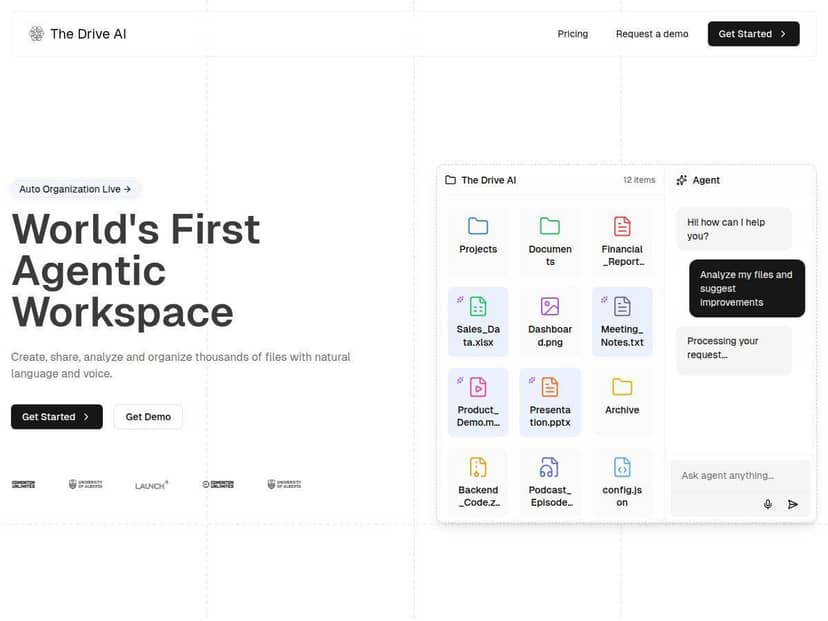
The Drive AI Review
I used The Drive AI for a few days straight, not just a quick “upload one file” test. I focused on the stuff that usually breaks people’s organization systems: mixed file types, inconsistent naming, and scanned documents that require OCR to be searchable. My setup was pretty simple—upload documents, let the AI categorize them, then check whether I could find things later without doing manual cleanup.
What I tested: I fed it a batch of PDFs (some text-based, some more like forms), a handful of images/screenshots, and a couple of email attachments through its Gmail workflow. I also tried asking questions about content after it organized the files, because “summarize and search” is where these tools either feel magical or annoyingly vague.
What I noticed about organization: The AI does a lot of the heavy lifting. In my testing, it created nested folders based on document content rather than just file name. For example, it grouped related items together (think: “this looks like the same topic” rather than “this came from the same folder last month”). That said, it’s not perfect—when two documents were similar but not actually the same (like two invoices with different vendors but a similar layout), I still had to move a couple of files manually. If you’re expecting 100% accuracy with zero corrections, you’ll probably be disappointed. If you’re expecting “most of it handled for me,” that’s where it shines.
Search + OCR: This is one of the most practical features. When I uploaded scanned pages (the kind where the text is basically an image), the OCR/search worked well enough that I could find the right document later without re-scanning or re-uploading. Still, OCR quality depends on the scan quality—blurry images and weird angles will always cost you.
Summaries and Q&A: I tried summarizing longer documents and then asking follow-up questions. The summaries were generally useful—enough to quickly understand what a file was about and decide whether it was worth digging deeper. But if a document was extremely dense or poorly formatted, the summary sometimes missed a key detail, and I had to check the original PDF. In my experience, it’s best used as a “get me oriented fast” tool, not as a replacement for reading everything.
Voice/text control: The interface supports both voice and text commands, and I actually used text commands more than voice. Why? Because it’s faster to type a precise request like “organize these into invoices and receipts” or “summarize this and list the key dates.” Voice is nice for casual tasks, though—especially when you’re multitasking.
Gmail integration: This is where the workflow feels real. Instead of manually downloading attachments, I could route email attachments into the organizing process. It’s not just “storage with AI.” It’s more like: email comes in → attachments get understood → files land in the right place. That alone saved me time compared to my usual “download, rename, then sort” routine.
Key Features
- Automatic organization into nested folders based on content (not just filenames)
- Multi-format support for PDFs, images, audio/video, and general document files
- Voice + text commands for organizing, searching, and requesting summaries
- AI-powered content understanding (summaries, key points, and Q&A)
- Gmail integration to capture and process attachments as part of the workflow
- Multimodal interaction (it can work across different file types you upload, not just text)
- OCR for scanned docs and images so you can search text inside non-searchable files
- Model-backed analysis that changes how it interprets content depending on what you ask (for example: organizing vs summarizing vs answering questions)
- Secure cloud storage with encryption (best practice is that data is encrypted in transit; encryption at rest is what you want to see too)
- Ongoing ingestion so you can keep uploading without starting over every time
Pros and Cons
Pros
- It actually reduces manual sorting. Most of the time, I didn’t have to touch the folders because the AI grouped things logically.
- Summaries are quick and genuinely helpful. I used them to decide what to open next instead of scanning everything.
- OCR makes scans usable. Searching scanned pages felt practical, not like a gimmick.
- Gmail attachment handling fits real life. If your inbox is where documents start, this integration matters.
- Multimodal support helps with mixed libraries. You’re not forced into “only PDFs” workflows.
Cons
- Expect a few manual corrections. Similar-looking documents can be misclassified, especially when the content is close but not identical.
- Latency depends on workload and file type. Bigger PDFs and image-heavy uploads took longer than plain text documents.
- Offline use is limited. Since it’s cloud-based, you’ll need an internet connection for most of the AI features.
- Privacy is still a concern with any cloud organizer. The platform emphasizes security, but you should still review how data is stored/processed and whether training uses user content (more on that below).
Pricing Plans
Pricing details weren’t clearly spelled out in the version of the content I reviewed, so I don’t want to guess and accidentally mislead you. What I can say is that tools like this typically use tiered plans based on usage (for example: number of files processed, higher limits for AI features, or priority processing). For the most accurate pricing and what’s included in each tier, check The Drive AI official page.
Quick tip before you buy: if you process a lot of scans/images, look for plans that mention OCR limits or higher processing allowances. That’s usually where heavy users feel the difference.
Wrap up
After using The Drive AI, my take is pretty straightforward: it’s one of the more useful “AI file organizer” tools because it doesn’t just move files around—it understands content enough to summarize, answer questions, and make scans searchable. The biggest win for me was the day-to-day workflow improvement: Gmail attachments in, organized files out, and less time hunting for the right document later.
Just don’t expect perfection. You’ll likely correct a few misclassifications, especially with documents that look similar. If you want a tool that cuts down manual sorting while still letting you verify what matters, The Drive AI is worth a serious look.