Table of Contents
I’ve been testing SecureGenie AI for a bit, and the main thing I wanted to know was simple: does it actually help without turning my browsing into a data-sharing project?
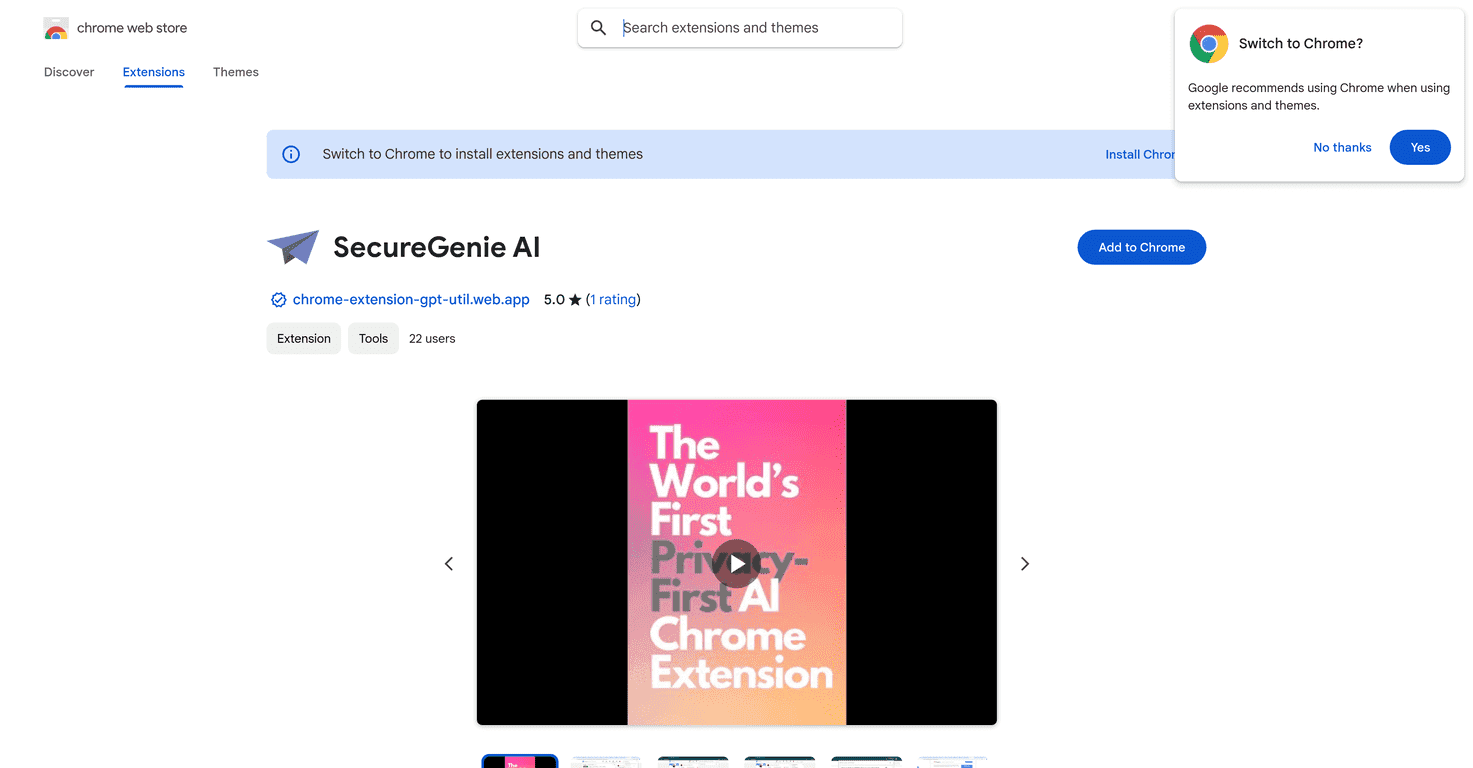
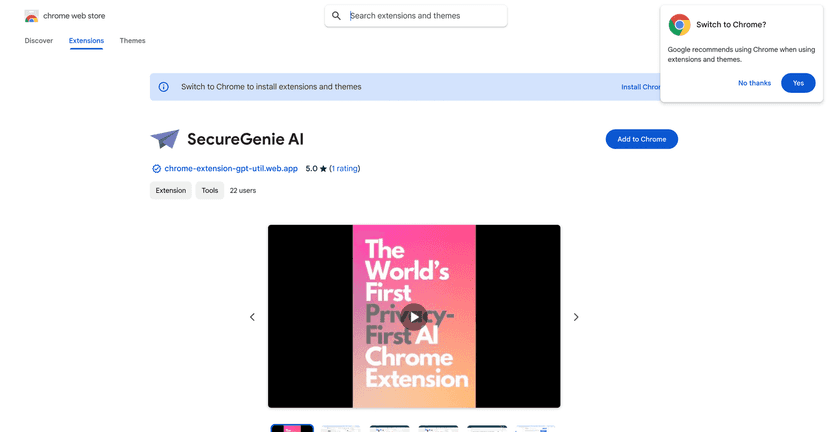
SecureGenie AI positions itself as a privacy-centric Chrome extension that automates common online tasks—things like drafting replies, translating snippets, and generating summaries—without you having to manually copy/paste everything or read through long pages. Instead of pulling you into some separate “AI website,” it works in the background and shows results right where you’re already working.
What I liked right away is the workflow. There’s a popup menu where you can set up prompts you’ll use often. So if you regularly need a polite follow-up, a short “decline” response, or a quick summary of something you skimmed, you don’t have to rebuild the same instructions every time. It’s the small stuff that saves real time.
And yes, it supports right-click context actions. That matters more than people think. If an extension forces you to switch tabs or open a separate panel for every request, you’ll stop using it after a week. This one tries to meet you where you are.
SecureGenie AI Review (What It’s Like to Use Day to Day)
SecureGenie AI is meant for people who want AI help without the constant “copy text into a chat box” routine. In my tests, it’s mostly about speeding up the boring parts of online work—replying, summarizing, and translating—while keeping the interaction fairly lightweight.
Here’s the flow I used most often:
- I’d find a chunk of text (an email message, a paragraph from an article, or a line I wanted translated).
- I’d trigger the extension via the right-click menu.
- SecureGenie AI generates the output based on my saved prompt, then I can use it immediately.
That saved prompt thing is a big deal. If you’re someone who writes similar replies all the time, you can store your “house style.” For example, I set up prompts for:
- Short, friendly follow-ups (so I’m not rewriting the same tone)
- Polite declines that don’t sound cold
- Summaries that focus on action items, not fluff
Does it feel like a “set it and forget it” extension? Pretty close. But there’s a catch: the quality of the result depends heavily on the prompt you choose. If your prompt is vague, you’ll get vague outputs. If you’re specific (tone, length, audience, what to include), it performs way better.
Also, quick reality check: privacy-first claims are only as strong as the extension’s actual data handling. I can’t see every backend detail from the browser alone, so if privacy is a top concern, you’ll want to review the extension’s permissions and any privacy policy inside the product. Still, the design approach—working in the background and not forcing you to paste everything into a separate interface—does align with what privacy-conscious users usually prefer.
Key Features (The Stuff You’ll Actually Use)
- Automates replies, translations, and more
- Quick setup through a popup menu to store preferred AI prompts
- Seamless integration using right-click context menus
- Customizable prompts for tailored user experience
- Essential tasks include summarizing articles, generating email templates, and assisting with research
Let me translate those bullets into real examples.
1) Reply drafting that doesn’t hijack your workflow
Instead of starting from scratch, I used SecureGenie AI to draft responses based on what I already had open. The right-click trigger makes it feel like “enhanced copy/paste,” not a full workflow switch. For quick emails, that’s exactly what I want.
2) Summaries that are actually useful
Summarization is one of those features that can be either great or totally useless. In my experience, SecureGenie AI is best when you tell it what kind of summary you want—short vs. detailed, “only key points,” or “extract action items.” Without that, summaries can sound generic.
If you try it, do this: pick one article, run a summary, then compare it to your own notes. You’ll quickly see whether it’s giving you the structure you need.
3) Translation for practical snippets
Translation works best when you select the exact text you care about. I didn’t love translating huge blocks at once, but for emails, short paragraphs, and specific sections, it’s handy. The right-click approach keeps you from losing your place.
4) Prompt customization (where the real power is)
This extension basically runs on prompts. That’s not a flaw—it’s the whole point. But it means you’ll get better results if you spend 10 minutes setting up prompt templates.
My suggestion: create a few “default” prompts for common situations:
- Professional reply: concise, friendly, no overpromising
- Decline template: polite, brief, offers an alternative if possible
- Summary template: 5 bullets max + key takeaway
- Research helper: list questions to clarify + outline next steps
Pros and Cons (Honest Take After Testing)
Pros
- Privacy-focused design approach: the extension emphasizes background use and quick actions rather than forcing you to paste everything into a separate interface.
- Real time-saver: right-click integration is fast, and saved prompts reduce the “setup tax.”
- Customizable prompts: once you dial in your tone and format, outputs feel more consistent.
- Easy to fit into daily browsing: you don’t have to learn a brand-new tool—just trigger it when you need help.
Cons
- Limited number of user reviews: this is always a gamble with newer extensions. If you’re the type who relies on lots of third-party feedback, you may want to double-check before going all-in.
- Prompt quality matters a lot: vague prompts lead to mediocre results. If you don’t customize, you might feel like it’s “just okay.”
- Not every task will be perfect: like most AI tools, it can miss context if the selected text is incomplete or if your prompt doesn’t specify the output format.
Pricing Plans (What I Found)
SecureGenie AI is free to use, and there are options for in-app purchases if you want more functionality. The exact pricing details aren’t super prominent from the outside, so I’d recommend checking the extension’s pricing page or settings inside the app to see what’s included in the free tier vs. paid features.
If you’re trying it for the first time, I’d treat the free plan like a “test drive.” Use it for a couple of days on the tasks you do most—email drafts, summaries, translations—and see whether the outputs match your standards. That’s the only way to know if the paid upgrade is worth it for you.
Wrap up
Overall, SecureGenie AI feels like a practical privacy-minded Chrome extension built for everyday tasks—reply drafting, translation, and summarization—without dragging you into a separate interface. The saved prompts and right-click workflow are the two things that make it stand out in real use.
Just don’t expect magic from a generic prompt. If you take a few minutes to set up your tone and output format, it’s genuinely useful. If you don’t, it’ll still help, but it won’t feel as polished.
If you’re already doing lots of small online tasks and you want AI support that fits naturally into your browsing, SecureGenie AI is worth trying—especially if privacy is one of your non-negotiables.
Promote SecureGenie AI