Table of Contents
If you’ve ever tried to “just keep receipts in one folder,” you already know how that goes. A few days turn into a stack. Then you’re hunting for that one gas receipt when tax time (or an expense report) is breathing down your neck.
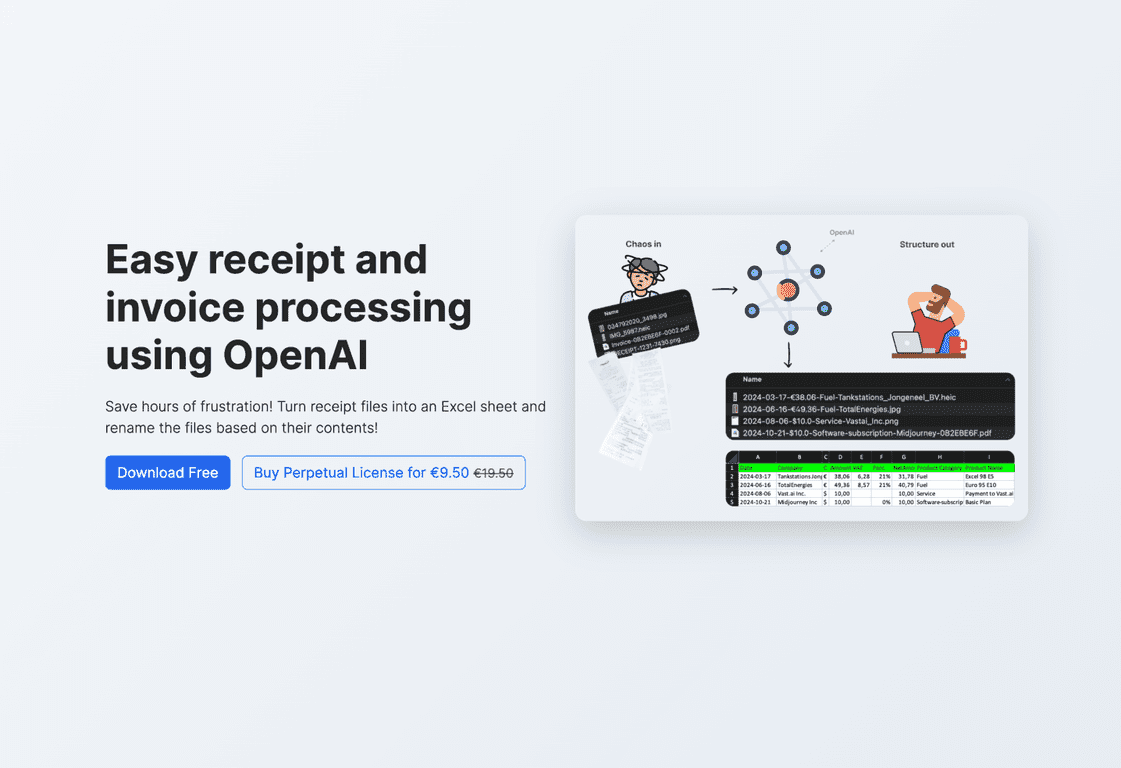
That’s why I wanted to test ScanRelief. The basic promise is simple: scan your receipts, and it renames and organizes them using the important details—date, amount, and vendor—so you don’t end up with files like “receipt_final_v7.jpg.”
In my experience, the biggest win isn’t even the scanning itself. It’s what happens right after: the files get named in a way that’s actually useful. And instead of a messy pile, you end up with an organized set of digital receipts that’s much easier to match up with your bank transactions.
It also generates an Excel-style report, which is handy if you like to reconcile expenses in a spreadsheet instead of clicking through a bunch of random PDFs. You can basically see what you scanned and then cross-check it.
Oh—and it runs on both Windows and Mac, which matters more than people think. I don’t want a tool that only works on one OS and forces everyone else to “figure it out.”
One more thing: ScanRelief supports batch processing. So if you’ve got 30 receipts sitting there, you don’t have to do them one-by-one like it’s 2014.
Now, here’s the catch I noticed during setup: you need a paid OpenAI API subscription to use the software. That’s not a “subscription to ScanRelief” situation—it’s an API requirement underneath the hood. If you already have an OpenAI API plan, you’ll be fine. If you don’t, you’ll need to budget for it before the automation really starts paying off.
ScanRelief Review: What It Does (and What I Expected)
When I first tried ScanRelief, I expected it to be “receipt OCR + naming.” That’s basically what it is, but with a smarter workflow around it.
Here’s the practical outcome: you upload or scan receipts, and ScanRelief extracts key fields (like the date, total amount, and merchant). Then it renames the files based on those extracted details. So instead of a generic file name, you get something you can search for later.
That may sound small, but it’s huge when you’re trying to find receipts quickly. I’m talking about the difference between scrolling through hundreds of “IMG_####.jpg” and actually locating what you need in seconds.
Also, the tool’s interface feels straightforward. It’s not trying to be a complicated accounting suite. It’s built around the receipt task, and that keeps it from feeling overwhelming.
Supported formats are part of the reason this is usable in the real world too—ScanRelief can work with JPEG, PNG, HEIC, and PDF. That covers most of what you’ll end up with from phone scans, emails, and “print-to-PDF” receipts.
And if you’re the kind of person who collects receipts for a whole week, batch processing is exactly what you want. I ran a set of multiple receipts and it was much less painful than doing everything manually.
Key Features That Actually Matter
- Automated file renaming based on receipt details (date, amount, vendor)
- Excel report generation so you can track receipts and reconcile faster
- Multi-format support including JPEG, PNG, HEIC, and PDF
- Batch processing for handling lots of receipts at once
- User-friendly interface that doesn’t feel like a chore to navigate
- Works on Windows and Mac OS
- Pay-per-use style costs (so it’s tied to usage rather than a typical monthly subscription)
Pros and Cons (My Honest Take)
Pros
- No monthly subscription fee for ScanRelief itself—that’s a big deal if you only scan receipts occasionally.
- Receipt organization is genuinely easier. The renamed files and report output save time in a way that’s hard to ignore.
- Automation cuts down manual work. You’re not typing merchant names or renaming files by hand.
- Pricing is transparent since it’s tied to actual usage instead of a flat monthly plan.
Cons
- You need a paid OpenAI API subscription to get started. It’s not a “nice to have”—it’s required for the automation.
- Accuracy depends on the scan quality. If the receipt is blurry, crooked, or low-contrast, the extracted fields won’t be perfect.
- Speed can feel slow at first depending on usage and any thresholds in your setup. After you’ve got things moving, it’s more manageable, but the initial experience may not feel instant.
Pricing Plans
ScanRelief includes a one-week free trial. After that, you can buy a perpetual license for €9.50 (discounted from €19.50). There’s no recurring ScanRelief fee after you purchase the license.
Just remember: even with the perpetual license, you’ll still need the OpenAI API subscription to use the AI-powered receipt processing.
Wrap up
For me, ScanRelief is one of those tools that makes a boring task feel way less annoying. If you regularly deal with receipts—expense reports, side business bookkeeping, reimbursements—having files automatically named and a report generated is exactly the kind of time-saver I actually use.
Is it perfect? No. Scan quality matters, and the OpenAI API requirement is a real consideration. But if you’re willing to scan receipts clearly and you don’t mind the setup, it can turn receipt chaos into something you can manage without stress.
Promote ScanRelief