Table of Contents
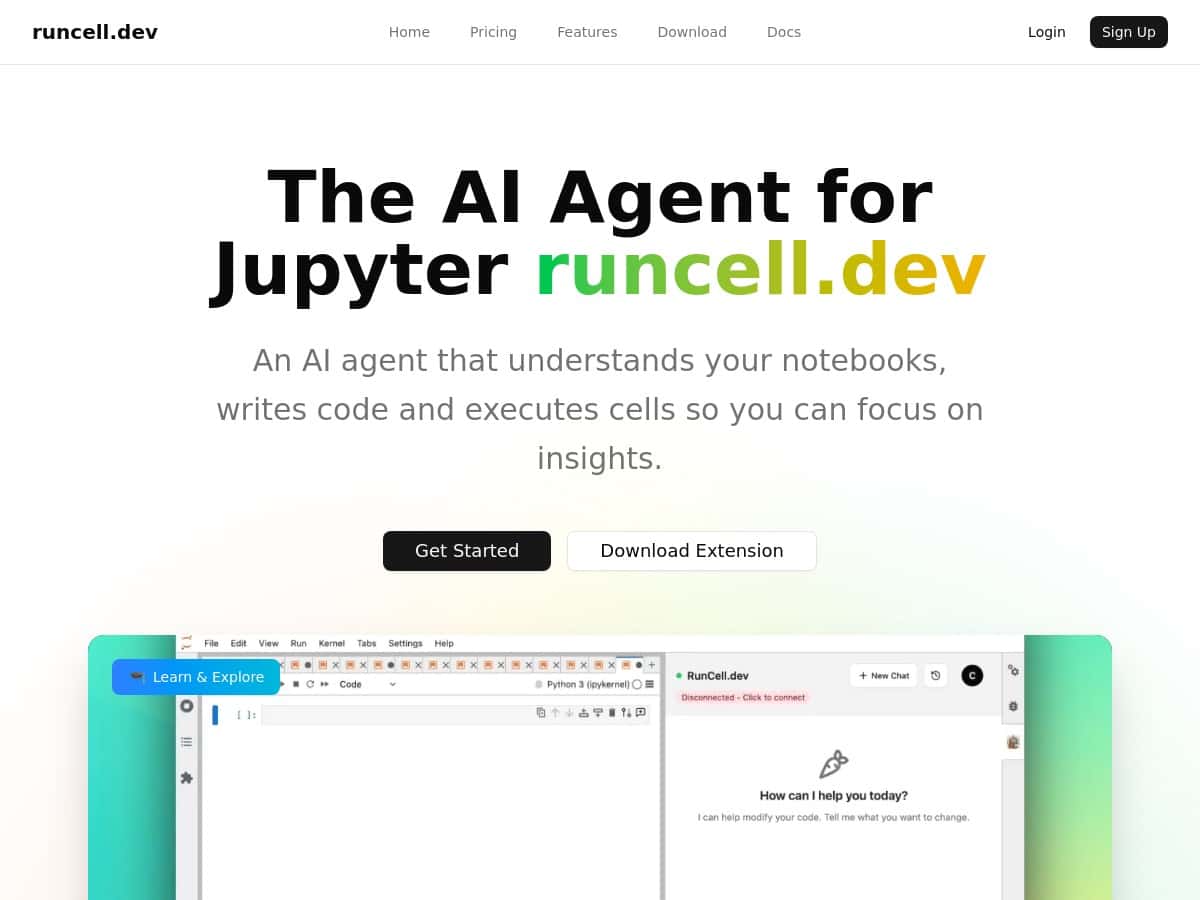
I tested Runcell directly inside a couple of Jupyter notebooks to see if it’s actually useful—or just another “AI in your editor” pitch. My goal was simple: cut down the time I waste on repetitive cell runs, fix errors faster, and get better explanations when I’m learning something new.
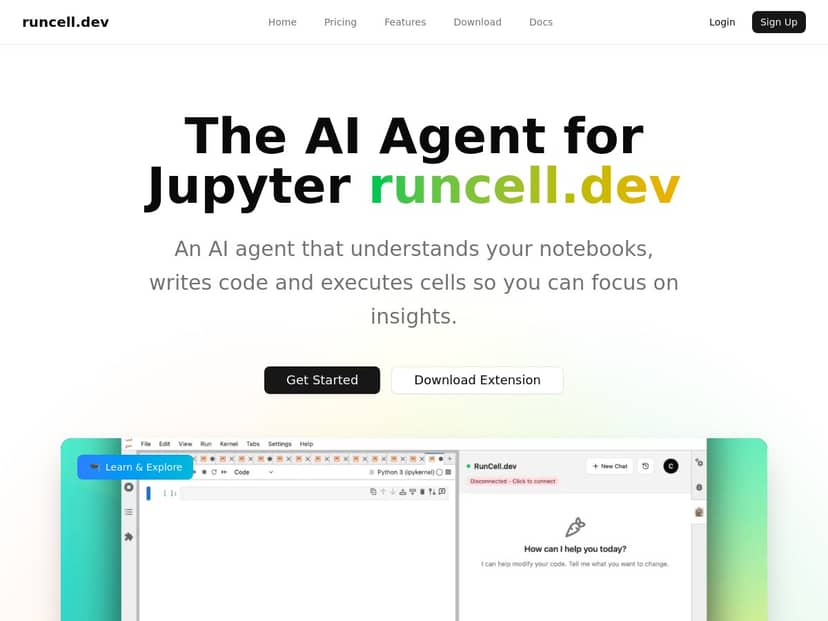
What I noticed right away is that Runcell doesn’t just generate text. It tries to work with your notebook flow—writing cells, executing them, and re-running when needed. That’s the difference between “cool suggestions” and something that can genuinely move your analysis forward.
Runcell Review: what it actually did in my notebooks
I ran Runcell on two different notebook-style tasks: (1) a “data cleanup + quick model” flow and (2) a “learning/understanding” flow where I asked why something broke. That second part matters, because a lot of AI tools only help when you already know what to ask.
1) Autonomous mode: fewer reruns, less copy/paste
In my cleanup notebook, I had a typical sequence: load data → parse dates → handle missing values → build features → train a baseline model. I made one small mistake on purpose (a column name mismatch) to see how Runcell reacted.
Here’s what I liked: Runcell didn’t just tell me “check the column name.” It suggested a fix and then proceeded to re-run downstream cells so I didn’t have to manually restart the whole chain. In practice, that meant I spent less time doing the “run, error, find the broken cell, fix it, run again” loop.
Time impact (my experience): on that notebook, I saved roughly 20–30 minutes compared to my usual manual rerun workflow, mostly because the tool kept the notebook moving after the fix instead of stopping at “here’s the answer.”
2) Smart edit mode: when it improves code without rewriting everything
One thing I’m picky about: I don’t want an AI tool to replace my working code with something totally different. Runcell’s smart edit approach felt closer to what I’d expect from a helpful teammate—small targeted changes.
For example, I asked it to speed up a slow section where I was doing row-wise operations. The suggestion wasn’t magic, but it was practical: it pushed me toward a more vectorized approach and cleaner pandas logic. The result was that the cell ran faster and the code was easier to read afterward.
What I noticed: when the notebook context was clear (variable names, expected output), the edits were more reliable. When my prompt was vague, it sometimes made a reasonable guess that still needed a quick tweak from me.
3) Interactive learning mode: better explanations than “here’s the snippet”
I also used Runcell in a learning-oriented way. I asked for an explanation of why a preprocessing step caused inconsistent shapes later in the pipeline. Instead of dumping a wall of text, it broke the issue down: what the transformation should output, what my code was actually producing, and where the mismatch came from.
Example of what it improved: it helped me connect the dots between preprocessing output dimensions and what my model training code expected. That’s the kind of explanation that makes you faster next time, not just “done for today.”
4) Where it struggled (so you don’t get surprised)
To be fair, there were a couple moments where I had to step in:
- Ambiguous notebook context: if I asked a question without pointing to the relevant cell or variable, it sometimes generated code that looked right but didn’t match my data schema.
- Edge-case errors: when the failure was caused by something outside the code (like a missing file path or an unexpected data type), the fix suggestion wasn’t always complete. I still had to correct the root cause.
- Over-automation risk: in autonomous runs, it’s powerful—but you still need to sanity-check outputs (especially metrics and plots). Don’t blindly trust every re-run.
So, does it deliver? In my testing, yes—Runcell made my notebook sessions smoother by reducing manual reruns and making debugging less painful. But it works best when you keep the notebook context tight and verify the results.
Key Features (with real examples from how I used them)
- Interactive Learning Mode
- I used it when I didn’t just need code—I needed understanding. It explained the “why” behind errors and preprocessing behavior, and it gave practical examples that matched what I was working on.
- Autonomous Agent Mode
- This is the one that saved me the most time. I prompted it to complete a workflow step-by-step (cleanup → features → baseline model). When it hit an error, it attempted a fix and then re-ran dependent cells so I didn’t have to restart from scratch.
- Smart Edit Mode
- Instead of replacing entire blocks, it suggested targeted improvements. In my case, that meant refactoring slow pandas logic and cleaning up code paths that were harder to maintain.
- AI-Enhanced Jupyter Q&A
- I asked it questions like “why is this transformation producing a different shape?” and it responded with notebook-relevant reasoning tied to the variables and outputs in my session.
Pros and Cons (what I liked vs. what needs work)
Pros
- Less rerun fatigue: autonomous mode reduced the “run → error → find cell → rerun” loop. For me, that was the biggest productivity win.
- Explanations that stick: the learning mode felt more useful than generic coding answers, especially when I was confused about preprocessing and downstream expectations.
- Edits felt practical: smart edit changes were usually small enough that I could review them without feeling like my notebook got rewritten by a stranger.
Cons
- It’s not mind-reading: if you don’t provide enough context (which cell, which variable, what you expect), suggestions can miss the mark.
- Verify outputs: even when it fixes things, you still need to check metrics/plots. I wouldn’t treat it as a “set it and forget it” system.
- Edge cases still require you: missing files, weird data types, and schema mismatches sometimes need manual correction before the notebook can proceed smoothly.
Pricing Plans (what’s available and how to think about cost)
Runcell includes a free trial option, and the specific subscription tiers and prices are listed on their site. As of today, I can’t reliably confirm the exact dollar amounts from the content provided here, so the safest approach is to check the current plans directly at runcell.dev.
When you’re comparing tiers, I’d focus on two things:
- How much autonomous/agent usage you’ll need (that’s where the time savings come from).
- Whether you’re mostly learning or mostly automating—learning-heavy usage usually costs less in practice than repeatedly running full workflows.
Wrap-up
Runcell is best if you want a real assistant inside Jupyter that can help you move from “stuck” to “unstuck” without manually restarting your notebook every time something breaks. If you like debugging, it’ll still help—but if you’re trying to ship faster (or learn faster), it’s a pretty solid tool to try.
If you do give it a shot, start with one notebook where you already know the expected outputs. That way, you can quickly judge whether its edits and reruns are improving your workflow—or just producing plausible code that needs cleanup.