Table of Contents
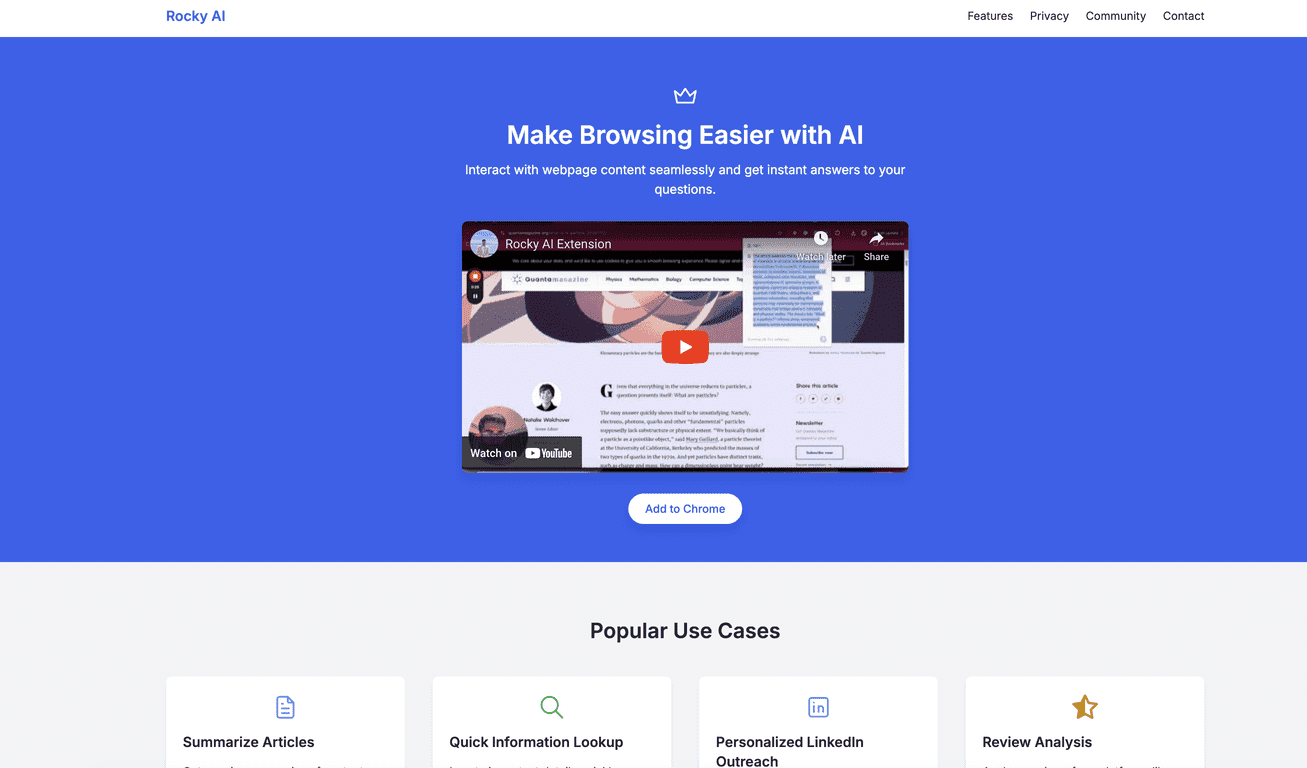
I’ve been using a lot of Chrome extensions lately, and most of them either annoy me with pop-ups or they don’t actually save time. Rocky AI caught my attention because it’s built to work right where you’re already reading—on the page. No weird workflow. No constant switching tabs. Just… ask, summarize, and move on.
In my experience, the biggest win is how quickly it can turn a long article into something I can scan. If I’m researching a topic for work, catching up on news, or even just trying to understand a blog post without reading every single paragraph, Rocky AI helps me get to the point faster.
It also has some features that feel pretty targeted, not generic. For example, it can help with personalized LinkedIn outreach ideas, which is handy when you’re trying to message someone and you don’t want to sound like a robot. And if you’re shopping around, it can analyze reviews (Amazon/Airbnb-style pages) so you can spot patterns instead of getting lost in a wall of text.
That said, I don’t think it’s magic. The quality of what it gives you depends heavily on the underlying AI model and the content you feed it. Some pages are clearer than others. Still, if you want a smarter browsing companion that actually reduces the time you spend reading, it’s worth taking a look.
Rocky AI Review: What I Liked (and Where It Can Fall Short)
First things first: Rocky AI is a Chrome extension, so you’re not installing some separate app or copying text into a separate website. That matters. When you’re reading, you don’t want friction.
When I tested it on long articles, the summarization felt fast and readable. It doesn’t just spit out a generic paragraph either—it usually pulls out the main ideas and gives you a quick way to understand what the page is actually saying. If you’ve ever had to read a 2,000-word post just to find one detail, you already know why that’s useful.
Here’s what I noticed with the “quick info lookup” side of things too. On developer docs and forum-style pages, Rocky AI can help you find the answer without going line-by-line. I like that because I’m often stuck searching for a specific setting, error explanation, or “how do I do X” snippet. Instead of scrolling forever, I can ask for the key info and get back something actionable.
Then there’s the LinkedIn outreach angle. I’ll be honest: I’m picky about outreach copy. Most AI drafts sound too polished or too templated. Rocky AI’s approach is better when you provide context (who you’re messaging, what you have in common, why you’re reaching out). With that, the suggestions can be surprisingly usable—like a starting point you can tweak in your own voice.
And for product research, the review analysis is one of the more practical features. I tried it on review-heavy pages and what I found was that it helps you spot recurring themes faster—things like common complaints, feature tradeoffs, or who the product is actually good for. It won’t replace reading, but it can cut down the time you spend deciding what to read first.
Now for the downside. The extension is only as good as the AI model and the input content. If a page is messy, heavily formatted, or full of irrelevant sections, the summary can include stuff you didn’t really care about. Also, since it’s a browser extension, performance can vary depending on your Chrome stability, page load speed, and how heavy the site is.
So no, it’s not perfect. But for “save me time while browsing,” it does what it claims more often than not.
Key Features That Actually Matter
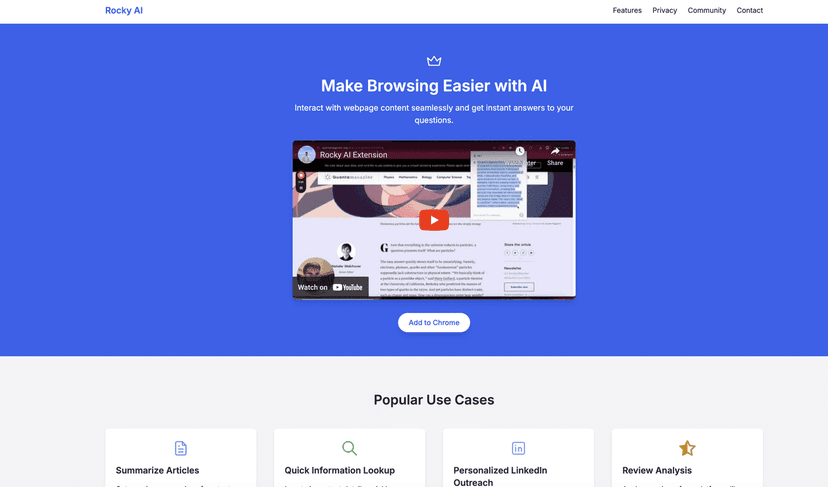
- Summarize articles for a quick understanding. Great when you’re scanning long posts, research articles, or documentation pages and want the main points without the full read.
- Quick information lookup. Works well for developer documentation and forum-style content when you’re trying to find a specific answer fast.
- Personalized LinkedIn outreach ideas. Useful for generating message drafts—especially when you add context so it doesn’t sound generic.
- Review analysis for faster product decisions. Helps you pull out themes from reviews (like common pros/cons) so you can decide what to dig into.
Pros and Cons (Real-World Take)
Pros
- Time savings are real. Summaries and quick lookups reduce the “scroll until you find it” problem.
- Easy to use while you’re already browsing. It feels integrated instead of disruptive.
- Privacy-minded behavior. It’s designed to access only what it needs from the page, which is reassuring (especially compared to extensions that seem to do… everything).
Cons
- Accuracy depends on the underlying model. If the content is vague or poorly structured, the output can be less reliable.
- Browser performance can affect results. On heavy sites or slower connections, it may feel less responsive.
- Not a replacement for reading. Summaries are best when you use them to guide your next step—not when you assume they’re 100% complete.
Pricing Plans: What I Could Find
Rocky AI’s pricing isn’t clearly spelled out in the text I reviewed, so it may be available for free via the Chrome Web Store (or at least start that way). If you’re considering it, I’d check the extension’s listing directly before committing—pricing can change, and some extensions offer free basic features with paid upgrades.
Wrap up
Overall, Rocky AI feels like the kind of browsing helper I actually want installed: it summarizes, it helps you find answers faster, and it’s useful for practical tasks like outreach drafting and review scanning. Is it flawless? No. Sometimes the output quality depends on the page and the AI’s interpretation. But when you’re trying to move quickly through information, it’s genuinely helpful.
If you want to browse with less time wasted and more “tell me what matters” energy, I’d give Rocky AI a spin.
Promote Rocky AI