Table of Contents
I went into PixPal AI expecting “free and basic.” Honestly? It surprised me. The best part is that it runs in your browser—no install, no account—so I could test it quickly. But does it actually deliver good images and useful edits, or is it just another demo?
To find out, I spent a couple of sessions generating images, then switching to editing tools (object removal + background changes). I also tried a few prompts that tend to break these tools (hair edges, busy backgrounds, and “do X but keep Y” instructions). What I noticed: when your prompt is clear and your subject is fairly clean, PixPal can look really solid. When things get detailed, you’ll sometimes see artifacts or weird “almost right” results that need a second pass.
PixPal AI Review (2026): What I Tested and What Actually Worked
1) Text-to-image: fast drafts that can look good
I tested PixPal with a few straightforward prompts first, then pushed it a bit. Here’s the kind of prompt/preview outcome I got:
- Prompt: “a cozy cabin in the snow at dusk, warm window light, cinematic lighting, ultra-detailed”
Result: The cabin shape and lighting came through clearly. The “cinematic” vibe was there—especially the warm windows against the cool snow. What I didn’t love: small background details (snow texture and distant trees) sometimes looked slightly smeared on the first try, but a second generation improved it. - Prompt: “close-up portrait of a woman holding a bouquet, shallow depth of field, 85mm lens, natural skin tones”
Result: Skin tones and the lens-style blur were pretty convincing. The occasional issue was hand/flower detail—nothing catastrophic, but it wasn’t “perfect every time.” If you care about hands, plan on re-rolling. - Prompt: “minimalist product photo of a black smartwatch on a white background, soft shadow”
Result: This one was the easiest. Clean composition, good negative space, and the shadow looked natural. If you’re making thumbnails or mockups, this is where PixPal felt strongest.
Time-to-result: I generally got an image back quickly enough to iterate (think “minutes,” not “hours”). If the site is busy, you may wait longer—so it’s not always instant—but the workflow felt smooth.
2) Editing with natural language: good when the subject is clear
Then I moved to editing—this is where a lot of free tools either shine or fall apart. I tried object removal and background changes using prompts like “remove the chair” or “replace the background with…”
Mini test log (object removal + background swap)
- Test A (object removal): I used a photo with a simple foreground object (a chair) against a relatively clean background.
Prompt: “remove the chair and keep the room perspective”
What happened: On the first attempt, the chair disappeared cleanly. Edges around nearby lines looked decent, though I did notice a faint “patch” effect in one corner where the model had to invent missing texture. A second try with a more specific prompt (“match the wall texture and lighting”) improved it. - Test B (object removal on complex edges): I tried removing a small item near hair-like detail (messy background + fine edges).
Prompt: “remove the object behind the person, don’t change the face”
What happened: This is the limitation I kept running into. The tool sometimes preserved the person, but the background behind fine edges could get warped. It wasn’t unusable—just not “seamless” like the marketing claims. - Test C (background change): I replaced a plain indoor background with something more stylized.
Prompt: “change background to a bright outdoor park, keep the subject sharp, natural daylight”
What happened: The overall lighting matched better than I expected. Still, I occasionally saw slight inconsistencies in shadows (the subject shadow didn’t always match the new environment perfectly). If you’re using the output for something serious, you’ll want to review shadows and edges.
Prompt sensitivity (the thing people don’t warn you about): PixPal is pretty responsive, but it doesn’t always “understand” nuance. If you say “make it realistic,” it’ll do something realistic-ish. If you say “keep the same pose and lighting,” it’s better. The more you specify what to keep, the fewer surprises you’ll get.
3) Supported formats & browser performance
I didn’t run a full lab test on every file type, but in practice, the workflow felt built for typical image uploads (photos and generated images). The browser experience was the main selling point: no setup friction. That said, if your image is huge (super high resolution), expect slower generation and heavier processing. For best results, I’d start with an image that’s already close to what you want (good subject framing, decent lighting).
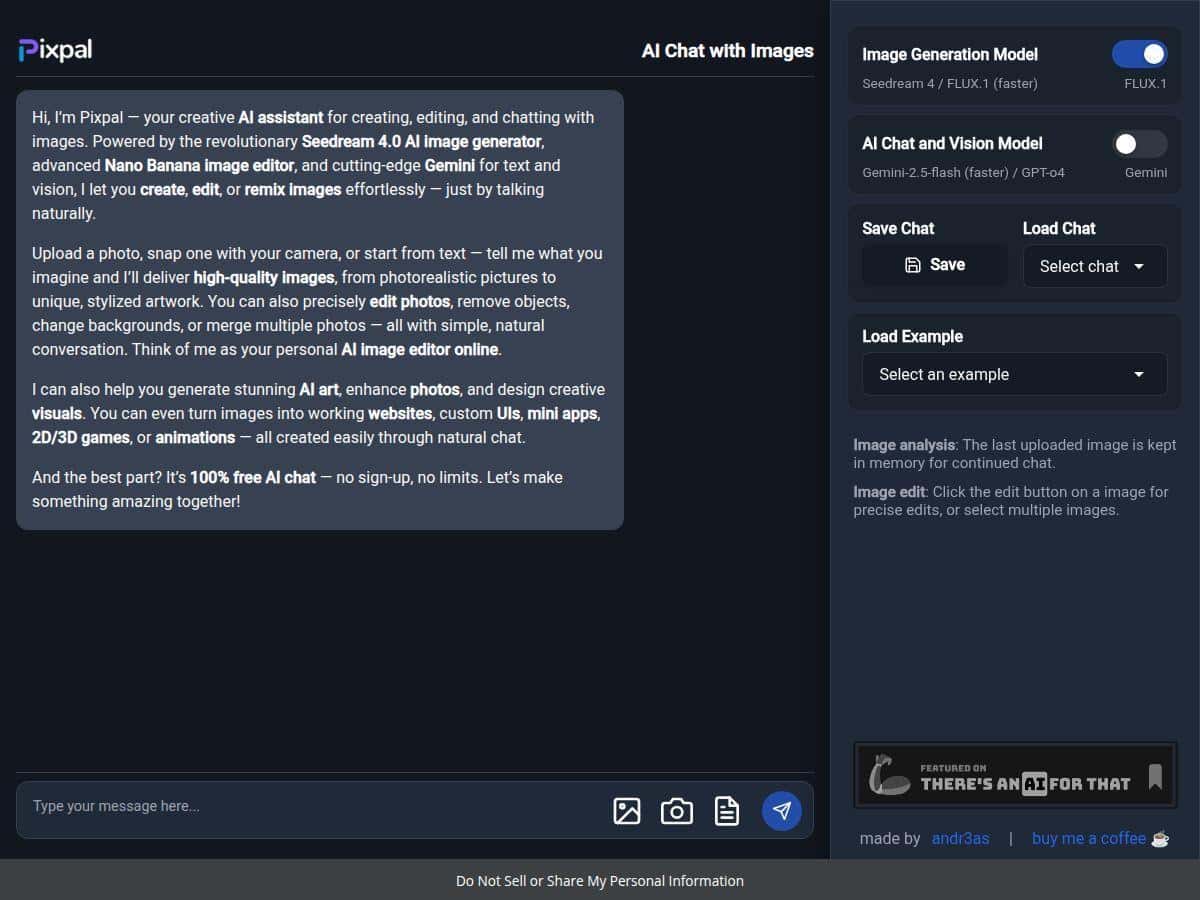
4) “Websites, UI, mini apps, 2D/3D games, and animations” — what I could confirm
This is the part where I’m a little more skeptical. PixPal does have a “create” vibe that goes beyond just images, but in my testing I mostly interacted with image generation + image editing. I didn’t get a downloadable, fully working web app or exportable game project in the way you’d expect from a dedicated web/game builder.
What I did see (and what I’d consider realistic to expect):
- Image assets: UI-style visuals, mockup-like compositions, and concept art-like outputs.
- Animation: I didn’t exhaust every animation feature, but quick “make it dynamic” style prompts appeared to be aimed at generating visuals rather than producing a complete timeline-based animation file you can edit in a professional tool.
- 2D/3D games: I didn’t produce a playable 2D/3D game export. If PixPal supports that fully, it needs clearer documentation or a more guided workflow than what I used.
So if your goal is “I want a finished website or game I can deploy,” you might still need another tool. But for generating visuals and iterating quickly, PixPal can be a useful starting point.
Key Features (Based on My Use)
- Image generation from text or upload
I was able to generate new images from prompts and iterate quickly. Clean, product-style prompts were especially reliable. - Photo editing with natural language commands
Object removal and background swaps worked best when the subject was clear and the background wasn’t overly busy. - Remix / combine ideas
The “remix” concept is there—you can steer outputs with prompts and reuse your inputs—but don’t expect pixel-perfect control like a traditional editor. - Browser-based workflow (no install)
This is a big deal. I didn’t have to set anything up to start testing. - Creative outputs (UI-style visuals, mockups, concept images)
I mostly got image-style results, not ready-to-deploy code.
Pros and Cons (Real-World Take)
Pros
- Free to use with no sign-up friction
I could jump in and test immediately—no account needed. - Natural language editing is genuinely usable
Prompts like “remove the chair” or “replace the background with…” produced results that were easy to steer with a second attempt. - Great for clean, simple scenes
Product-style images and minimalist compositions looked especially strong. - Fast iteration loop
Even when results weren’t perfect, I could re-roll without getting stuck in a complicated UI.
Cons
- Fine detail can break (hair edges, complex backgrounds)
Object removal isn’t always “seamless.” I saw warped textures and faint patching when edges were complicated. - Shadow and lighting consistency isn’t guaranteed
Background swaps sometimes matched the vibe, but shadows didn’t always line up perfectly. - “Web/game/animation” claims need clearer expectations
In my testing, I mostly got image outputs. I didn’t walk away with a downloadable website/app/game project. - Prompt specificity matters
If you don’t tell it what to keep (“keep the subject sharp,” “don’t change the face/pose”), it may reinterpret more than you want.
Pricing Plans
PixPal is 100% free and I didn’t hit any sign-up wall during testing. No paid tiers showed up in the flow I used, and I could access the tools without creating an account.
Wrap up
PixPal AI is one of those free tools that’s actually fun to use. If you want quick image generation, plus straightforward editing like object removal and background changes, it can deliver. Just don’t expect it to behave like Photoshop—especially around tricky edges and realistic lighting consistency. If you’re the type who likes iterating (try prompt → check edges/shadows → re-roll with better wording), you’ll probably enjoy this a lot.