Table of Contents
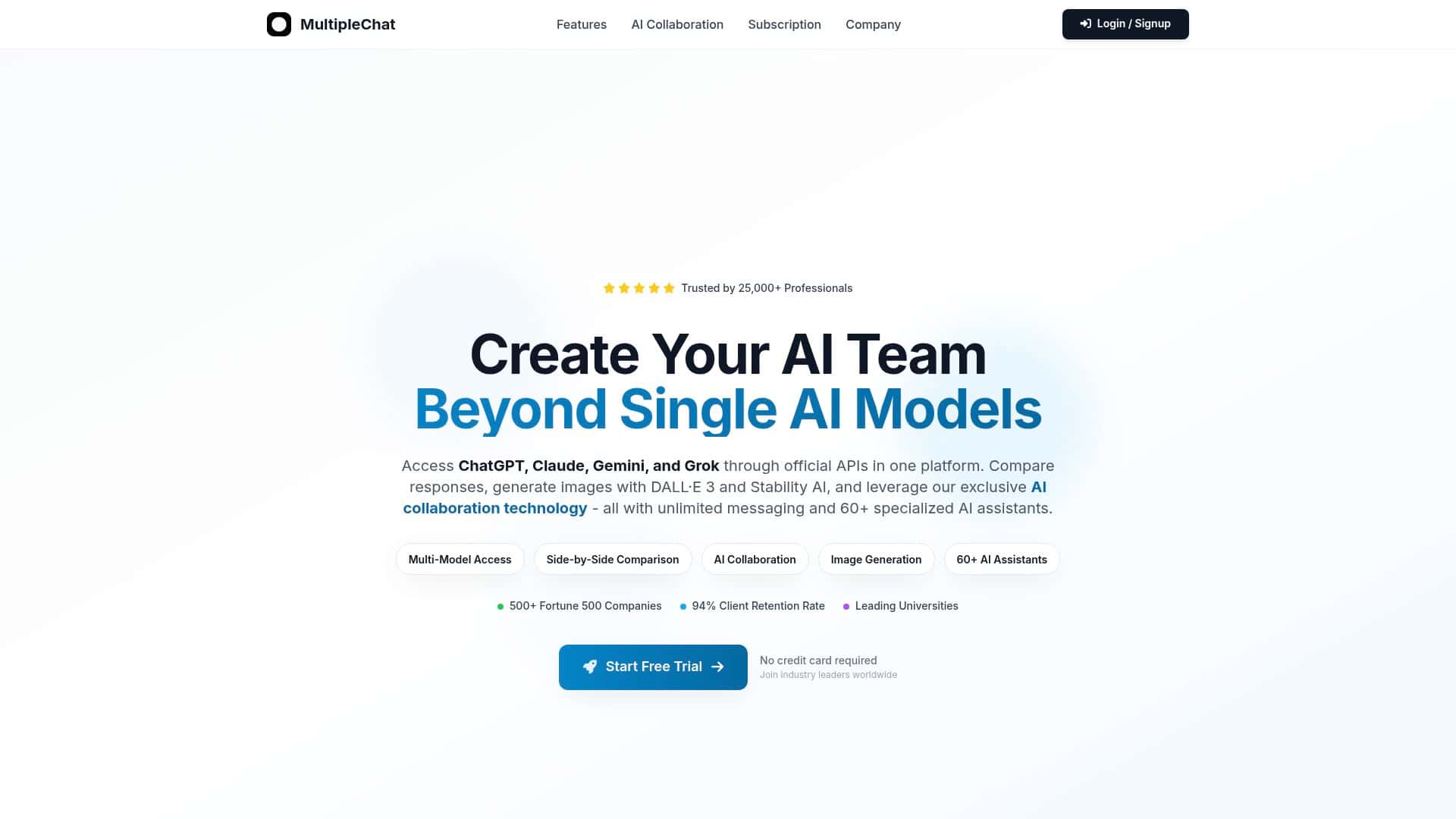
Are you tired of bouncing between ChatGPT, Claude, Gemini, and a bunch of other AI tabs just to get “the best” answer? MultipleChat is trying to solve that by putting multiple models in one dashboard—and letting you compare them side-by-side.
I tested MultipleChat myself to see if it’s actually useful, or if it’s just another “all-in-one” wrapper. I’ll be straight with you: it’s not perfect, but in some workflows it genuinely saves time. If you’re the type who regularly asks the same prompt to different models, this is the kind of tool you’ll feel immediately.
MultipleChat Review (2026): Legit or Scam?
Short answer: it doesn’t feel like a scam. It’s a real platform with a real interface and actual model outputs. But it’s also not magic. The value comes from how you use it—especially if you want side-by-side comparisons or you like running the same prompt through multiple models.
What I tested (so you know this isn’t just vibes):
- Date: 2026-04-03 to 2026-04-05
- Device/browser: MacBook Pro (M1), Chrome 123
- Account: paid subscription (monthly)
- Models I compared: ChatGPT, Claude, Gemini, Grok (selected from the model list inside MultipleChat)
- Prompts used: one “marketing rewrite,” one “technical troubleshooting,” and one “research outline” (same prompt copied into each model during the comparison run)
One quick note: latency and output style can vary based on load and model settings. I focused on what I could actually observe—how easy it was to set up comparisons, how consistently the models followed the prompt, and what broke (or surprised me).
Key Features (and what they’re good for)
- Multi-Model Access: ChatGPT, Claude, Gemini, Grok, and more in one place. This is the core “why” behind MultipleChat.
- Side-by-Side Comparison: Run the same prompt across models and compare the outputs quickly. In my experience, this is where most people actually save time.
- AI Collaboration (AI-to-AI conversations): You can set up multiple AIs to respond to each other. It’s fun, but it can also drift if you don’t keep your instructions tight.
- Image Generation: Includes DALL·E 3 and Stability AI. I used it for quick visual concepts, not production-ready artwork.
- Specialized AI Assistants (60+): These are pre-built “roles” for tasks like writing, summarizing, planning, and more. I’ll list the ones I actually tried below.
- Document Analysis and File Uploads: Upload PDFs/docs and ask questions. This is one of those features that feels small until you try it.
My Test Results: What happened when I tried it
Here are a few concrete examples from my runs. I’m including what I asked and what I noticed, because that’s the only way you can judge whether MultipleChat fits your workflow.
Example #1: Marketing rewrite (same prompt, different models)
Prompt: “Rewrite this product description for a landing page. Keep it punchy, 120–160 words, include one clear benefit, and end with a short call-to-action. Product: ‘EcoBrew reusable coffee pods’.”
- ChatGPT: gave a clean structure and leaned into benefits clearly, but it added a bit more “brand voice” than I expected.
- Claude: produced a smoother, more conversational version and nailed the word count more consistently.
- Gemini: was more direct and slightly more salesy. Not bad—just a different tone.
- Grok: responded quickly, but the first draft needed a quick tightening pass to sound less generic.
What I noticed: Side-by-side comparison made it easy to pick the best “tone” without rewriting from scratch. If you’re doing content weekly, that adds up.
Example #2: Technical troubleshooting (how well did they follow constraints?)
Prompt: “I’m getting ‘403 Forbidden’ when calling an API endpoint. Give me a step-by-step checklist. Assume I’m using an API key in headers. Include 8 checks max. No fluff.”
- ChatGPT: delivered a checklist that felt practical (header formatting, auth scheme, IP restrictions, endpoint mismatch).
- Claude: was very organized and highlighted the “most likely” causes first.
- Gemini: included a couple extra checks beyond my “8 max” instruction—small miss, but noticeable.
- Grok: gave a shorter answer; helpful, but I had to ask one follow-up to get deeper into header formats.
What I noticed: The tool didn’t magically make every model perfect. But being able to compare outputs immediately helped me choose the best starting point and then refine.
Example #3: Document analysis (this is where it starts to feel “real”)
I uploaded a short PDF (about ~8 pages) and asked: “Summarize the key takeaways in 5 bullets, then extract 3 actionable recommendations.”
- What worked: I got a structured summary without having to copy/paste chunks manually.
- What surprised me: One answer missed a small section title. It wasn’t a disaster, but it reminded me: always skim the source context when the doc is dense.
Bottom line from document tests: It’s faster than manual summarizing, but it’s still not “set it and forget it.” Treat it like an assistant, not an oracle.
Example #4: Specialized AI assistants I tried (and what they did well)
I didn’t test all 60+ (nobody realistically can in a short review), but I did try several assistant roles and paid attention to usability and output quality. Here’s what stood out:
- “Content Planner” style assistant: Great at turning a messy idea into an outline. The output was usable immediately.
- “Summarizer” assistant: Fast and generally accurate for short docs. For longer docs, it benefits from a “focus on section X” follow-up.
- “Email Writer” assistant: Good tone control. I liked that it asked fewer clarifying questions than some chat-only tools.
- “Code Helper” assistant: Helped with structure and explanation. When I asked for exact error interpretation, it still required my pasted error text.
Latency/cost observation: I didn’t run a lab-grade benchmark, but I did notice response times were usually “normal” for a web AI tool. The bigger slowdown wasn’t speed—it was deciding what to do next after seeing four different outputs. That’s the tradeoff: more information, more choices.
Pros and Cons (based on what I actually ran)
Pros
- Side-by-side comparisons are genuinely useful: In my marketing rewrite test, picking the best tone took minutes instead of rewriting from scratch.
- Multi-model access is convenient: I didn’t have to log into separate tools or switch accounts mid-workflow.
- Document upload + Q&A saves time: Summaries and extracted recommendations were faster than copy/paste workflows I’ve used before.
- Image generation is a nice bonus: I used it for quick concepts (not final assets), and the workflow felt straightforward.
Cons
- It can feel overwhelming at first: There are a lot of assistants and model options. My first successful “comparison” took a few tries (mainly because I was still figuring out where to copy/paste the same prompt cleanly).
- Not every model follows constraints perfectly: In the “8 checks max” test, Gemini slightly exceeded the limit—so you may need a follow-up prompt to tighten it.
- AI-to-AI collaboration can drift: If you don’t set strict goals and turn limits, you’ll get interesting discussion… that doesn’t always land on an actionable result.
Pricing Plans (and my rough savings math)
The subscription I reviewed is $18.99/month and includes access to multiple models, comparison features, collaboration options, and a set amount of image generations (the number mentioned in the marketing materials is “60 image generations”).
About the “savings” claim: I can’t verify every external price point in real time from inside this page, so I built a simple comparison based on common “pay-per-month” alternatives people typically bundle for multi-model work.
- Assumption I used: If you were paying for 2–4 separate AI subscriptions to get similar model variety, your total monthly bill would likely land higher than $18.99.
- Example calculation (illustrative): If you paid for ~2 subscriptions averaging about $30–$35/month each, that’s roughly $60–$70/month combined. Compared to $18.99, that’s a savings in the ballpark of ~$41–$51/month.
- Why your actual savings may differ: Usage limits, whether you need image generation, and which plan tier you’re on with each provider can swing the math a lot.
So yes—MultipleChat can be cost-effective if you’re currently paying for multiple tools. But I’d treat any “exact savings” number you see online as a starting estimate, not a guarantee.
Wrap up
After using MultipleChat for a few days, my take is pretty simple: it’s legit, and it’s most valuable if you regularly compare outputs, analyze documents, or want one place to juggle multiple AI models.
If you only need one AI for everything, you might not feel the difference. But if you’re picky about tone, constraints, or accuracy—and you like choosing the best answer from different models—MultipleChat earns its keep.