Table of Contents
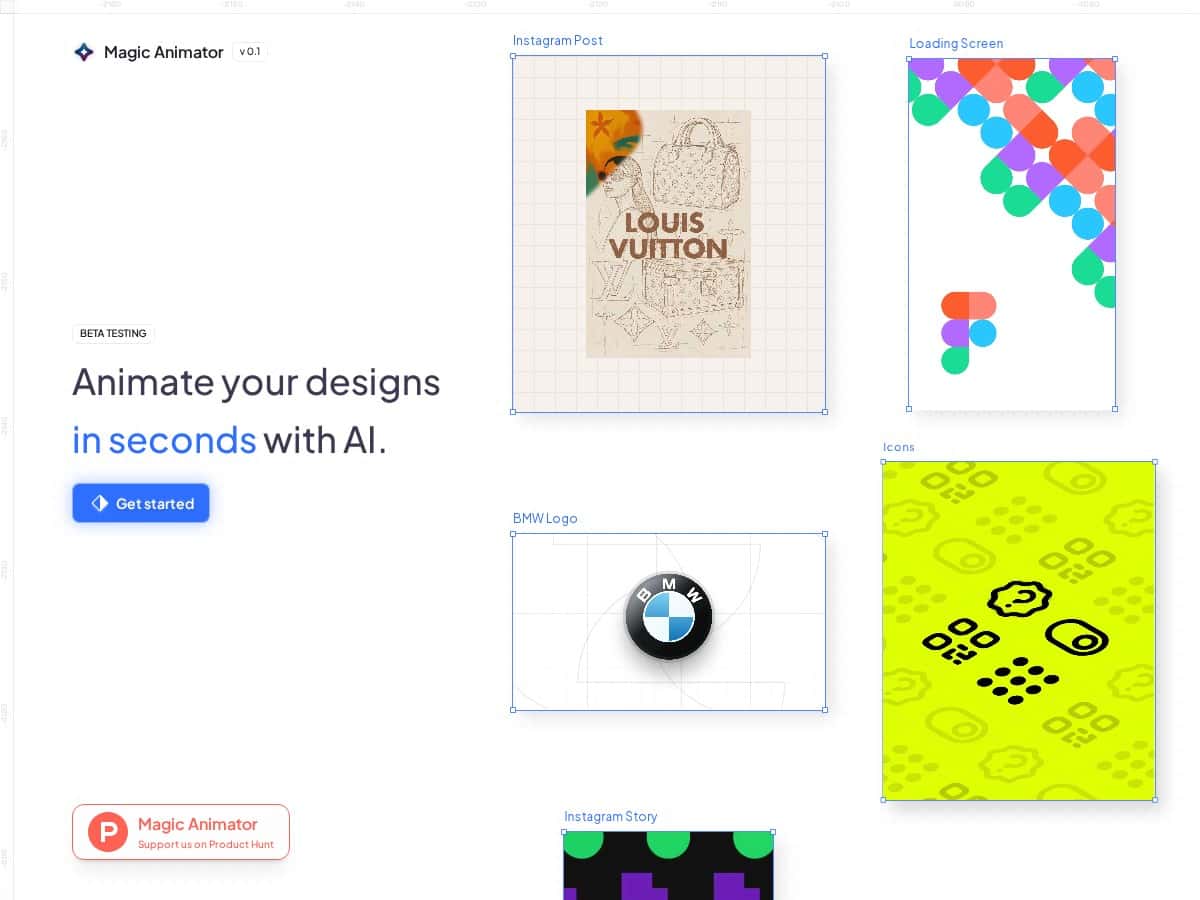
If you’ve ever tried to add motion to a Figma design and thought, “Cool… but why does this have to be so fiddly?”, I get it. That’s basically what pulled me toward Magic Animator. The pitch is simple: AI-powered animations with minimal setup, and you can still tweak the result so it doesn’t feel robotic.
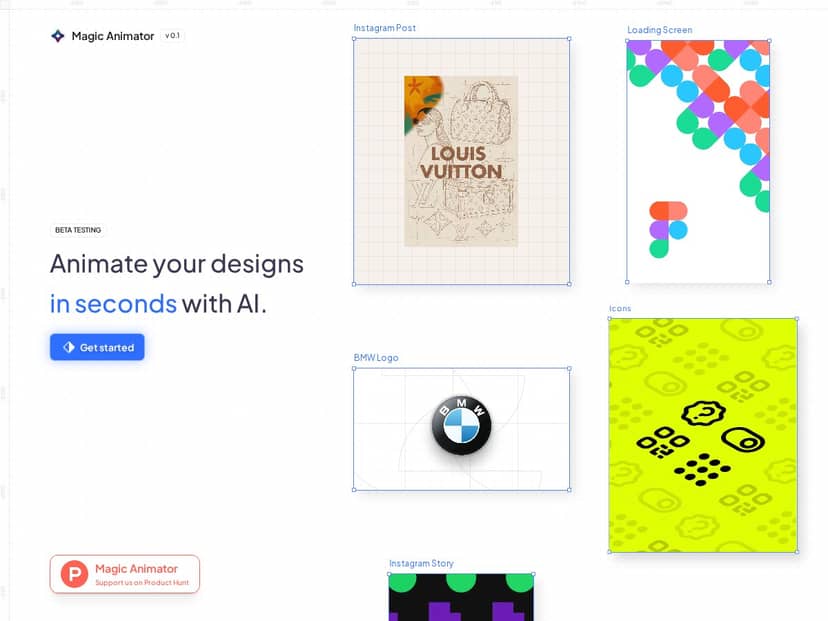
I tested Magic Animator on July 2025 using Figma in a desktop browser (Chrome). I didn’t try to “make it perfect.” I focused on a real-world use case: animating a hero-style product card for a landing page—things like subtle scale-in, a gentle slide, and a quick fade that feels modern without being distracting.
Here’s what surprised me the most. The workflow is fast enough that I actually used it like a design tool instead of a separate animation project. I selected a frame, ran the animation action, and within seconds I had a moving version of the element. No long timeline wrestling. No “learn a new animation system” headache.
Now, about control: yes, you can tweak the keyframes and adjust the motion. But what I liked is that the controls didn’t feel like I was fighting the tool. I could nudge timing and motion to match the vibe I wanted (more “snappy” vs. more “smooth”), and it was quick to iterate. That matters if you’re trying to ship something and you don’t have hours to burn.
And the AI assistant? It’s not just random suggestions. In my tests, it seemed to base its suggestions on what was on the canvas—like layout shapes and the visual hierarchy—so the animations came out relevant instead of totally generic. I could start from the AI output and then adjust from there. That’s the sweet spot for me.
Exporting was also practical. I was able to get outputs in MP4, GIF, and Lottie. That covers the usual needs: MP4 for video placements, GIF for quick social posts, and Lottie when you want lightweight motion in an app or on the web. Still, since it’s in beta, I hit a couple glitches—mostly small hiccups during generation/export. Nothing that permanently broke my workflow, but it did slow me down when I had to rerun a step.
Magic Animator Review: AI Motion in Figma (and what I actually did)
Let me make this concrete. I ran two quick tests with the same general layout:
- Test 1: A product card with an icon, title text, and a background shape. I generated a default animation and then adjusted the timing so the card “arrived” a bit faster (more of a punch than a float).
- Test 2: A CTA button + small badge element. I used the AI assistant to get a motion style that felt natural for a landing page (quick attention grab, not distracting).
In both cases, the AI got me to a usable first draft quickly. Then I used the editable keyframes to tweak what mattered: timing, movement amount, and how the elements settle. That’s the difference between “cool demo motion” and something you’d actually publish.
What I noticed about the tool: it’s designed to get you moving fast, so it doesn’t try to give you a giant pro-level animation suite. If you’re the kind of person who wants frame-perfect choreography across dozens of layers, you might feel limited. But if you’re building landing pages, marketing visuals, or UI micro-interactions, it’s a solid time-saver.
One more thing: beta tools can be unpredictable. I saw a couple moments where I had to rerun an export step to get the output to generate cleanly. The workaround was simple—redo the generation/export rather than trying to “fix” the timeline like you would in a mature editor. Still, it’s worth keeping that in mind if you’re on a tight deadline.
Key Features that stood out (not just the marketing list)
- One-click animation generation in Figma
You start from your existing design and trigger animation directly inside the workflow. In my case, that meant I wasn’t rebuilding the layout in a separate tool. - Editable keyframes + timeline controls
After the AI generates motion, you can refine it. What I used most was adjusting the timing and the feel of the movement—basically making it match the pacing of the rest of the page. - AI assistant for animation suggestions
This is the part that helps you avoid staring at a blank timeline. The assistant suggested animation styles that made sense for the elements I had on the canvas (hierarchy matters). - Multi-format export: MP4, GIF, Lottie
This matters more than people think. I used MP4/GIF for quick previews and Lottie for lightweight motion use cases. If you’re posting to social, the GIF option is genuinely handy. - Works with popular design workflows
The tool is positioned to integrate with common creative stacks (Figma, Canva, Adobe Express). I tested the Figma flow, and it felt consistent with how designers already work. - Collaboration-friendly usage
Because it’s tied to your design artifacts, it’s easier to share motion drafts with teammates compared to exporting everything to a separate pipeline.
Pros and Cons (what you’ll like, and what may annoy you)
Pros
- Fast results: I could go from static design to a usable animation quickly enough to iterate more than once.
- AI assistant helps you start: instead of “what animation should I even pick?”, it gives you a direction.
- Keyframes are editable: you’re not locked into the first motion style.
- Exports fit real channels: MP4, GIF, and Lottie cover a lot of use cases.
- Good for marketing + UI motion: hero sections, cards, CTAs, subtle transitions—this is where it shines.
Cons
- Beta instability: I ran into a couple small bugs during generation/export that required rerunning a step.
- Not built for ultra-complex animation: if you need advanced motion behaviors across many layers, you may hit a ceiling.
- Focus is still narrow: in my experience, the smoothest flow was around Figma and the supported export formats.
- More polish needed: beta tools often improve quickly, but you should expect some rough edges.
Pricing Plans (what I saw during beta)
When I checked around July 2025, Magic Animator was available for free during its beta phase. I didn’t see a fully detailed paid structure at that time (like exact tiers, team seats, or export limits), so I can’t honestly quote numbers for you. If you’re planning to use it regularly, I’d recommend checking the official site before you commit—pricing and limits can change fast during beta.
Wrap up
Magic Animator is one of those tools that feels like it’s trying to remove the friction between “designing” and “animating.” In my tests, that friction reduction was real: I got to publishable motion faster than I normally would, and the editable keyframes meant I wasn’t stuck with the AI’s first attempt.
Just remember it’s still beta. If you’re shipping something tomorrow, leave a little buffer for reruns or export hiccups. If you’ve got a landing page, a social campaign, or UI motion you want to refresh without turning it into a full animation project, it’s worth trying.