Table of Contents
If you’re a musician, producer, or just someone who posts covers and wants the video to match the vibe, you already know how much visuals matter. I’ve seen it firsthand—people will actually watch longer when the lyrics are timed well and the backgrounds don’t look like they were slapped together in 10 minutes. That’s where Lyric Video Studio comes in.
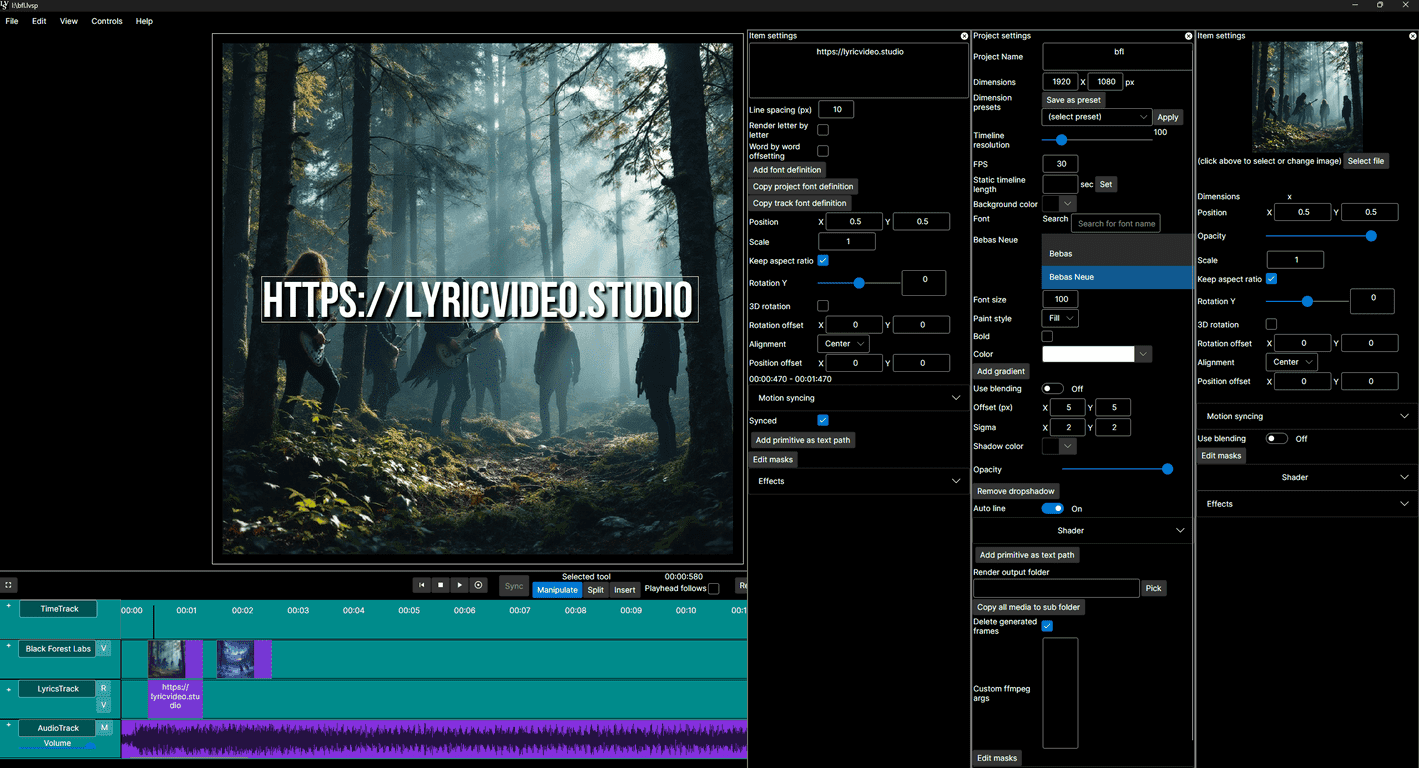
Lyric Video Studio is built for lyric videos and subtitle-style projects. The big draw for me is the DAW-like timeline, which makes it feel less like “random slideshow editing” and more like arranging audio and visuals together. And yes, it uses generative AI (including Dall-E 3-style image generation) so you can turn text prompts into background imagery without having to hunt for stock photos every time.
Lyric Video Studio Review (2026): Does It Actually Make Better Lyric Videos?
When I test tools like this, I’m mostly looking for two things: (1) can I sync lyrics quickly without fighting the interface, and (2) do the visuals look “finished” instead of generic. Lyric Video Studio hits both, especially if you already know how songs are structured (verses, hooks, and all that).
Here’s what stood out to me:
- DAW-style timeline — You get a multi-track workflow that feels familiar if you’ve used audio editors. Instead of guessing where text should go, you can build the layout around the beat and the audio.
- Generative AI for backgrounds — The AI image generation is useful when you want something themed (moody neon, rainy city, space vibes, etc.) without spending hours searching. I like that you can start with a prompt and iterate until it matches the song’s mood.
- Background removal + tracking — This is one of those features you don’t appreciate until you try it. If you’re using a subject (like a photo or cut-out element), tracking helps keep the composition feeling intentional while the lyrics move.
- Lyrics import + synchronization — Importing lyrics and lining them up with the track is the core of any lyric video tool. In my experience, Lyric Video Studio makes this less painful than many “consumer subtitle” apps, though you still need to do a little cleanup for timing on fast sections.
- Effects, transitions, and motion — The built-in effects are there so you don’t have to learn everything from scratch. I still prefer to keep things tasteful (especially for TikTok/short-form), but the options are enough to make a big difference.
Is it perfect? Not entirely. If your PC isn’t strong, you may notice slower rendering or lag when working with multiple layers and AI-generated assets. Also, if you’re brand new to video editing, you’ll need a couple sessions to learn the pacing and synchronization workflow.
Key Features That Matter for Lyric Video Makers
- Multi-track timeline — Mix lyrics, audio, and visual layers on separate tracks so you’re not constantly jumping between menus.
- Generative AI integration (image prompts) — Use text prompts to generate custom visuals. This is great for consistent branding across releases.
- Background removal & tracking — Handy for cut-out subjects and elements that need to stay aligned while the video moves.
- Effects and transitions — Lets you polish without building everything manually. I usually use these sparingly—just enough to make the lyrics feel “alive.”
- Lyrics import and synchronization — Import lyrics and sync them to your audio so the words land where viewers expect them.
Pros and Cons (From a Real-User Perspective)
Pros
- Beginner-friendly enough to start — The interface doesn’t feel overly technical right away. You can get something working without reading a manual for hours.
- DAW-like workflow helps with timing — If you care about beat accuracy, the timeline approach is a big plus.
- Multiple platform options — It’s available through Microsoft Store and Steam, which makes it easier to try depending on your setup.
- Free trial — I like that you can test before committing. For lyric video tools, that trial period is genuinely important.
- Supports third-party plugins and AI tools — If you already have a preferred workflow, you’re not locked into only one way of doing things.
Cons
- Synchronization takes practice — Even with good tools, lyric timing is still a skill. Expect to spend extra time on tricky parts like quick runs or overlapping vocals.
- Performance depends on your PC — More layers + AI assets can slow things down. If you’re on older hardware, plan for it.
- Feature set can feel overwhelming at first — There are a lot of controls, and it’s easy to get lost if you try to tweak everything right away.
Pricing Plans: What You Need to Know
Lyric Video Studio offers a free trial on both Microsoft Store and Steam, so you can test the workflow (lyrics import, syncing, and AI image generation) before paying. Long-term pricing details weren’t clearly specified in the information I reviewed, so if you’re deciding between plans, I’d double-check the current pricing page inside the app/store listing before you commit.
If you’re producing regularly, this kind of tool can pay off quickly—especially when you’re making multiple versions (radio edit, instrumental, remix) and want consistent lyric styling across them.
Wrap up
Overall, I think Lyric Video Studio is a solid option if you want to create lyric videos that look more intentional than the usual template stuff. The timeline workflow makes syncing feel more “real,” and the AI-generated visuals plus background tools help you get to a finished look faster. Just don’t expect zero learning—timing still matters, and your computer will have a say in how smooth the editing feels.
Promote Lyric Video Studio