Table of Contents
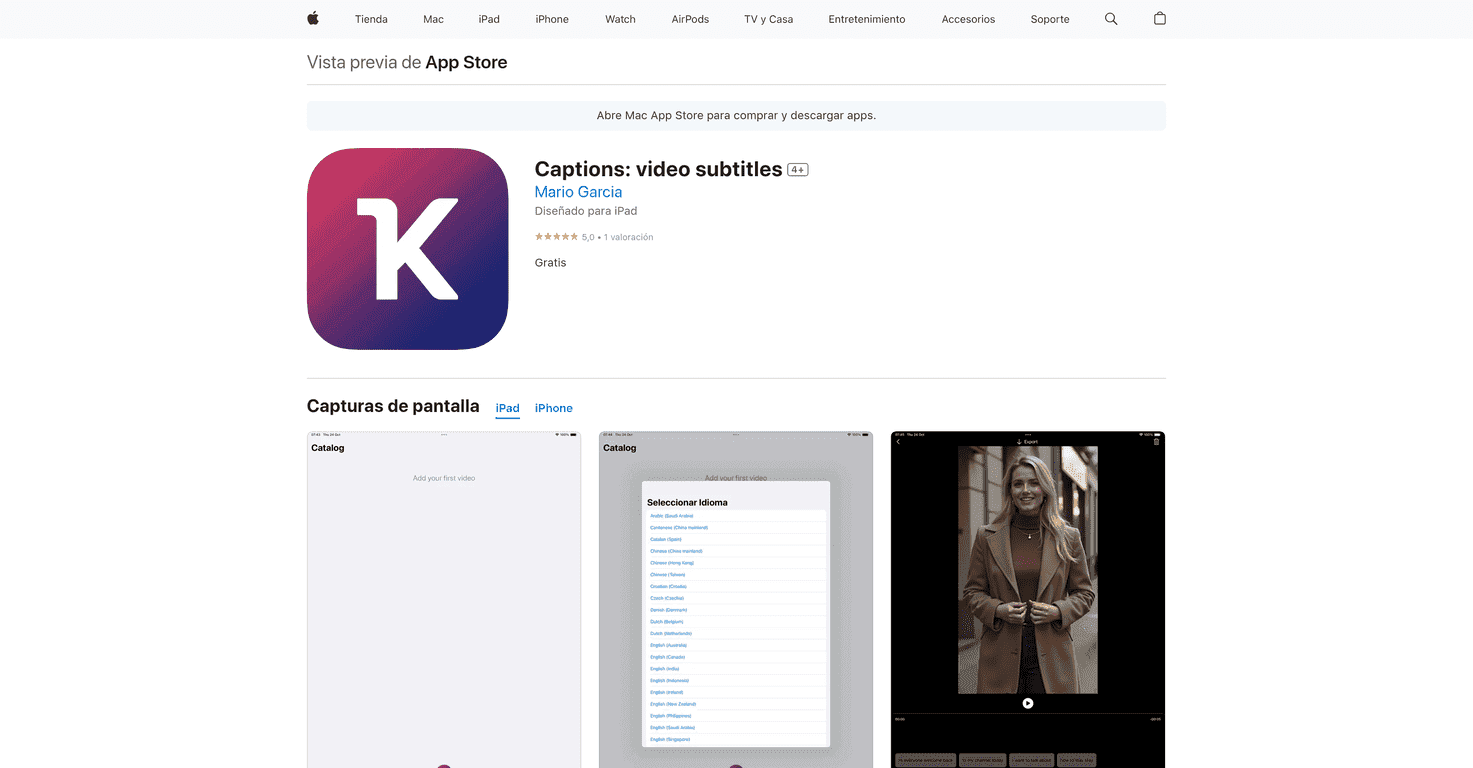
I’ve edited enough subtitle files to know the real problem isn’t “can I add captions?” It’s the time sink—watching a video twice, fixing timing, and trying to make the text look decent. That’s exactly why I wanted to test Kaption. If you’re looking for subtitle creation that doesn’t feel like homework, this app is worth your attention.
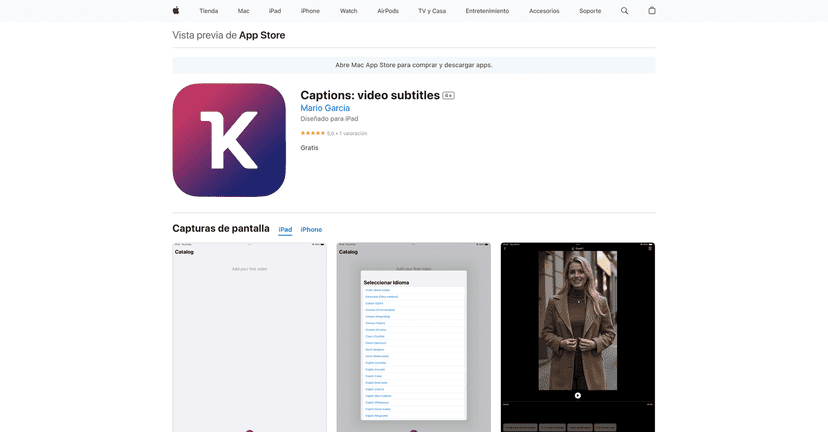
Here’s the gist: Kaption takes a video, generates subtitles automatically, and then lets you clean things up without wrestling with complicated software. In my experience, the workflow is fast enough that I didn’t dread the “captioning step” anymore—which is kind of a big deal if you post regularly.
Kaption Review: Does It Actually Save Time?
When you open Kaption, the process starts with uploading your video (or importing it, depending on how you’re using your device). Once the video is in, Kaption focuses on one thing: getting subtitles on screen quickly. The app uses AI to generate them in seconds, and that speed is the main reason people will like it.
Now, let’s be honest—AI subtitles aren’t perfect. No app is. What I noticed is that Kaption handles “normal” speech pretty well, but like any automated system, it can stumble with heavy accents, overlapping voices, or really fast talking. Still, the good part is that you’re not stuck with the mistakes. You can go back and edit the subtitles so they match what’s actually being said.
After the auto-generated captions appear, you can review and adjust them using the editing tools. I found the interface fairly intuitive. You’re not digging through menus for basic stuff—you’re just fixing the text and timing until it looks right.
One feature I genuinely appreciate is customization. If you’re trying to match your brand or just make captions readable, Kaption gives you options like different fonts, colors, and sizes. That matters more than people think. A subtitle that’s technically “correct” but hard to read on screen is still basically useless.
So would I recommend Kaption? If you’re on iPhone or iPad and you want an easier way to create subtitles without turning it into a full production workflow, yes. If you need ultra-precise captions for legal/transcription-heavy work, you’ll still want to proofread carefully.
Key Features I Look For (and What Kaption Covers)
- Automatic Subtitle Generation
Upload a video and get captions generated quickly using AI. This is the “save time” feature, and it’s the reason the app exists. - Manual Editing Tools
You can adjust the subtitles after they’re created. In practice, this is where you fix the words the AI misread and clean up timing so it feels natural. - Customization Options
Fonts, colors, and sizes help you make captions readable and on-brand. I like having control here because auto captions often look generic. - Export Flexibility
The app is built to help you get your finished captions out in a usable format so you can keep moving after you’ve edited.
Pros and Cons (Real Talk)
Pros
- Fast subtitle creation — the AI generation is quick enough that you can caption content without losing your whole evening.
- Editing is straightforward — you can correct subtitles instead of starting over from scratch.
- Customization helps readability — changing font, color, and size makes a noticeable difference, especially on busy backgrounds.
- Free to download — it’s easy to test without committing to a paid tool first.
Cons
- Limited to iOS and iPadOS — if you’re not in the Apple ecosystem, you’ll need an alternative.
- AI can miss nuance — slang, background noise, and speaker overlap can lead to awkward captions. Plan to proofread.
Pricing Plans: Is Kaption Free?
Yes—Kaption is available for free on the Apple App Store. For me, that’s a big plus because it lowers the risk. You can try it, see how it handles your type of content (talking head, interviews, voiceovers, etc.), and decide if it’s good enough for your workflow.
If you’re comparing it to paid caption tools, the main question becomes: do you spend more time correcting the AI, or does Kaption still save you enough time to be worth it?
Wrap up
Overall, Kaption is a friendly, practical way to create subtitles without turning it into a complicated project. The combination of quick AI generation, easy editing, and customization options makes it especially useful if you’re posting content often and you want captions that actually look decent. If you’re on iPhone or iPad, it’s definitely one of the better “get it done fast” subtitle tools I’ve tried.
Promote Kaption