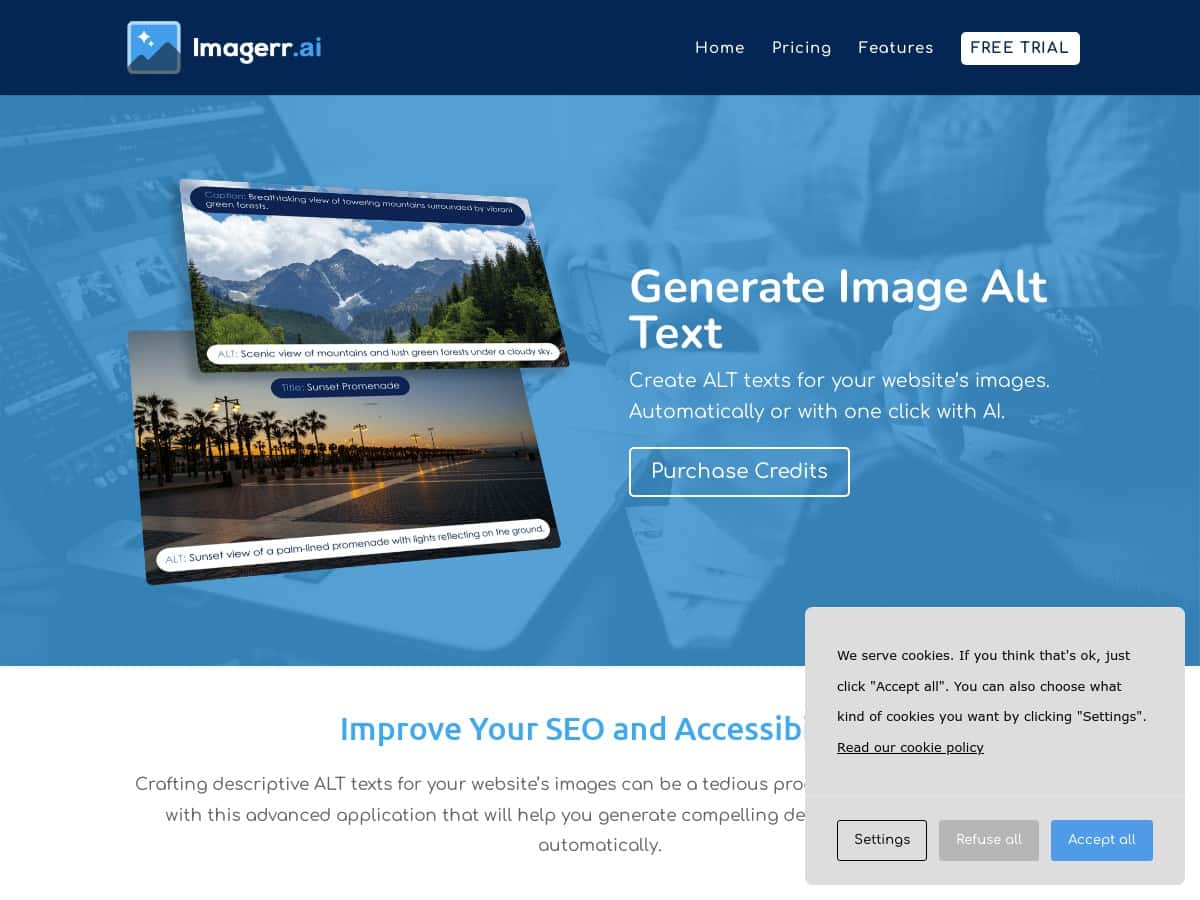
Table of Contents
I’ve been trying to get my WordPress site more accessible without spending my whole weekend writing alt text by hand. So I tested the Imagerr AI plugin to see if it actually helps, or if it’s just another “AI writes alt text” pitch.
Here’s what I noticed after installing it, running it on a real set of images, and checking the output like a normal person would—by looking at what it generated, how consistent it was, and whether I’d trust it to ship.
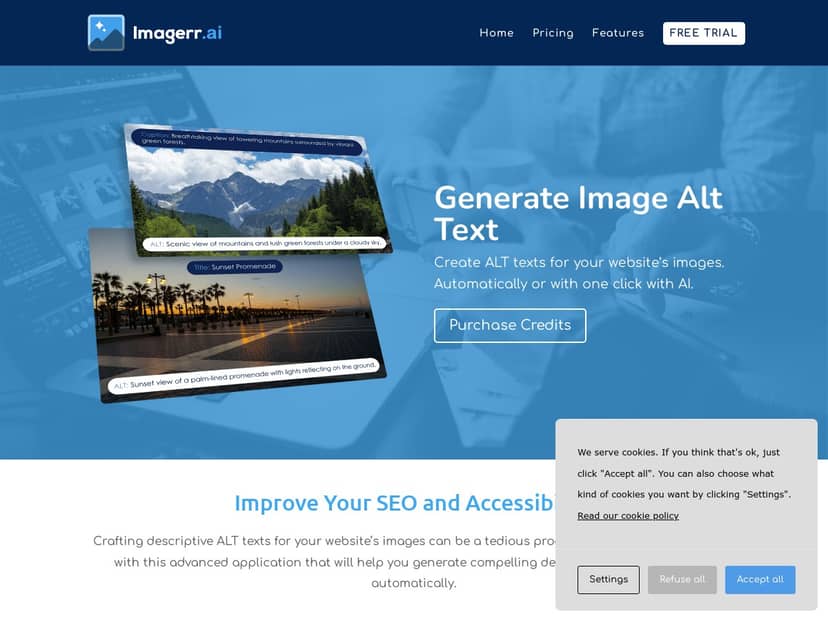
Imagerr AI Review
After installing Imagerr AI on my WordPress site, I was genuinely surprised at how quickly I could get usable output. No complicated setup. No “wait 24 hours for training.” I was generating alt text within minutes.
Now, I’ll be straight with you: AI alt text isn’t magic. Some images came back great. A few came back… not wrong exactly, just not the way I’d write it. That’s why I tested it like I’d test any content tool: with different image types, with the same settings, and then I compared what it generated to what I’d want an accessibility-minded person to see.
Test Setup & What I Ran
Here’s the setup I used so you can judge the results more fairly:
- Platform: WordPress (plugin-based workflow)
- Image types tested: 18 JPG/PNG screenshots, 6 product-style images, 4 icons/graphics, and 3 images with visible text (meme/banner style)
- What I generated: alt text first, and then I also enabled title/caption generation where available
- Settings I used: I added a simple prefix and suffix so I could see how the plugin handled template text (more on that below)
- Language: I left it at English for the test run (since my site is English-first)
One thing I liked right away: the bulk generation option meant I wasn’t sitting there clicking one image at a time. I ran it on the media library and then spot-checked the actual results in the WordPress editor.
Before & After Examples
Below are a few examples from my test. I’m including these because “accurate and detailed” is too vague to trust. Real alt text should match what’s actually in the image and sound natural when read aloud.
1) Screenshot (UI page)
- Before: alt text was blank (common on older media)
- After (generated): “Screenshot of the Imagerr AI plugin settings page showing alt text generation options.”
2) Product photo (object-focused)
- Before: “product-image-1”
- After (generated): “Close-up of a product with a clean background and modern design.”
Not bad, but I did notice it stayed a little generic. If your product has a specific label or unique shape, you’ll want to double-check and tweak.
3) Icon/graphic (simple shape)
- Before: alt text was “icon”
- After (generated): “A simple accessibility icon representing improved website usability.”
Here it did the job—though “accessibility icon” is still a tiny bit interpretive. For icons, I prefer alt text that’s either very literal (“shopping cart icon”) or intentionally decorative (“” empty alt) depending on purpose.
4) Image with visible text (banner/meme)
- Before: alt text was missing
- After (generated): “A banner image with text that promotes a website accessibility tool.”
This is the kind of output I expected from many image-to-text tools: it recognized there’s text, but it didn’t reliably reproduce the exact wording. If the exact text matters for users, you’ll still need to provide it in HTML around the image (or edit the alt text manually).
5) Chart/screenshot (data)
- Before: alt text: “chart”
- After (generated): “Bar chart showing an increase in website performance over time.”
It captured the trend, which is useful. But I’d never treat this as a replacement for a real data description. If you’re using charts to communicate numbers, alt text should be paired with a longer summary (table or nearby text).
Key Features
- AI alt text generation: It generates alt text automatically for images in your WordPress media.
- Language support: It supports over 130 languages. That matters if you run multilingual pages, but I’d still review output for tone and accuracy.
- Bulk processing: You can generate alt text at scale, which is where this plugin actually pays off.
- Custom prefix & suffix: I liked this part because it let me enforce a consistent wording style. The prefix/suffix behavior was straightforward—so you’re not stuck with one generic format.
- Titles and captions: It can generate image titles and captions alongside alt text. In my experience, titles/captions can be helpful, but they shouldn’t be treated as SEO magic—alt text still has to describe the image first.
- Multiple image formats: It claims compatibility with JPG, PNG, WebP, and SVG. In my tests, JPG/PNG were the most consistent, while graphics/icons were “good enough” but sometimes more interpretive than I’d prefer.
Failure Cases & Limitations
This is the part people usually skip. I get it—nobody wants to talk about the messy edge cases. But if you’re buying a tool for accessibility, you should know where it can fall short.
- Text-heavy images: When the image contains meaningful text (banners, memes, callouts), the generated alt text often describes the presence of text rather than reproducing it accurately.
- Charts and data: It can summarize trends (“increase over time”), but it won’t replace a proper data table or detailed description if the exact values matter.
- Product specificity: For product photos, it sometimes stays a bit general (“clean background,” “modern design”) unless the image has very clear, distinctive features.
- Credits cost adds up on big libraries: Bulk processing is fast, but it’s not free. If you have hundreds or thousands of images, you’ll burn through credits quicker than you might expect—especially if you re-run generations after edits.
If you want the best results, I’d treat Imagerr AI like a first draft generator. Then you review and fix the ones that matter most (hero images, charts, product images, anything that carries meaning).
Pros and Cons
Pros
- Fast to get started: Setup didn’t feel heavy, and I was generating alt text quickly.
- Bulk generation is actually useful: If your site has a media library full of missing alt text, this is where it saves real time.
- Prefix/suffix customization: I could enforce a consistent style without fighting the tool.
- Good baseline accuracy for common images: Screenshots, photos, and UI images generally came back with descriptions that were readable and relevant.
- Multi-language support: Over 130 languages is great if you publish internationally.
- Free initial credits: Enough to test without committing immediately.
Cons
- Credit-based pricing: You’ll need to buy more credits after the initial free amount.
- Costs can creep up on large sites: If you’re trying to cover every single image (including icons and older banners), budget accordingly.
- Not perfect for text-in-image: If the exact wording is important, plan on manual edits or alternative solutions.
- Some outputs are “generically correct”: Meaning: it may describe the category correctly, but not your unique product or exact details.
Pricing Plans
From what I saw, pricing starts with a $19 one-time Starter package that includes 500 credits. That’s a decent option if you just want to clean up a small set of images or run a pilot.
If you’ve got more volume, there’s a $49 Pro plan with 2000 credits, and an Advanced package for $99 with 5000 credits. Each tier includes additional credits at rates that are meant to scale with your needs.
What I’d do next (practical checklist)
- Start with your most important images: hero images, product images, charts, and any images that appear in key pages.
- Use prefix/suffix sparingly: If you add too much branding text, it can make alt text sound awkward.
- Review text-in-image outputs: If users need the exact words, don’t rely on alt text alone.
- Re-run only when necessary: Credits cost money—so edit the ones that need it rather than regenerating everything repeatedly.
Wrap up
Imagerr AI is a solid way to speed up alt text creation, especially if you’ve got a media library full of missing or weak descriptions. It’s not flawless—text-heavy images and detailed data still need human judgment—but as a first draft tool, it’s genuinely helpful.
If you want quicker accessibility wins without manually writing every alt attribute from scratch, I think it’s worth trying—just be ready to review and tweak the outputs that matter most.