Table of Contents
If you’ve ever tried to “just answer a couple emails” while you’re walking, cooking, or stuck in the car—yeah, me too. That’s why I gave Harmony AI a real test. The pitch is simple: hands-free Gmail control using voice. After spending a few weeks with it, I found it genuinely useful for the stuff I do most (reading, triaging, composing short replies). But it’s not magic, and a few limitations showed up fast—mostly around noisy environments and how well it handles longer/complex threads.
One quick note on my testing context: I used Harmony AI on an iPhone with iOS 17, and I also tested voice commands while I was in the car (engine hum + road noise). When it worked, it felt smooth. When it didn’t, it was usually because my voice wasn’t clean or the environment was loud.
Harmony AI Review
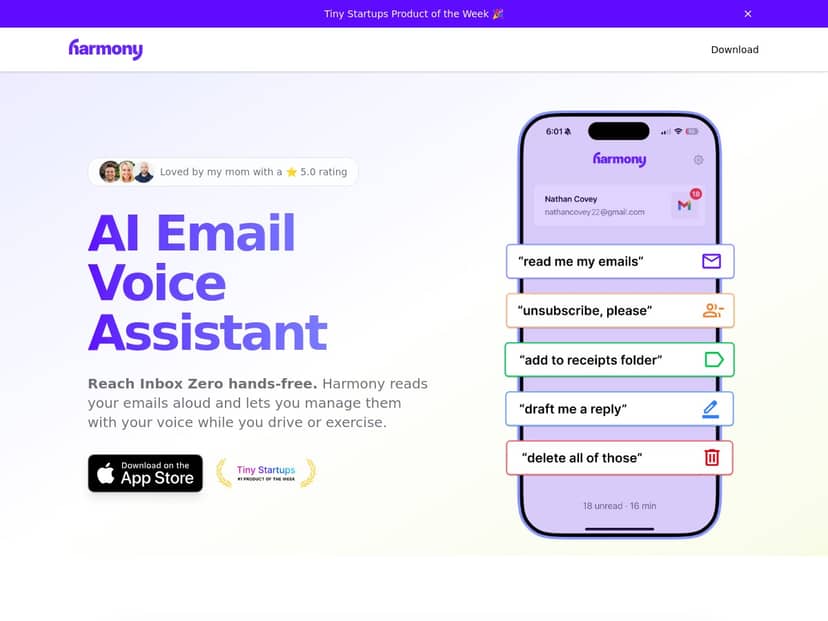
After trying Harmony AI for a few weeks, I’m honestly impressed by how quickly it becomes part of the routine. The core experience is: you connect Gmail, then you use voice to read messages aloud, summarize threads, and take actions like labeling or deleting—without touching the screen.
Here’s what stood out to me most:
- Reading + triage felt fast: I could say “read my newest email” and get a spoken summary immediately, instead of opening Gmail and hunting for context.
- Summaries were actually usable: On long threads, it didn’t just read everything—it condensed it enough that I could decide what to do next.
- Composing by voice was practical: I didn’t try to write Shakespeare, but for short replies and “send a quick confirmation” style messages, it worked well.
- Noise is the main weak spot: In my car test, the engine/road noise made some commands less consistent. In quiet rooms, it was much better.
Is it perfect? No. But for people who need hands-free Gmail management—especially when you’re driving, cooking, or multitasking—it’s one of the more genuinely helpful voice assistants I’ve tried for email.
Key Features
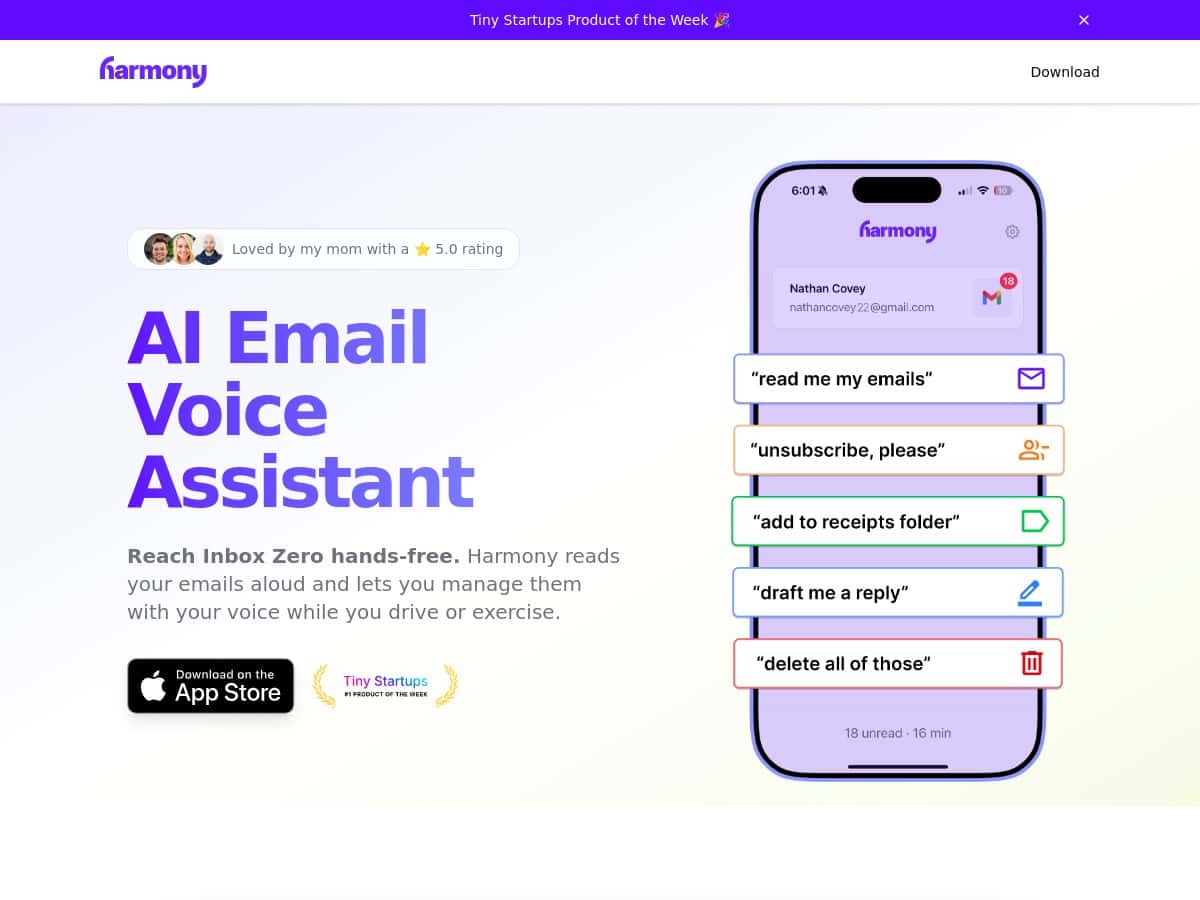
- Voice commands for managing emails (read, reply, send, delete, label)
- Reads emails aloud with thread detection and spoken summaries
- Compose, send, and draft emails by voice
- Move or label messages hands-free
- Unsubscribe from newsletters using voice
- Optimized for hands-free use while driving or exercising
- Security and privacy protections (details below)
How It Works (What I Actually Did)
1) Setup checklist (so you don’t get stuck)
- Connect your Gmail account: You’ll be prompted to authorize access. I made sure I logged into the correct Google account first, because that’s where most “it won’t connect” issues usually come from.
- Confirm permissions: Harmony AI needs permission to read and act on your mailbox. I double-checked that it wasn’t blocked by iOS privacy settings after the first authorization.
- Test voice commands in a quiet room: Before taking it into the car, I tried 3-4 commands at home so I could tell if the app or my mic setup was the problem.
- Pick a “default action” mindset: My go-to was: “read newest email” → “summarize this thread” → “reply” (or “delete if it’s spam”).
2) The exact voice commands I used
I didn’t try to memorize a hundred phrases. I stuck to simple, direct requests. Examples:
- “Read my newest email.”
- “Summarize this thread.”
- “Reply: Thanks—can you confirm the timeline?”
- “Send this reply.”
- “Delete that email.”
- “Move it to [label/folder name].”
- “Unsubscribe me from this newsletter.”
In my experience, the app responds best when the command is short and you’re not talking over yourself. If you ramble, it tends to misinterpret what you want next.
3) What the summaries sounded like (real examples, redacted)
I can’t paste full emails here, but I can share the kind of output I got. For a long multi-reply thread, the spoken summary was roughly:
- Thread summary (approx. 25–45 seconds spoken): It identified the key ask, who needed to do what, and the current status (e.g., “waiting on confirmation”).
- Action suggestion: It made it clear whether replying, drafting, or moving the email made the most sense.
When the email was short, it didn’t overdo it. It basically read the important parts and skipped the fluff. That’s what I wanted—less noise, more decision-making.
4) Latency and responsiveness
One thing I paid attention to: how long it took between me speaking and the app responding. In quiet conditions, the delay felt like “a moment,” not a full second-and-a-half wait. In louder environments (car, music playing), it took longer and I had to repeat myself more often. That’s not a dealbreaker, but it’s a real factor if you’re using it while on the move.
5) Driving vs. quiet room (what I noticed)
- Quiet room: Commands like “summarize this thread” were consistently understood.
- Car noise: It still worked, but I had to speak more clearly and keep commands shorter. If there was music in the background, recognition dropped.
So yeah—if you’re using Harmony AI while exercising or commuting, keep your commands crisp. Don’t multitalk. And if you’re in a very noisy situation, expect reduced accuracy.
Pros and Cons
Pros
- Hands-free Gmail triage is genuinely helpful: Reading and summarizing without opening the app saves time when you’re busy.
- Summaries help you decide faster: Instead of hearing every line, you get the gist and the next step.
- Voice replies are practical for common messages: Short confirmations, questions, and quick responses felt natural.
- Works well for “in-between” moments: Waiting rooms, cooking, walking—anything where your hands are busy.
Cons
- Gmail-only right now: If you use another provider (Outlook, Yahoo, etc.), Harmony AI won’t help yet.
- Noise affects voice recognition: In my car test, I needed more retries than I did at home.
- Long/complex emails can still require judgment: The summaries are good, but you’ll want to double-check anything that’s contract-like or high-stakes.
- Pricing clarity isn’t always “instant”: I had to check the official page for the latest plan costs and trial details.
Pricing Plans
Harmony AI uses a subscription model. Typically, there’s a trial period, and then you can choose monthly or annual billing. Pricing can change, so I recommend checking the official checkout page for the live numbers before you commit.
What I found useful: the annual option usually makes more sense if you’re going to use it daily for email triage and replies. If you only want it occasionally, the monthly plan is safer—because you’ll notice the value quickly or you won’t.
If you want, you can start here: Harmony AI.
Privacy & Security (What “Protected” Actually Means)
I’m glad Harmony AI emphasizes privacy, but I also wanted specifics. “Secure” is one thing; “what exactly is stored, where, and for how long” is another.
Here’s what you should verify on the official Harmony AI privacy/security pages before trusting any email assistant with sensitive info:
- Data retention: Do they store transcripts of your voice/email actions? For how long?
- Encryption: Is data encrypted in transit (HTTPS) and at rest (server-side storage)?
- Usage of email content: Is your email content used only to provide the service, or is there any secondary use?
- “No selling” claim language: Look for the exact wording about whether data is sold or shared with third parties.
My practical takeaway: If you’re using it for personal or work email, treat it like any assistant that touches your data—review the policy, and don’t assume “privacy-focused” means “zero data.” The right approach is: check the policy language, then decide what you’re comfortable automating.
If Harmony AI links out to its privacy policy and security documentation, make sure you read those sections specifically about transcripts and retention. That’s where most surprises (good or bad) usually live.
Who I Think Should (and Shouldn’t) Buy It
- Buy it if: You manage lots of Gmail, you’re often hands-busy, and you want a faster way to read/summarize/reply without opening your inbox repeatedly.
- Don’t buy it (yet) if: You need non-Gmail email support, you work in very noisy environments all day, or you require 100% flawless accuracy on complicated, multi-party emails.
Wrap up
Overall, Harmony AI is a solid hands-free Gmail assistant—especially if your goal is email triage and quick voice replies. The summaries are the biggest win in day-to-day use, and the hands-free workflow is genuinely convenient. Just go in knowing it’s Gmail-only right now and that noise can affect voice recognition. If you want, try it with low-stakes emails first and see how well it performs for your voice and your environment.