Table of Contents
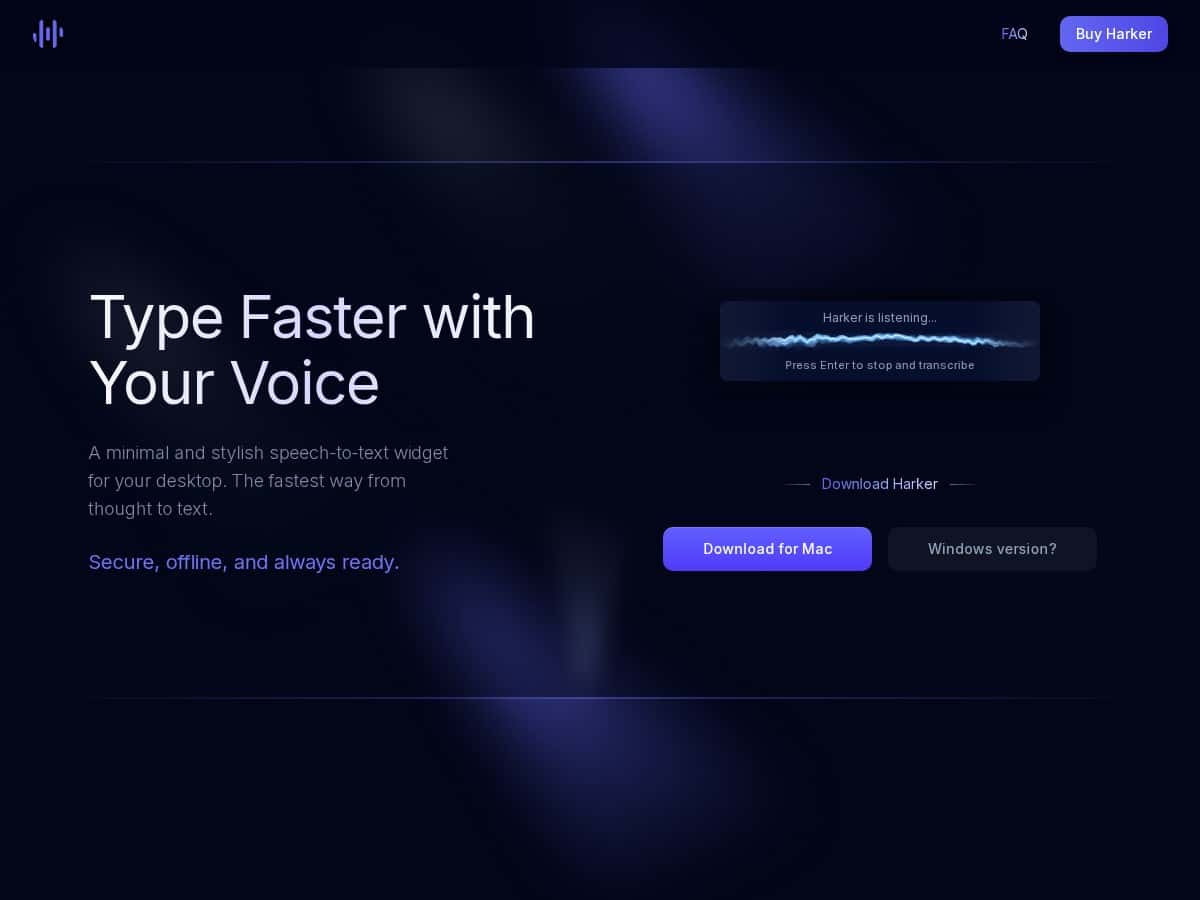
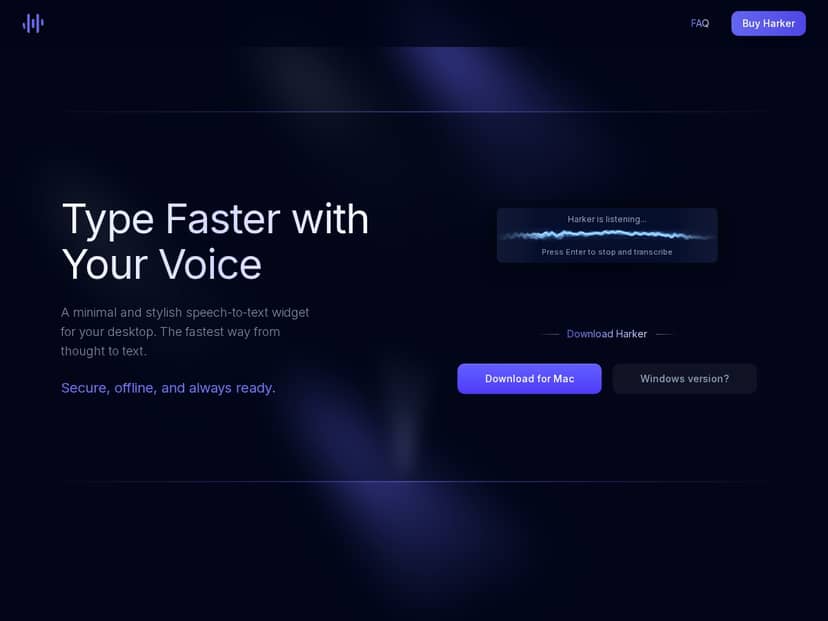
If you’ve ever tried dictating on your Mac and thought, “Why does this feel clunky?”, you’re not alone. Harker is a voice-to-text tool that’s built to run locally (so it doesn’t need to send your speech off to the cloud). I tested it on my Mac for real work—not just a few seconds of talking into the mic—and I’ll tell you what surprised me, what didn’t, and who I think it’s actually for.
Harker Review: what I noticed after testing it on my Mac
Let me get specific about how I tested Harker, because “it feels accurate” isn’t very useful, right?
My setup: I ran Harker on a MacBook Pro (M1 Pro), macOS 14.x. I used the same mic (built-in) and the same general workflow across tools so the comparison wouldn’t be totally apples-to-oranges.
How long I used it: I tested it across two busy sessions—about 2.5–3 hours total—dictating content the way I normally work: email drafts, meeting notes, and a few longer paragraphs.
What I dictated:
- Email-style text: “Hi [Name], thanks for your time today. I wanted to follow up on the timeline and confirm the deliverables for next week.”
- More “real life” sentences: “Can you send the latest version of the report? Also, please include the section on risks and assumptions.”
- Long paragraph / punctuation test: “In this document, we’re aiming to summarize the main findings, explain why the results matter, and list the next steps clearly. Please keep the tone professional but not robotic.”
- Numbers and formatting: “Use 3 bullet points, then add a short closing line. The deadline is the 18th at 2 p.m.”
Activation + workflow: The first thing I liked was how quickly it became part of my flow. Harker’s shortcut is global, so I could trigger dictation from basically anywhere—email, notes, a browser tab—without hunting for a button. I’m picky about this because if a tool requires extra clicks, it stops being “productivity” and starts being “another thing to manage.”
Accuracy (with examples): In my tests, Harker did a solid job with normal sentences. Where it got better than expected was handling “office speech” (requests, follow-ups, and structured sentences). I also noticed it was pretty good at keeping up when I spoke at a normal pace.
But I’m not going to pretend it was perfect. A few patterns popped up:
- Names and weird terms: If I said something like a proper noun or a product name, I still had to quickly fix the first attempt. (That’s true for most dictation tools, to be fair.)
- Punctuation isn’t magic: When I dictated long paragraphs, I often needed to nudge punctuation and line breaks manually. It wasn’t a dealbreaker, just something I kept correcting.
- Numbers: “2 p.m.” was usually close, but I still double-checked dates and times before sending.
How it compares to macOS dictation: I also tried macOS’s built-in dictation during the same kind of tasks. On my machine, macOS dictation was capable, but I noticed I had to “re-drive” it more often when moving between short phrases and longer paragraphs. Harker felt a bit steadier for the way I write—short bursts, then longer sentences—especially when I kept dictating without stopping.
Speed + resource impact: Harker felt lightweight. I didn’t notice it bogging down the Mac while I was working. No weird lag when switching apps, either. That matters, because I’ve used voice tools that are “accurate” but slow enough to ruin your momentum.
Privacy angle: Since it processes locally, I liked that I wasn’t thinking about what’s being sent where. I’m not saying you should never use cloud dictation—some people want the absolute best accuracy—but for day-to-day writing (especially emails), local processing is a big plus in my book.
Languages: Harker supports over 50 languages. I didn’t test all of them, obviously, but I did switch between a couple of languages during my sessions and it stayed consistent. If you’re multilingual, this is one of the strongest reasons to consider it.
Bottom line from my test: Harker is a strong dictation option on Mac, especially if you want a clean, low-friction workflow and you care about privacy. Just don’t expect zero edits—especially with names, numbers, and punctuation in longer drafts.
Key Features that actually matter
- Speech-to-Text Conversion for Fast, Accurate Typing
- Offline Mode – Works Without Internet
- Supports Over 50 Languages with High Precision
- Quick Activation via Global Keyboard Shortcut
- Auto-Paste Smartly Inserts Transcribed Text
- Privacy-Focused with Local Data Processing
- Compatible Across All Mac Applications
- Lightweight, Minimal Resource Use
- Cross-Platform Support Coming Soon for Windows
Pros and Cons (based on my testing)
Pros
- It’s quick to use once it’s set up: The global shortcut made it feel natural. I wasn’t breaking my writing rhythm.
- Local processing is a real win: For drafts and notes, it’s reassuring not to rely on an internet connection or cloud transcription.
- Good for day-to-day writing: Email drafts and structured notes were where it felt strongest.
- Lightweight: I didn’t notice performance hits during dictation or while switching apps.
- Language support is broad: Over 50 languages is impressive, and my language switching didn’t feel fragile.
Cons
- macOS only (for now): If you’re on Windows, you’ll have to wait.
- It still needs editing: Expect to correct punctuation, line breaks, and anything with proper nouns or domain-specific terms.
- New voice users may need a short adjustment period: If you’re not used to speaking in clean, sentence-sized chunks, you’ll probably spend a few minutes learning how to phrase things.
- Pricing term clarity: The current listing I saw is a one-time purchase at €9.99, but I recommend double-checking what updates are included with your license before you buy—some “one-time” products still have version limits.
Pricing Plans
Harker is listed at €9.99 as a one-time purchase. No monthly subscription. Just make sure you check the license/update details on the purchase page so you know what you’re getting long-term.
Wrap up
If you want a Mac voice-to-text tool that feels fast, stays out of your way, and keeps your dictation local, Harker is worth trying. It’s not “perfect transcription with zero edits,” but in my experience it’s strong for real writing tasks—emails, notes, and longer paragraphs—without turning dictation into a chore.
If you’re already happy with macOS dictation, Harker won’t magically replace it for everyone. But if you want a smoother workflow and you care about privacy, I’d give it a shot.