Table of Contents
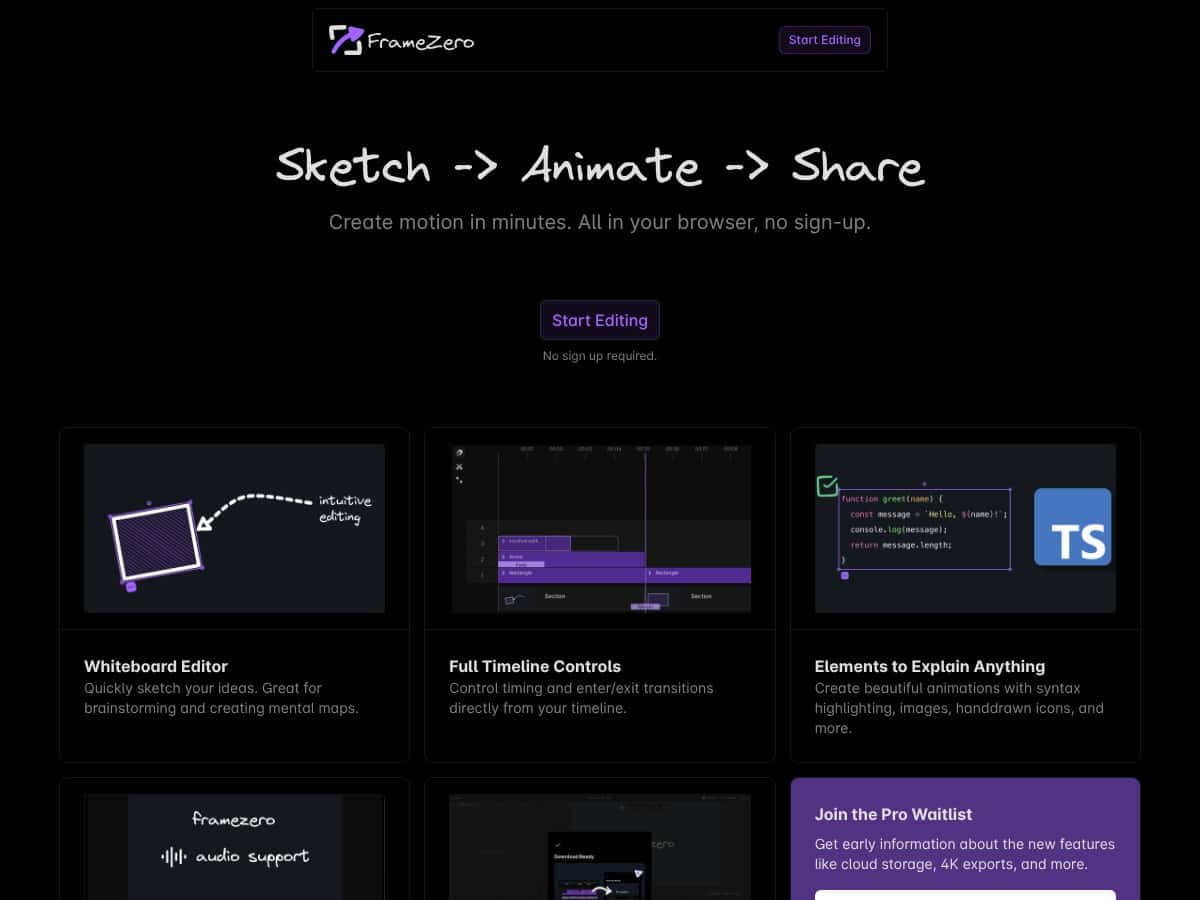
I’ve been testing FrameZero for a bit, and honestly, it surprised me how quickly I could get something moving in the browser. No sign-up. No downloads. Just open it, start sketching, and build a short whiteboard-style animation. If you’re trying to turn rough ideas into a simple explainer video (even for a team meeting or a quick demo), this is the kind of tool that gets out of your way.
FrameZero Review
Here’s what I did when I tested FrameZero: I opened the editor in my browser, created a fresh project, and immediately started drawing a simple “3 steps” whiteboard sequence. Then I added a couple of elements (an icon and a short text block), recorded a quick voiceover, and exported the result.
Time-wise, I got my first animation on the timeline in about 5–7 minutes. Export took another 3–6 minutes depending on length and how many elements were on the canvas. That’s pretty fast for something that feels like a lightweight whiteboard creator rather than a full video editor.
One thing I noticed right away: the interface is clean. There isn’t a ton of clutter, and the timeline is easy to understand without watching a tutorial. If you’ve ever used tools where you spend more time hunting for controls than actually building the animation, you’ll probably appreciate how straightforward FrameZero feels.
Key Features
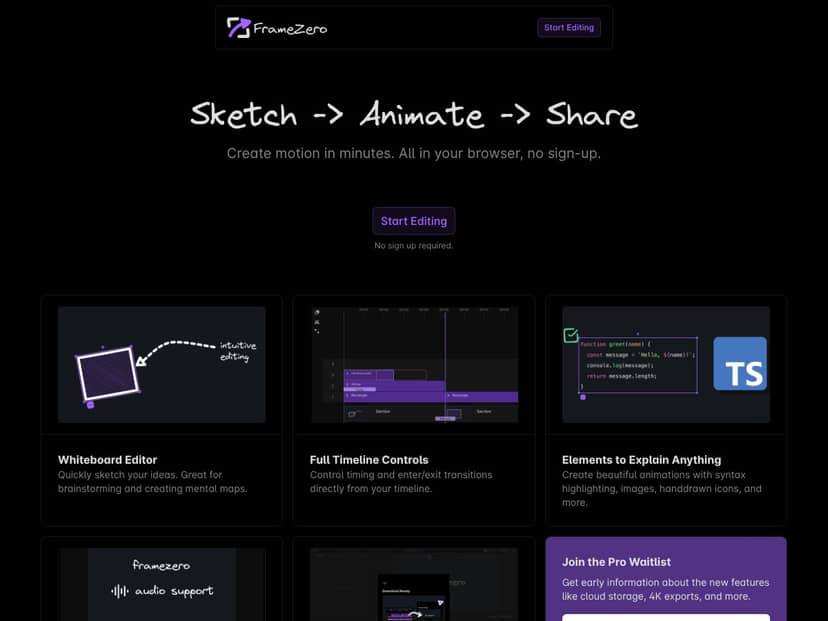
- Whiteboard Editor for easy sketching and brainstorming
- Drawing felt responsive in my test. I could sketch shapes and lines without lag that made me second-guess the tool. It’s built for quick visuals, not pixel-perfect illustration—so if you want ultra-fine control like you’d get in a dedicated design app, you may find it limiting. But for explainer-style animations, that “good enough” sketch quality is actually part of the charm.
- Full timeline controls to manage animations
- The timeline is the heart of the workflow here. I was able to scrub back and forth to check timing, and I could see how each element appeared over time. What I liked: the controls felt predictable, and I didn’t get that “where did my keyframe go?” feeling. What I didn’t see (at least in the basic/free setup): advanced animation controls like easing curves or granular motion paths.
- Adding explanation elements like images, icons, and syntax-highlighted code
- I tested adding a couple of assets to support the narration. Icons dropped in cleanly, and text blocks were easy to place. The code option (with syntax highlighting) is a nice touch if you’re making technical explainers—though I wouldn’t call it a full “developer documentation” editor. It’s more about quickly showing a snippet than formatting an entire article.
- Voiceover recording for narration
- I recorded a short voiceover for a ~30–45 second animation. In my run, the narration was easy to capture, and syncing felt straightforward—no weird “audio drift” that forced me to re-record. Still, if you’re picky about timing down to the second, you’ll probably want to do a couple of export checks to make sure the visuals match your delivery.
- Export videos in HD format
- Export is where FrameZero really earns its “browser-based” label. I exported an HD video (1080p) and the result looked sharp enough for sharing in Slack, email, or a simple landing page embed. File size was reasonable for the length I tested—my ~40-second export came out to a few tens of MB, not something enormous.
- One limitation: I didn’t see a bunch of export options in the free version. It’s basically “pick HD and go.” If you need custom bitrate, resolution downscaling, or frame-rate control, you’ll likely want a more advanced editor.
- Join the Pro waitlist for future features like cloud storage and 4K exports
- During my test, I didn’t have access to any Pro-only features. The waitlist is mentioned for upgrades like cloud storage and higher-resolution exports (like 4K). If those matter to you, it’s worth joining—but for now, plan around the free toolset.
Pros and Cons
Pros
- Fast to first animation: I had a working sequence in under 10 minutes (sketch → timeline timing → add elements).
- Timeline scrubbing felt responsive—checking timing didn’t feel clunky.
- No sign-up required to start creating, which is honestly a big deal for trying tools quickly.
- Browser-based workflow means no install and no “download hell.”
- Good for short explainer videos and brainstorming visuals where you want something usable immediately.
Cons
- Animation controls are basic compared to heavier editors (no obvious easing/motion-path style options).
- Not built for complex scenes—if you want layers, advanced compositing, or very detailed motion, you’ll feel the ceiling quickly.
- Pro features aren’t available yet in my test, so you can’t rely on things like cloud storage or 4K exports today.
Pricing Plans
At the moment, FrameZero is completely free to use. There’s also a Pro waitlist for upcoming upgrades. The Pro plan is described as offering things like cloud storage and 4K exports.
What I can confirm from my test: I didn’t need an account to create and export. What I can’t confirm (because it wasn’t available to me during testing): any specific free limits (like export caps or watermark rules) or exact Pro pricing. The “waitlist” part is clear, but the exact numbers aren’t shown in the free experience I used.
Wrap up
Overall, FrameZero is a solid choice if you want easy, browser-based whiteboard animation without turning it into a whole production project. It’s especially good for quick explainers, short demos, and brainstorming sessions where speed matters.
Just go in expecting “simple but effective,” not “feature-complete animation studio.” If that matches your needs, you’ll probably enjoy how quickly you can go from idea to exported video.