Table of Contents
Video editing is one of those things that sounds simple… right up until you actually try to do it. Trimming clips, adding captions, lining up zooms, fixing audio levels—before you know it, you’ve spent an entire evening just getting one “basic” tutorial ready.
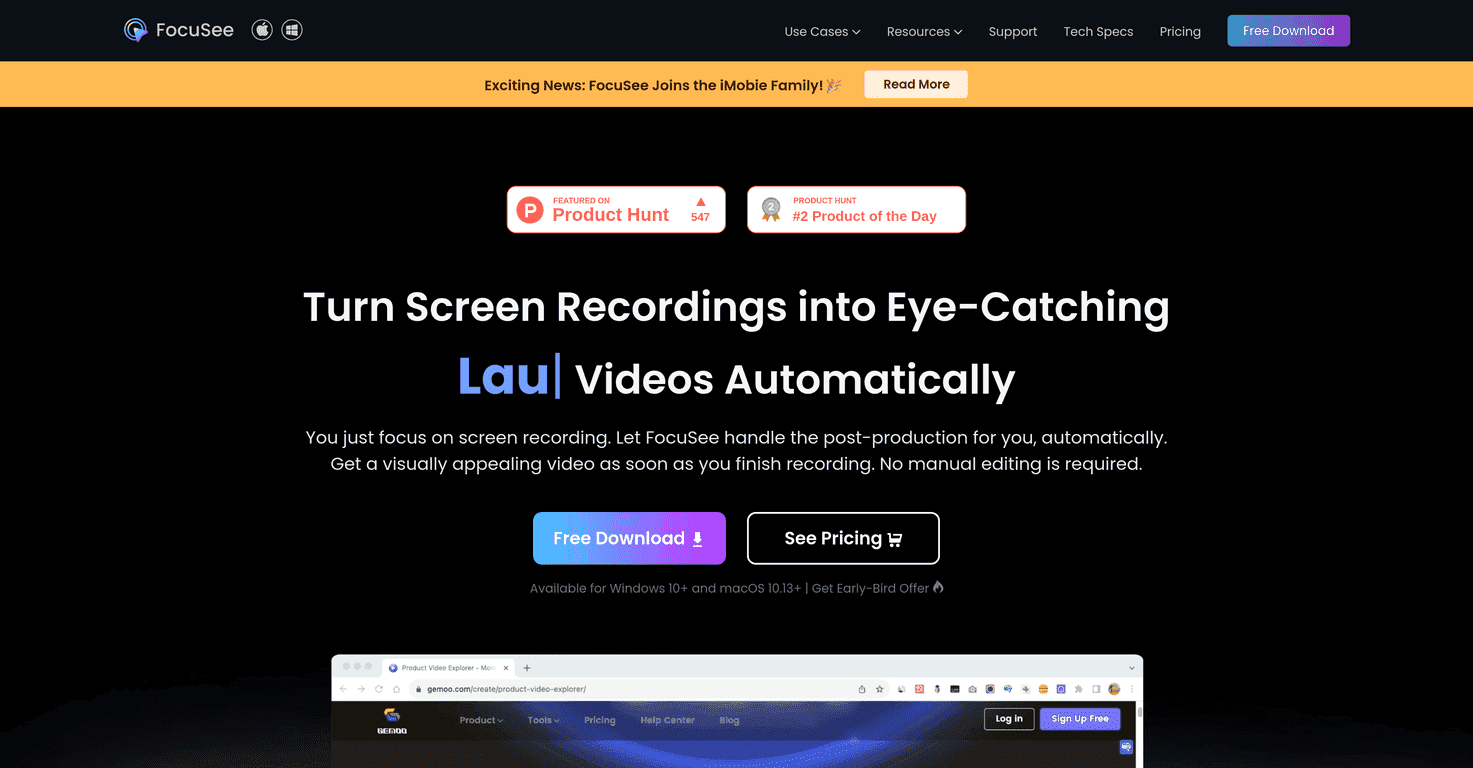
That’s exactly why I gave FocuSee a shot. It’s a screen recording tool that’s built for people who want to publish quickly without needing to become a full-time editor. In my experience, the biggest promise here is that FocuSee handles a lot of the post-production automatically—so you can focus on the content, not the timeline.
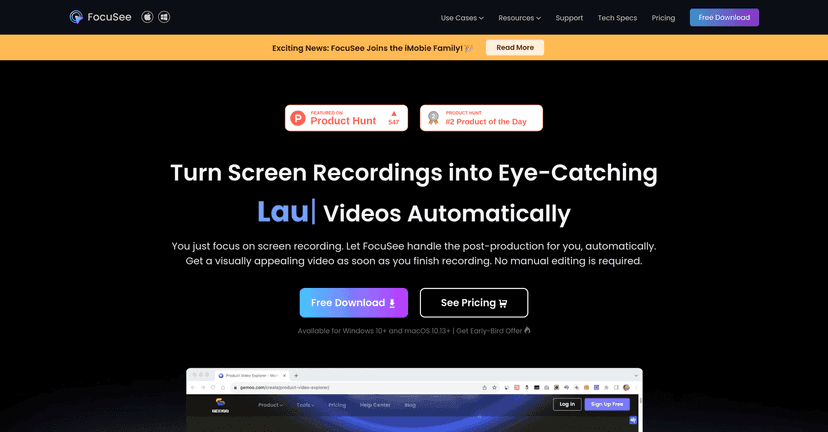
FocuSee Review: Screen Recording That Feels Less Like Editing
FocuSee is aimed at people who want professional-looking results without having to learn a bunch of editing tools first. I tested it for typical “how-to” videos—things like walking through a dashboard, showing a step-by-step process, and adding a quick selfie and voiceover so the video feels more personal.
What stood out to me right away is how focused the workflow is. You record screen content (and you can include selfie + voiceover), and then the software helps with the polish afterward. Instead of staring at a timeline and wondering what to do next, I felt like I was moving toward a finished video the whole time.
And honestly, that matters. Most tutorials don’t need cinematic effects—they need clarity. FocuSee leans into that by automating things like zoom-style emphasis and captions, which is exactly what I look for when I’m trying to make a video easier to follow.
Key Features That Actually Help When You’re Making Tutorials
- Automated post-production: FocuSee adds zoom effects and captions for you. In practice, this is the kind of “finishing touch” work that usually takes the longest when you’re doing it manually.
- Record screen + selfie + voiceover at the same time: If you want a talking-head vibe while you demonstrate, this saves a lot of extra syncing.
- Export options (including HD video and GIFs): I like having GIFs for quick sharing—especially when you’re explaining a small UI detail.
- Social media presets: It supports aspect ratios geared toward platforms like YouTube and TikTok, so you’re not guessing or doing awkward cropping later.
- Customizable layouts and presets: You can pick different styles, which helps if you’re making multiple videos and want them to look consistent.
- Extra effects: Motion blur, automatic captions, and filters are included, which is handy if you want your recording to look a bit more “designed” without going full editor.
Pros and Cons From My Experience
Pros
- Time savings is real: The automated editing features cut down the “make it look good” part, which is usually where I lose steam.
- Beginner-friendly: The interface is straightforward enough that I didn’t feel like I needed a tutorial to get started.
- Good output quality: It’s capable of up to 4K resolution, which is great if you’re aiming for crisp screen text.
- Works on Windows and macOS: No platform lock-in.
- Built for practical video needs: Captions + emphasis/zoom are exactly the things viewers care about in tutorials.
Cons
- Automation has limits: If you need very specific edits (custom callouts, complex transitions, heavy timeline control), you may feel constrained.
- Advanced settings can be a learning curve: You’ll probably get better results faster if you already understand basic video editing concepts (like what looks good for readability and pacing).
Pricing Plans (And What $69.99 Means)
FocuSee is priced at $69.99 for unlimited videos forever. For me, that pricing structure makes sense for small businesses and creators who publish regularly—because you’re not paying per project.
If you only make one video a year, it might feel like overkill. But if you’re putting out tutorials, product demos, or onboarding content every month, it can pay for itself quickly.
Wrap Up
Overall, I think FocuSee is a solid option if your goal is simple: record your screen and turn it into a polished video without spending hours editing. The automated zoom/caption approach is especially useful for tutorials, and the presets help avoid the “why does this look cropped?” problem when you’re posting to different platforms.
Just keep expectations realistic. It’s not trying to replace a full editor for professionals who want total control. But for most people who want to publish quickly and clearly? It feels like exactly the kind of tool you’d want in your workflow.
Promote FocuSee