Table of Contents
If you’re on a Mac and you write a lot—emails, notes, docs, whatever—then you already know the annoying part: getting your thoughts from your head into the computer without it turning into a chore. I’ve tried dictation built into macOS, and it’s fine… until you need something more consistent, faster, and easier to clean up.
That’s where Fixkey comes in. It’s a native writing assistant for macOS that focuses on voice-to-text, plus the part most people forget: polishing what you said so it actually reads like something you’d want to send.
Fixkey Review: What It’s Like to Use on a Mac
Fixkey is built for one main job: turning your voice into text quickly, then making that text easier to read. I tested it for a few typical tasks—brain-dumping notes, drafting an email response, and rewriting a paragraph for clarity—and the biggest difference I noticed wasn’t just the transcription. It was the “cleanup” step.
Here’s what stood out right away:
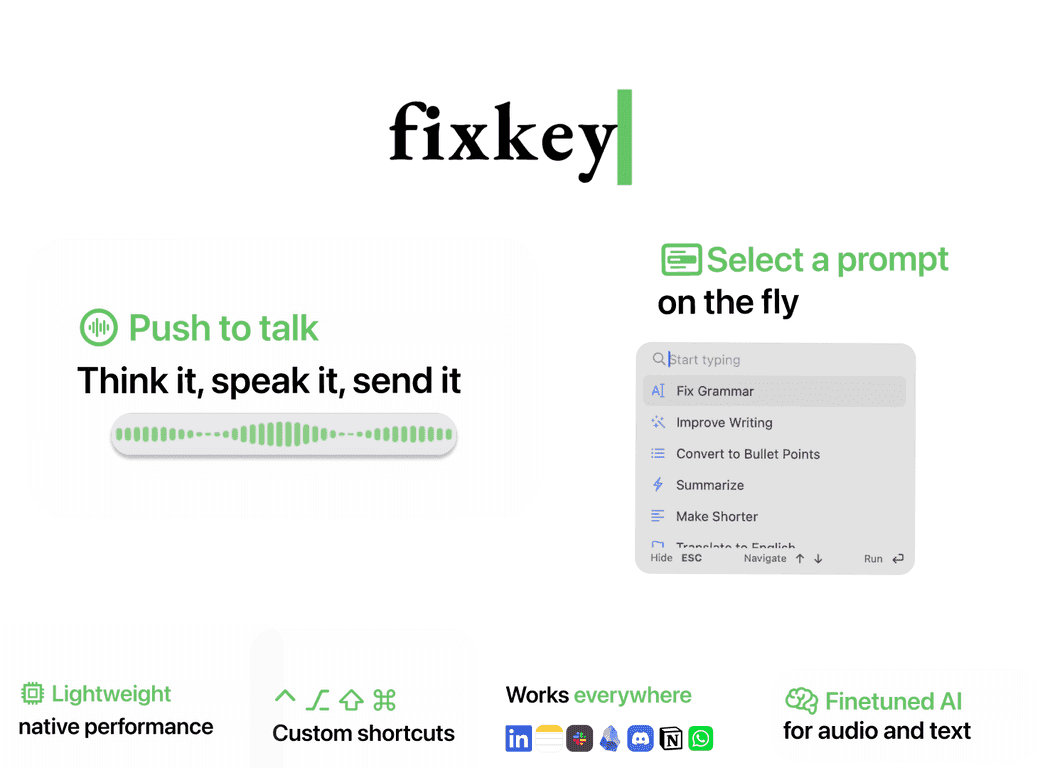
- Real-time speech-to-text that feels responsive enough to keep your momentum. You’re not waiting around for a transcript to catch up.
- Voice polish that helps fix the “spoken” vibe. You know the one—words that sound fine out loud but read messy on the page. Fixkey aims to smooth that out.
- Works across macOS apps. I used it while switching between note-taking and writing in email/text-style apps, and it didn’t feel like a gimmick confined to one place.
That “native Mac application” part matters more than I expected. When a tool is integrated well, you spend less time figuring out where to click and more time actually writing. And yes, there are shortcuts and AI prompts that make repeating tasks faster—like starting the same kind of rewrite every time you draft.
One more thing: Fixkey supports over 180 languages. If you write in more than one language (or you’re learning), that’s a big deal. Even if you only need it occasionally, it’s nice not to have to swap tools.
Quick reality check: If you talk with lots of background noise, any dictation tool can struggle. Fixkey is strong, but it’s not magic. Still, compared to “basic” dictation I’ve used, it felt more consistent in producing usable text without me doing a ton of manual rearranging.
Key Features I’d Actually Use
- Instant Speech to Text with high accuracy
- Voice Polish for enhanced text clarity
- Universal Compatibility with any macOS application
- Custom Shortcuts for quick access
- Powerful and customizable AI-powered prompts
- Translate to over 180 languages instantly
- Custom AI Prompts for specific writing needs
- Voice Commands for formatting and command control
If you’re wondering how these show up in real life, here are a few examples based on typical writing workflows:
- Drafting faster: I’ll talk through a rough outline, then run voice polish to turn it into something that sounds more intentional.
- Editing without breaking flow: Instead of stopping to type every correction, you can keep speaking and let the assistant help clean up what you said.
- Formatting on the fly: Voice commands can be handy when you don’t want to hop back and forth between keyboard and mouse.
- Multi-language writing: Translation support is useful when you need a quick version in another language for sharing or reviewing.
Pros and Cons (No Sugarcoating)
Pros
- High accuracy for voice-to-text—good enough that I didn’t feel like I had to “rebuild” most sentences.
- Wide language support (over 180 languages), which is great if you write globally or learn languages.
- Customizable experience with shortcuts and prompts, so it doesn’t feel one-size-fits-all.
- Optimized for macOS as a native app, so it’s smoother than tools that feel bolted on.
Cons
- Limited to macOS users only. If you’re on Windows or iOS-only, this won’t help you.
- Some AI features may require internet access. That’s not unusual for AI tools, but it’s still something to keep in mind if you work offline.
One small note: the more you rely on AI polishing, the more you’ll want to review the output. It’s usually helpful, but it can still make stylistic choices that aren’t exactly what you’d write yourself. I’d treat it like a strong co-writer, not an autopilot.
Pricing Plans
Fixkey doesn’t list specific pricing details in the content I’m working from right now. The best move is to check the official Fixkey Pricing Page directly using the link on their site and compare plans based on how often you’ll use transcription, voice polish, and translation.
If you’re deciding whether it’s worth it, I’d base it on your real usage—like how many documents or emails you draft per week. For heavy writers, the time saved on editing alone can add up fast.
Wrap up
Overall, I like Fixkey because it targets the two things that usually slow writing down: capturing your words and making the result readable. If you’re a Mac user who writes often and wants a smoother voice-to-text workflow—plus polish and prompts that help you finish faster—Fixkey is absolutely worth trying.
Just remember to review polished output once in a while, especially if you care about a very specific tone. When you do that, it’s a solid assistant that can genuinely make writing feel less painful.
Promote Fixkey