Table of Contents
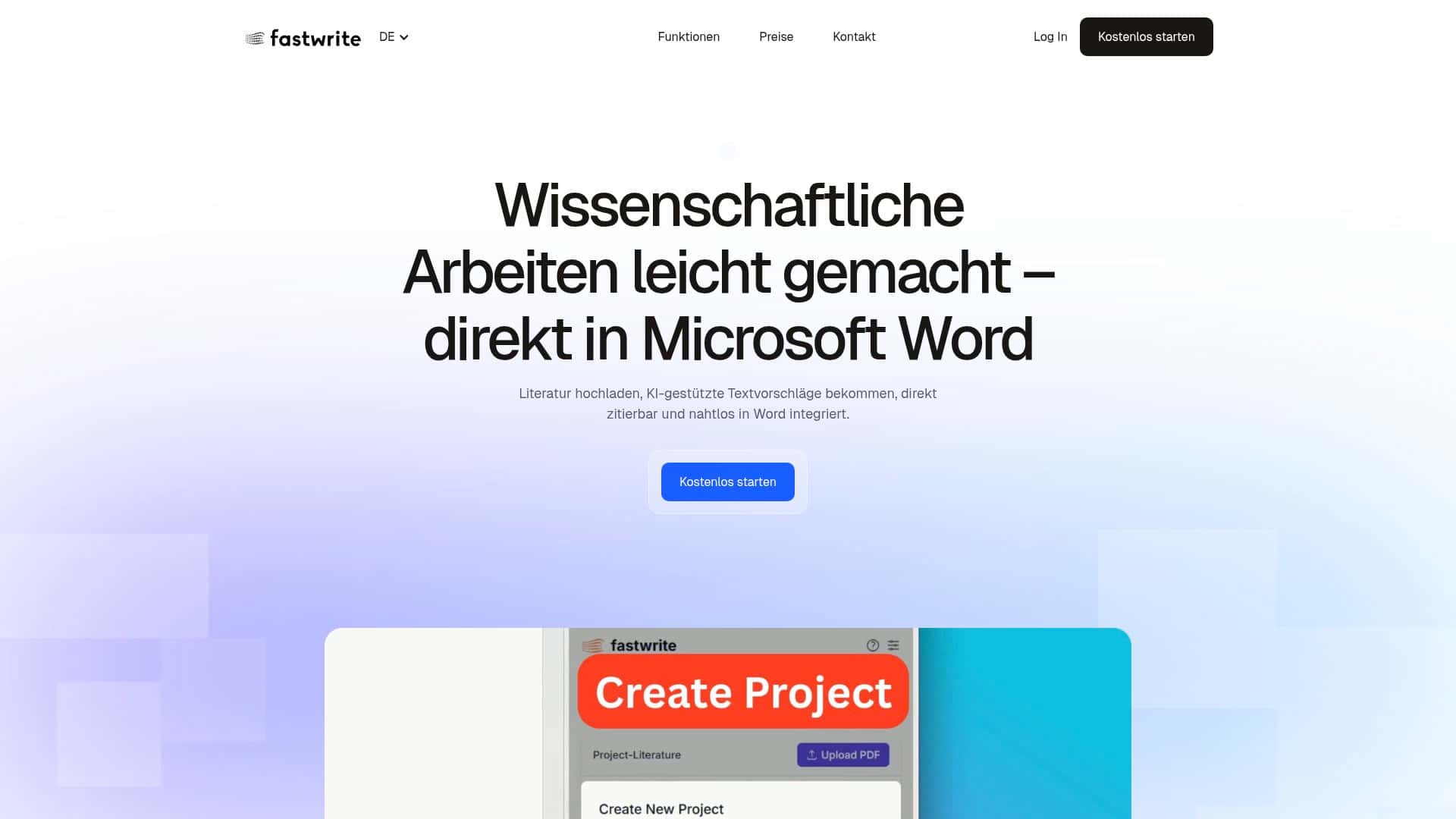
If you’ve ever stared at a blank Word document at 1 a.m. thinking, “Why is academic writing so slow?”, you’re going to relate to fastwrite.io. The pitch is simple: AI help inside Microsoft Word, plus a reference library so you’re not bouncing between tabs while you write. I used it for a few weeks as part of my normal workflow—building outlines, drafting sections, and inserting citations—so this isn’t just a “sounds good” review. It’s what I actually noticed after setup, while writing, and when I tried to stress-test the citations.
fastwrite.io Review: what it’s like to use for real academic writing
Let me be upfront about my setup. I wrote in Microsoft Word (not Google Docs), and I leaned on fastwrite.io mainly for three things: (1) jump-starting paragraphs, (2) inserting citations without losing my place, and (3) keeping my reference list organized while drafting. The big win for me was that it didn’t feel like a separate “AI chat window” I had to constantly copy/paste from.
What I did during testing
- Drafted in Word: I started with a section outline, then wrote 2–3 paragraphs at a time while watching how the autocomplete suggestions behaved.
- Built a reference library: I imported a small set of PDFs and a couple of sources I already had saved, then tried pulling citations while writing.
- Inserted citations repeatedly: I tested both “easy” citations (clean metadata) and “annoying” ones (missing/unclear details) to see what happened.
AI autocomplete: helpful, but not magic
fastwrite.io’s autocomplete is the part that most people will care about first. In practice, it’s best when you already have the rough structure of your paragraph. If you start with a topic sentence and a couple of keywords, it tends to finish the thought in a way that matches the tone you’ve been using.
What I noticed:
- It speeds up the “middle”: The first sentence still takes me a moment, but the next lines are faster because it suggests a natural continuation.
- It can get generic if you’re too vague: If my prompt was basically “write about X,” the suggestions sounded more like a textbook summary than my specific argument.
- Style consistency depends on your input: When I kept my sentences short and analytical, the suggestions were closer to that. When I wrote long, complex sentences, it followed that too.
Reference library + citations: the real workflow saver
For academic writing, the time sink is usually not the writing—it’s the citations. fastwrite.io helped me because I could keep references in one place and insert them from within Word instead of bouncing between a citation manager, PDFs, and Word.
Here’s what I actually did:
- I uploaded PDFs into the library and then wrote a paragraph that referenced one of those sources.
- When I inserted the citation, it handled the formatting and referencing automatically (so I wasn’t manually constructing an in-text citation and then remembering to update the bibliography).
- Then I added another source and repeated the process to see if it stayed consistent across multiple insertions.
Edge cases I ran into
- Missing metadata: For at least one PDF, the citation details weren’t perfectly complete. fastwrite.io still helped, but I had to double-check the author/year before finalizing.
- Unusual formatting: If your Word document has a lot of custom heading styles or odd spacing, citations still inserted correctly, but I noticed some formatting quirks in how surrounding text looked after edits.
- Different languages: My testing was mostly in English. When I tried switching to a non-English title/reference, the tool didn’t “break,” but the output needed a quick review for accents/diacritics and title formatting.
Windows-only matters
In my experience, fastwrite.io is currently Windows only. If you’re on macOS or you mainly write in a browser, this is a deal-breaker today—not a “maybe later” situation. I didn’t see a reliable, official source in the material I reviewed that confirms macOS support or a near-term roadmap, so I’d plan around Windows for now.
Verdict (who should try it)
- Best for: Students and academics who write in Word and want AI-assisted drafting plus citation insertion in the same workflow.
- Not ideal for: Anyone who needs perfect citations without review, or anyone on macOS/Linux who can’t use the Word integration.
After using it, I’d summarize it like this: it reduces the friction between drafting and citing, and that’s where most people lose time. Just don’t skip the final pass—especially for author/year accuracy when metadata is messy.
Key Features: how fastwrite.io actually supports academic writing
- AI Autocomplete inside Word
- Works directly in Microsoft Word
- Personal library for references + literature
- One-click citations and automatic referencing
1) AI Autocomplete (what it does, and when it helps)
Instead of generating a whole essay from scratch, the autocomplete is designed to help you continue what you’ve already started. In my testing, that made it feel more “assistive” than “replace me.”
How I used it
- I wrote a topic sentence (my claim).
- Then I added 1–2 supporting keywords or the reference I wanted to cite.
- fastwrite.io suggested the next sentences, and I chose whether to accept, edit, or ignore them.
Limitations I noticed
- If your argument is unclear, autocomplete will happily fill the gap with something plausible—but not necessarily your argument.
- It’s faster for drafting than for “fact verification.” If you’re making a specific claim (numbers, study results, exact findings), you still need to check the source.
2) Word integration (why it matters day-to-day)
The reason I kept using it is simple: I didn’t have to jump out of Word to get help. That sounds small, but when you’re writing for hours, it adds up.
- Draft, revise, and insert citations without constant copy/paste.
- Keep your document formatting intact while you work.
Practical tip: If you use Word styles (Heading 1/2/3), stick to them. It makes it easier to keep your structure consistent while you insert citations and revise sections.
3) Personal library (organizing references the usable way)
The library is where fastwrite.io becomes more than an autocomplete tool. Instead of treating citations like a last-minute chore, you can pull references as you write.
What I tested
- Uploading a handful of PDFs and then citing them in multiple sections.
- Trying to cite the same source more than once to see if formatting stayed consistent.
One thing to watch: If a PDF’s metadata is incomplete, you may need to correct author/year details before final submission. I didn’t have to rework everything, but I did have to review at least one citation.
4) One-click citations + automatic referencing (and what happens when it’s not clean)
In the best-case scenario, you insert a citation and the document updates the reference list without you manually hunting for where the bibliography needs changes.
In my workflow
- I inserted in-text citations while drafting paragraphs.
- Then I reviewed the bibliography entries afterward to confirm they matched what I expected.
Citation style note
fastwrite.io is positioned for academic use, but citation style support (for example, whether it strictly outputs APA vs MLA vs Chicago) is something you should verify in your own document. In my case, I focused on consistency and readability, then did a final check of the formatted entries.
If you’re preparing a submission with a strict style guide, I’d recommend doing a quick “spot check” on 3–5 citations: one near the beginning, one in the middle, one near the end, and one that came from a PDF with weaker metadata.
Pros and Cons (based on my testing)
Pros
- Word-first workflow: I didn’t have to keep switching apps just to draft or cite.
- Autocomplete that fits drafting: It’s better at continuing paragraphs than generating a full paper out of nowhere.
- Reference library helps while writing: Citations weren’t a “later problem” for me.
- Less manual formatting: Automatic referencing saved time compared to building citations by hand.
Cons
- Windows only: If you’re not on Windows, you can’t use the Word integration.
- Free tier is limited: You’ll hit caps quickly if you’re doing heavy drafting.
- Not always perfect with messy PDFs: When metadata is incomplete, you’ll want to review citations before submitting.
- Style uniqueness can be a factor: If your writing voice is very specific, you may need to edit more than you’d expect.
Pricing Plans (what you get, and what the limits mean)
Free plan
The free plan is a solid way to test whether the Word integration and autocomplete fit your workflow. From what’s described, it includes limited access such as one project, 50 autocompletes daily, and five PDF uploads.
In plain English: if you’re drafting one short paper or doing a couple sections, it’s probably enough. If you’re writing a full dissertation chapter, you’ll want to upgrade sooner rather than later.
How I interpret those limits
- “Autocompletes daily”: In practice, this is the number of times you trigger/accept autocomplete suggestions. If you’re constantly iterating on the same paragraph, that count can drop fast.
- “PDF uploads”: This is for building your library. The more PDFs you upload, the more sources you can cite while drafting.
Premium plan
The premium plan costs €19.99 per month. The main benefits are unlimited projects, unlimited autocompletes, unlimited PDF uploads, and access to all features plus live support.
Institutional/custom
There’s also a customizable option for groups or larger institutions. If you’re coordinating a department or lab, that’s usually where tools like this become more valuable because everyone’s standardizing the workflow.
Wrap up
fastwrite.io is one of the more practical AI writing tools I’ve tried for academic work—mostly because it keeps you inside Microsoft Word and makes citations part of the drafting process instead of an afterthought. Still, it’s not “set it and forget it.” You’ll want to review citations, especially if the source PDFs have incomplete metadata.
If you write in Word on Windows and you want faster drafting plus easier referencing, it’s worth testing. Start with the free plan, run it on one real assignment, and see whether the autocomplete and citation insertion feel smooth for your style.