Table of Contents
If you’ve ever stared at an Excel sheet for way too long—copying ranges, rebuilding the same charts, formatting everything just to make it “presentable”—you already know the problem. The data isn’t the hard part. It’s everything you have to do around it.
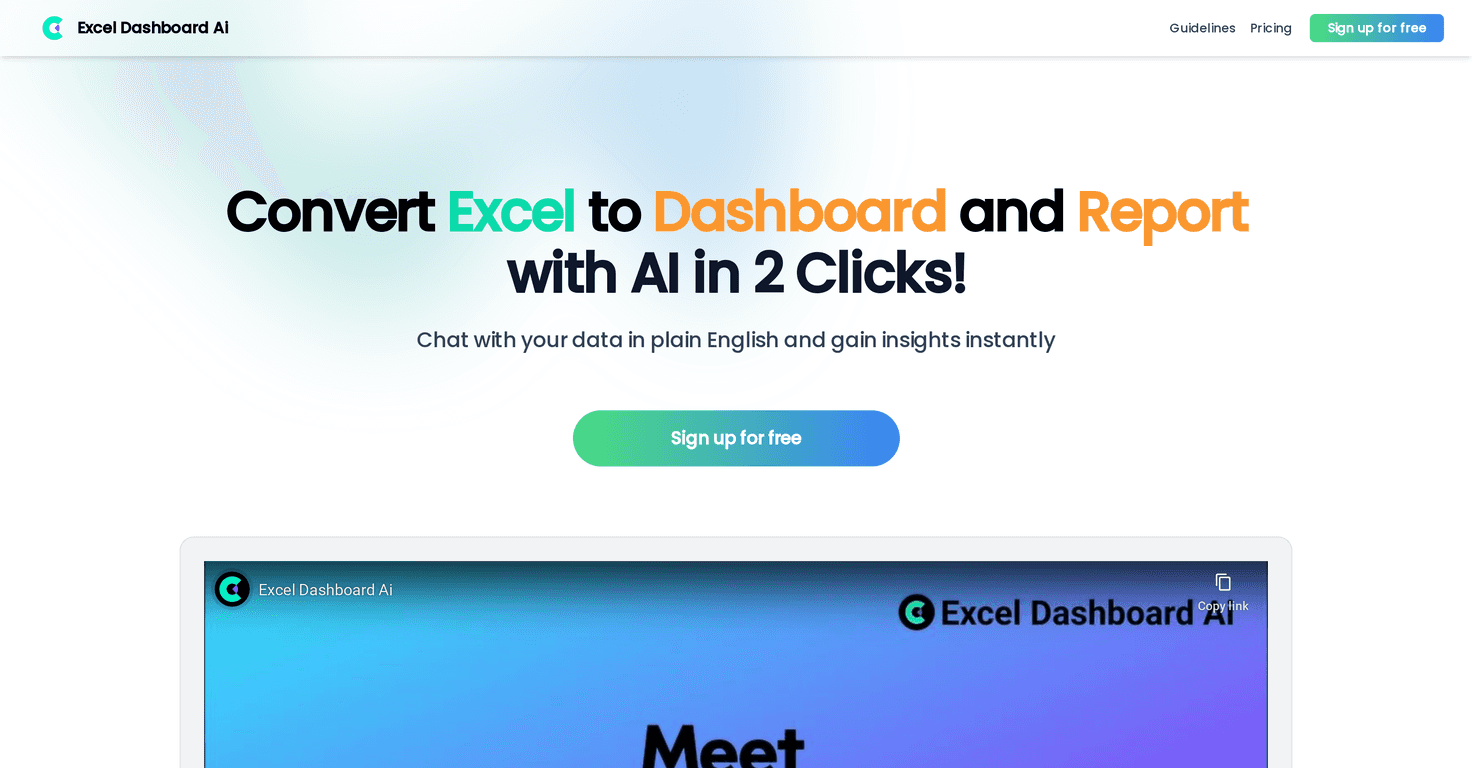
That’s why I wanted to try ExcelDashboard AI. The pitch is simple: upload an Excel file, and it turns it into an interactive dashboard plus an analysis-style report. In my experience, that’s the part most people waste hours on—turning raw tables into something you can actually explain.
ExcelDashboard AI Review: What It Really Does With Your Spreadsheets
ExcelDashboard AI is basically a “data-to-dashboard” assistant. You give it an Excel file, and it produces an interactive dashboard along with an analysis report. The goal isn’t just pretty charts—it’s making the insights easier to read and easier to share.
When I tested the workflow, the biggest time-saver wasn’t the chart creation by itself. It was the jump from messy tables to something structured. Instead of spending time thinking about which charts to use, which filters to add, and how to format everything consistently, I could focus on reviewing what it generated and adjusting only what mattered.
Here’s what stood out to me:
- It’s built for speed. The “upload and convert” approach is exactly what you want when you’re up against a deadline.
- It pushes you toward clarity. The dashboard layout is designed to help you interpret data quickly, not just display numbers.
- Interactive elements help with communication. If you’ve ever tried to explain a static chart to someone and lost them halfway through, you’ll appreciate dashboards that let people explore.
One thing I’ll be honest about: if your spreadsheet is poorly structured (blank headers, mixed data types, inconsistent column names), any dashboard generator will struggle. AI tools are helpful, but they’re not magic. A little cleanup in Excel beforehand still goes a long way.
Key Features I Look For in ExcelDashboard AI
I’m listing these the way I’d actually evaluate them in a tool like this—because “AI-powered” means nothing if the output isn’t useful.
- Instant conversion of Excel files into dashboards
- Upload your workbook and get a dashboard output without building everything manually from scratch. This is the core value for people who do reporting often.
- Creation of detailed analysis reports
- Beyond visuals, you want narrative-style insights that summarize what the charts are saying. That’s especially useful for weekly updates or stakeholder reports.
- User-friendly interface that simplifies navigation
- I prefer tools where the steps are obvious. You shouldn’t need a tutorial just to move from “upload” to “view dashboard.”
- Engaging interactive elements
- Interactive filters and dashboard components make it easier for others to explore the data. In real meetings, this matters—people can click around instead of asking the same questions repeatedly.
- AI-powered data visualization techniques
- The tool’s job is to choose sensible chart types and organize the dashboard. When it’s done well, you notice the difference immediately: fewer confusing charts and a cleaner story.
Pros and Cons (Based on What I’d Actually Use)
Pros
- Saves time on repetitive dashboard work. If you build similar reports every week, automating the “first draft” is a big deal.
- Improves decision-making with clearer visuals. Instead of hunting through raw tables, you get a dashboard that helps you spot trends faster.
- Works for different skill levels. Even if you’re not an Excel power user, you can still get something presentable. If you are experienced, you can review and tighten it up.
- Easier sharing for teams. Interactive dashboards are typically more engaging in presentations than a stack of screenshots or a static chart deck.
Cons
- Pricing and some functionality details aren’t clearly laid out. I don’t love guessing—if you’re going to commit, you want transparency up front.
- There can be a learning curve if your data isn’t “dashboard-ready.” If your spreadsheet structure is inconsistent, you may need to do some prep before the output looks right.
- Output may need review. Even when the dashboard looks good, I’d still plan to check the numbers and labels. AI-generated layouts can miss context that you know is important.
Pricing Plans: What You Need to Know Before You Commit
Here’s the honest part: the pricing info isn’t explicitly stated in the content I reviewed. So if you’re trying to budget this, you’ll want to check the official site directly or contact support.
If you do that, I’d also recommend you ask about a few practical things:
- How many exports or dashboard generations are included (especially if you test multiple versions).
- Whether there are limits on file size or number of rows you can upload.
- What “interactive” means in practice—are filters included automatically, and can you customize them?
- Whether you can reuse templates for recurring reports (like monthly sales or quarterly KPIs).
That’s the stuff that usually determines whether a tool is worth paying for—or just another subscription you barely use.
Wrap up
ExcelDashboard AI is the kind of tool I like when I’m trying to turn Excel into something people can actually understand. It’s built for speed, and the interactive dashboard approach is genuinely helpful for presentations and reporting. The main downside is that pricing and some details aren’t clear from the information available here, so you’ll want to verify that on the official ExcelDashboard AI page before you commit.
If your spreadsheet data is reasonably organized and you regularly need dashboards and analysis reports, this could save you a lot of time. And honestly—if you’ve ever spent your Friday formatting charts for a Monday meeting, you already know why that matters.