Table of Contents
If you’ve ever stared at a cron line and thought, “Wait… what does that actually mean?”, you’re definitely not the only one. Cron syntax can look simple until you’re trying to schedule something real—like backups, reports, cleanup jobs, or a script that only runs on weekdays. I’ve had plenty of moments where I had to re-check the minute and hour fields three times just to be sure I wasn’t going to break something.
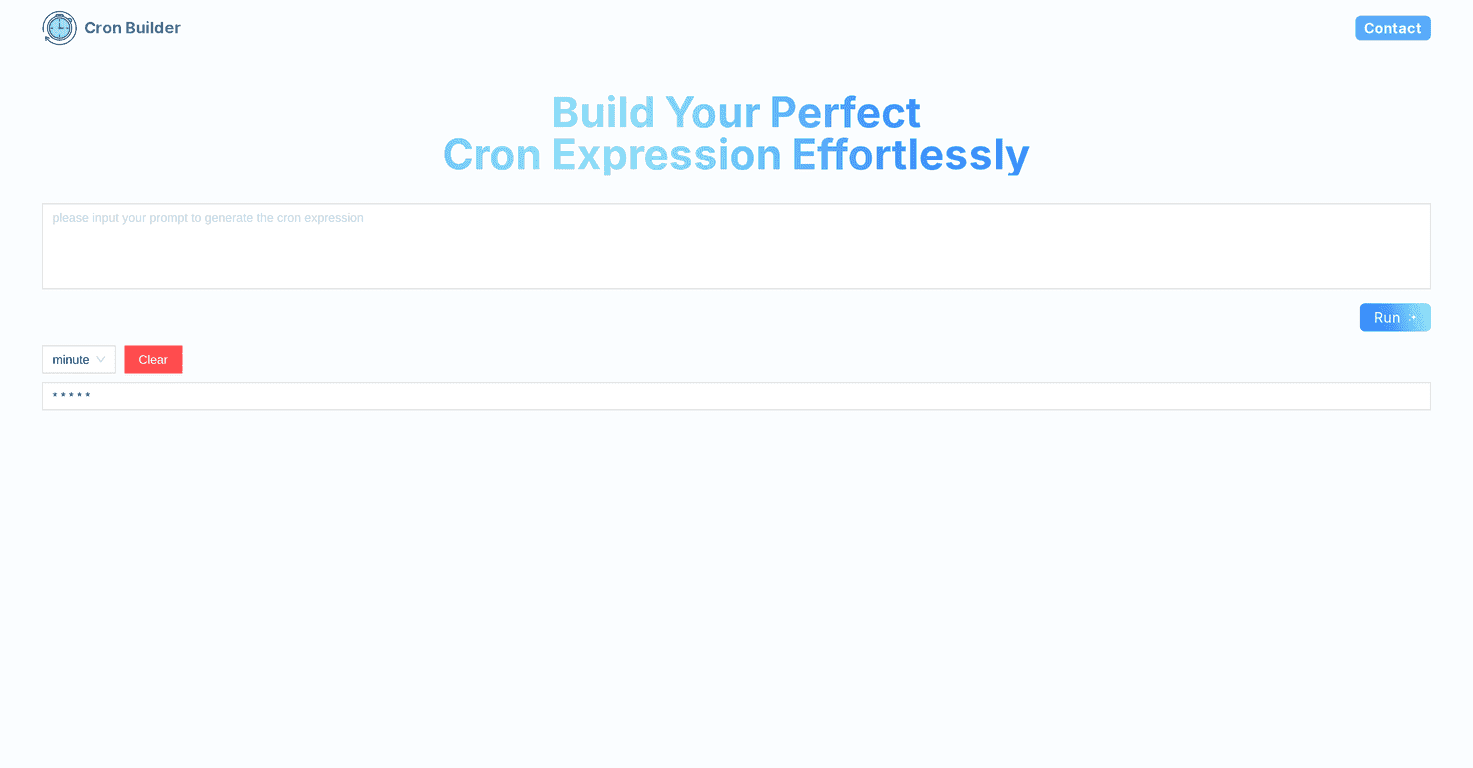
That’s why I gave CRON AI Builder Online (Cron Builder) a try. The idea is straightforward: you type what you want in plain English, and it generates the matching cron expression. No more manually piecing together five different fields from scratch.
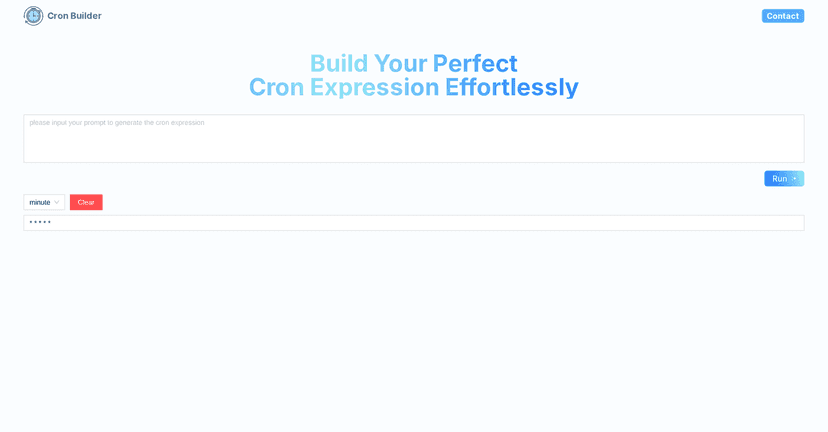
In my experience, the biggest win here is speed. Instead of translating your intent into cron format (and hoping you didn’t mix up day-of-month vs day-of-week), you describe it and let the tool do the heavy lifting. It also helps if you’re not super comfortable with cron rules yet—because the interface gives you a more guided path than pure copy/paste from docs.
Of course, “AI-generated” is only useful if it’s accurate. So I tested a handful of common schedules and paid attention to what it outputs, how quickly I could copy it, and whether it nudges you toward the right settings.
CRON AI Builder Online Review
Let me start with what I actually liked. The tool is built around a simple loop: type your schedule → get a cron expression → copy it. That’s it. And it’s surprisingly useful when you’re working under time pressure.
For example, when I typed something like “Run backup every Sunday at 2 AM”, it generated a cron expression that matched the intent (Sunday + 2:00). That might sound basic, but when you’re used to translating day names and time fields manually, it saves real effort.
It also includes dropdown-based controls for parts of the schedule. I’m not always trying to use natural language—sometimes I already know the minute and hour and just need the day rules set correctly. The dropdown approach makes it easier to avoid “oops, I put it in the wrong field” problems.
Another small thing that matters: the interface feels quick. I could generate an expression, copy it to my clipboard, and move on without constantly reformatting or wrestling with another tab. If you schedule jobs often, that workflow speed adds up.
Key Features
- User-friendly interface that doesn’t make you feel like you need a cron cheat sheet open in another window.
- AI-powered generation that turns natural language into cron syntax.
- Dropdown menus for selecting time periods (hours/minutes and related fields), which helps when you don’t want to guess cron formatting.
- One-click copy so you can paste the cron expression into your scheduler or script config immediately.
- Clear/reset button to wipe out previous inputs without manually deleting everything.
- Step-by-step guidance that makes the output easier to sanity-check, even if you’re still learning cron.
Pros and Cons
Pros
- Less mental overhead than writing cron by hand—especially for recurring schedules.
- Fewer obvious mistakes because you’re not juggling five fields and hoping they’re in the right order.
- Plain-language input is genuinely helpful. If you can explain the schedule to a coworker, you can probably use this tool.
- Fast to use for everyday tasks (backups, log rotation, report generation, “run every weekday,” etc.).
Cons
- Advanced cron patterns may be hit-or-miss. If you’re doing something complex (specific ranges, tricky combinations, or very particular day-of-week behavior), you’ll want to double-check the output. The tool can’t read your mind.
- Natural language can be ambiguous. If you type something vague like “run every so often,” the generated expression won’t magically become “correct.” In those cases, you’ll need to be more specific (e.g., “every 15 minutes” vs “frequently”).
One thing I’d recommend no matter what: don’t blindly trust any generated cron line. I always take 30 seconds to verify the schedule logic—especially if it’s going to trigger something expensive or disruptive.
Pricing Plans
Pricing isn’t clearly spelled out in the content I reviewed. If you want exact details (free vs paid limits, number of generations, or any export restrictions), you’ll likely need to check the official site or reach out to support directly.
If you’re just testing it for a small project, I’d still try it first and see how the tool behaves with your typical schedules.
Wrap up
So, is Cron Builder worth it? If your goal is to generate cron expressions without getting stuck in syntax land, then yes—it’s one of the easier tools I’ve used for this. The plain-English input plus dropdown options make it approachable, and the one-click copy keeps the workflow smooth.
Just remember: it’s still generating logic. For anything advanced or mission-critical, sanity-check the cron expression before you let it run unattended.
Promote CRON AI Builder Online