Table of Contents
Course creation is one of those things that sounds simple until you actually sit down and try to build it. You’re juggling a syllabus, module flow, lesson objectives, examples… and somehow you still have to make it engaging. That’s why I was curious about Course Generator Pro.
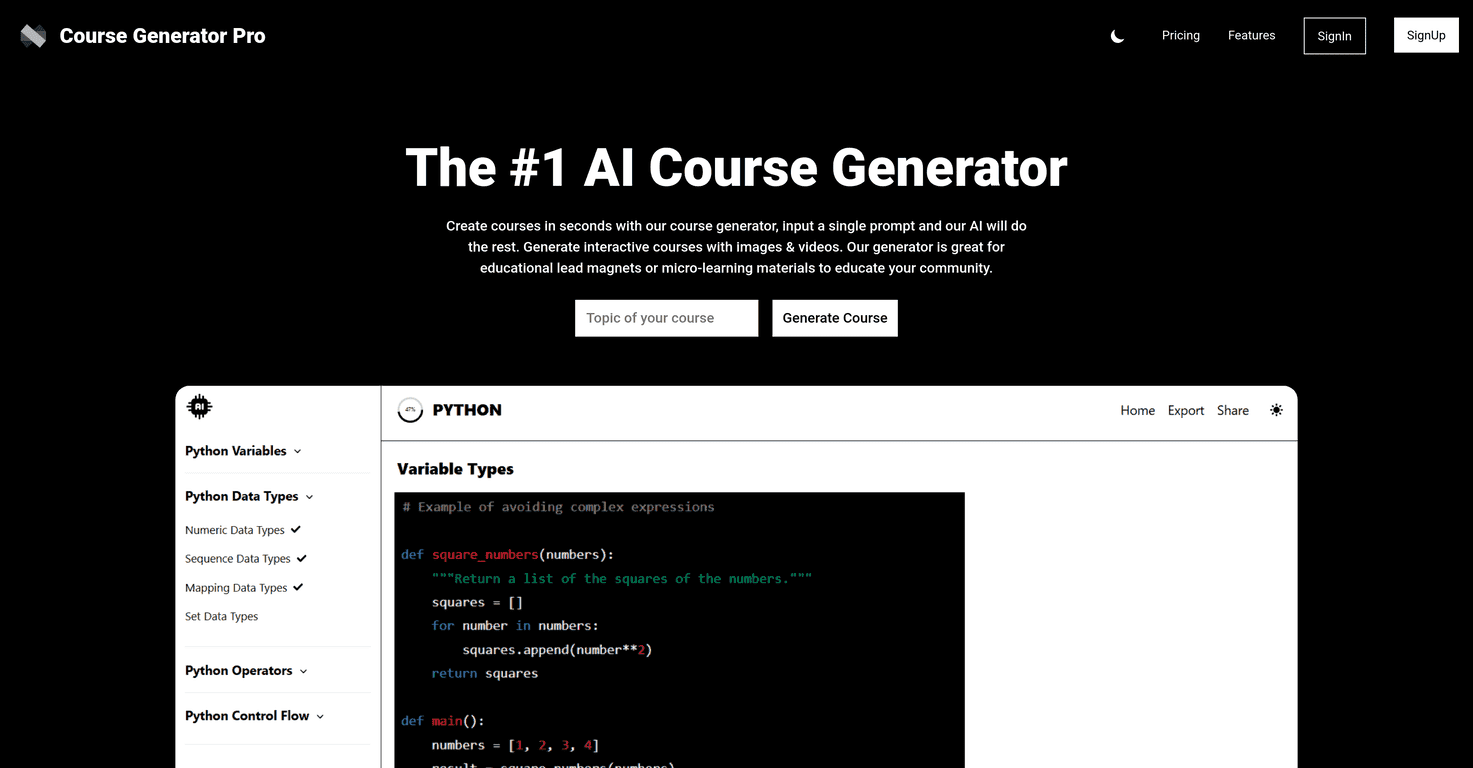
I tested it with a few different course topics and prompts, and the first thing I noticed was how fast it gets you past the “blank page” stage. Instead of starting from scratch, you put in a topic (and some direction), and it spits out a structured outline—modules, lessons, and a course flow you can actually work with. It also tries to make the course feel less like a wall of text by adding multimedia elements like images and videos into the mix.
That said, I don’t think it’s magic. The output is only as good as the inputs you give it, and you still need to review and tighten things up (especially if you care about accuracy, your specific teaching style, or your brand voice). If you’re expecting it to replace all your course design work, you’ll probably be disappointed. If you want a strong starting point that saves hours, it can be pretty useful.
Course Generator Pro Review (What I Liked and What I Didn’t)
Course Generator Pro is built for educators, trainers, and creators who want to get from idea to outline fast. The workflow is pretty straightforward: you enter a course topic and some context, and it generates a structured course plan with modules and lessons. In my experience, the speed is the main attraction. You can go from “I have a topic” to a usable outline in a matter of minutes rather than hours.
One detail that stood out to me is the way it tries to build interactive learning into the structure. It doesn’t just list topics—it also includes supporting multimedia elements (like videos and images) as part of the course content plan. That matters because learners tend to tune out when everything is text-only. Still, you’ll want to double-check those suggestions and make sure they match your audience and your actual course resources.
Another thing I appreciated: you can regenerate the course output. If the first outline isn’t quite right, you can tweak the prompt or regenerate to get a different structure. That flexibility is helpful when you’re aiming for a specific learning path (for example, “beginner-friendly” vs. “intermediate with hands-on assignments”).
Where it gets tricky is control. Even with regeneration, you’re not fully in charge of every micro-detail the way you would be when building a course manually. Also, because it relies on AI to generate the content, the quality can vary. If you don’t provide enough context—like your target audience, course length, or desired outcomes—the output can end up sounding generic.
So, should you use it? If you want a fast draft and you’re willing to edit, absolutely. If you want a fully finished course with zero revision, I wouldn’t count on it.
Key Features I’d Actually Use
- Course Creation in Seconds
- Instead of building a syllabus from scratch, you get a structured outline quickly. In practice, this is great for planning workshops, lead magnets, or early course drafts.
- Interactive Content with Images and Videos
- The tool includes multimedia elements in the course plan. I found this helpful for thinking about lesson variety, but you’ll still want to swap in the best-fit visuals and sources you trust.
- Detailed Course Outline Generation
- You don’t just get “topics.” You get modules and lesson-level structure that you can reorganize. That saves the most time in the earliest phase of course building.
- Flexibility to Regenerate Courses
- If you don’t like the first version, you can regenerate and iterate. This is especially useful when you’re testing different course lengths or learning outcomes.
- Supplementary Learning Materials
- It also aims to provide additional learning materials alongside the lessons. Again, I’d treat these as drafts—use them as a starting point, not a final authority.
Pros and Cons (Realistic Expectations)
Pros
- Big time savings—it gets you past the outline stage quickly, which is usually the most painful part.
- Easy to start—the input process feels beginner-friendly, even if you’re not a “prompt expert.”
- Better learner engagement—multimedia suggestions help you design lessons that don’t feel flat.
- Works with subtopics—if you specify narrower themes, you can get a more targeted structure.
Cons
- Content quality depends on AI performance—sometimes the ideas are solid, and sometimes they’re a bit generic or repetitive.
- Less control than manual creation—you’ll likely need to edit lesson objectives, sequencing, and examples.
- Repetition can happen—if you keep using similar prompts, you may see the same kinds of lesson patterns show up again and again.
Pricing Plans
Pricing details aren’t listed in the content I received. If you’re considering Course Generator Pro, I’d check the official website for the latest plans and any current discounts: Course Generator Pro.
My Quick Tips Before You Generate
If you want better results (and fewer “why does this sound off?” moments), try including these basics in your prompt:
- Audience level (beginner, intermediate, advanced)
- Course length (e.g., 4 hours, 6 modules, 10 lessons)
- Learning outcomes (what someone should be able to do after)
- Style (hands-on projects, case studies, quizzes, etc.)
- Any must-include topics so it doesn’t drift
Then regenerate once or twice if needed. I don’t think you should accept the first output blindly. A couple of iterations usually gets you much closer to something you can actually teach.
Wrap Up
Course Generator Pro is best for people who want a fast starting point and don’t mind editing. It’s not a “set it and forget it” course builder, but it can save serious time on outlining and lesson structure. If you’re building a course for real learners and you’re willing to review the AI output for accuracy and fit, it’s a tool worth trying.
Promote Course Generator Pro