Table of Contents
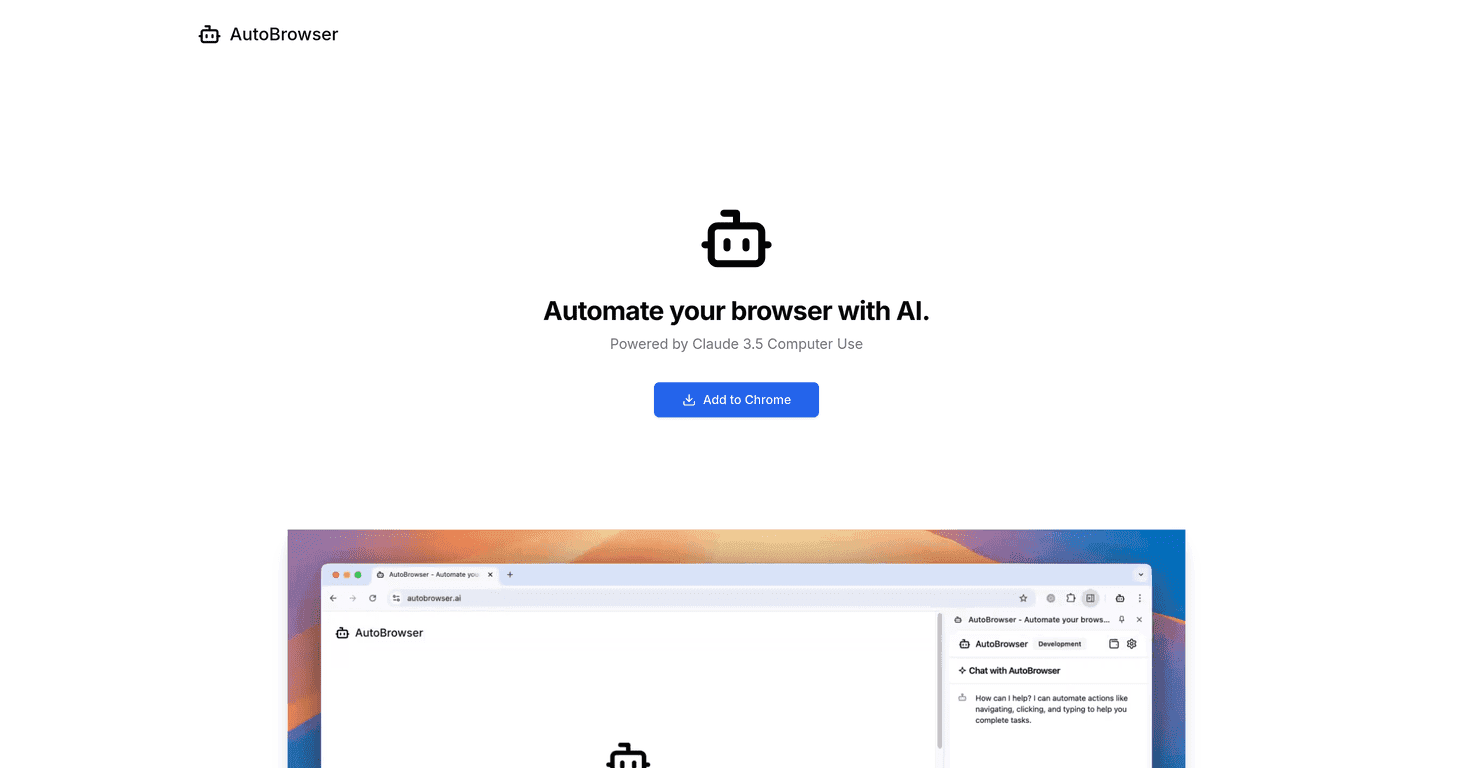
In today’s fast-paced digital world, efficiency is key, and AutoBrowser might just be the tool to help you achieve that. This AI-powered Chrome extension allows users to describe their tasks in simple language, making mundane online actions a breeze. In this AutoBrowser review, we’ll take a closer look at its features, pros, cons, and pricing to see if it truly lives up to its promises.
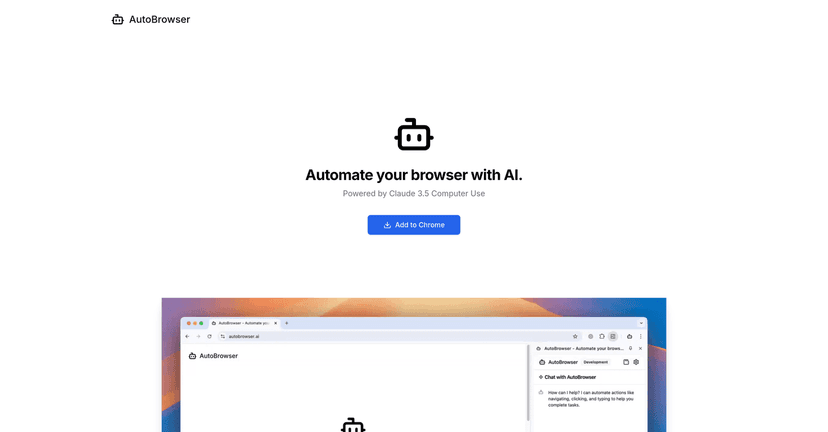
AutoBrowser Review
AutoBrowser takes a revolutionary approach to browser automation by employing advanced AI technology. Simply put, if you’ve ever wished for a tool that can execute your online tasks without the hassle of manual effort, this extension is for you. It can click, type, and navigate through web pages as per your instructions, which can be incredibly helpful for repetitive tasks such as data entry or web scraping. By cutting down on tedious browser actions, AutoBrowser shows great promise for anyone looking to streamline their online workflows.
Key Features
- Full browser automation powered by AI
- Natural language task description for ease of use
- Supports web scraping and workflow automation
- Allows users to use their own Anthropic API key or purchase credits
- Video demo available to showcase capabilities
Pros and Cons
Pros
- User-friendly interface for describing tasks
- Free to use with pay-as-you-go AI costs
- Can lead to significant time savings on repetitive tasks
Cons
- AI may make errors and is not reliable for critical tasks
- Costs can add up quickly with AI usage
- No refunds for purchased credits may lead to losses
Pricing Plans
AutoBrowser is free to use but requires users to manage AI costs through credit purchases. The AI tasks can be expensive, costing about $0.05 for simple actions. Additionally, credits purchased are billed at 1.3 times the actual AI cost, and be aware that once purchased, the credits are non-refundable.
Wrap up
In conclusion, AutoBrowser is an innovative tool that has the potential to save users significant time by automating repetitive browser tasks. While it offers an array of features that simplify the online experience, users should remain cautious about the potential costs and reliability of the AI. If you’re looking to enhance your browsing efficiency without diving deep into technicalities, AutoBrowser could be a worthy addition to your toolkit.
Promote AutoBrowser