Table of Contents
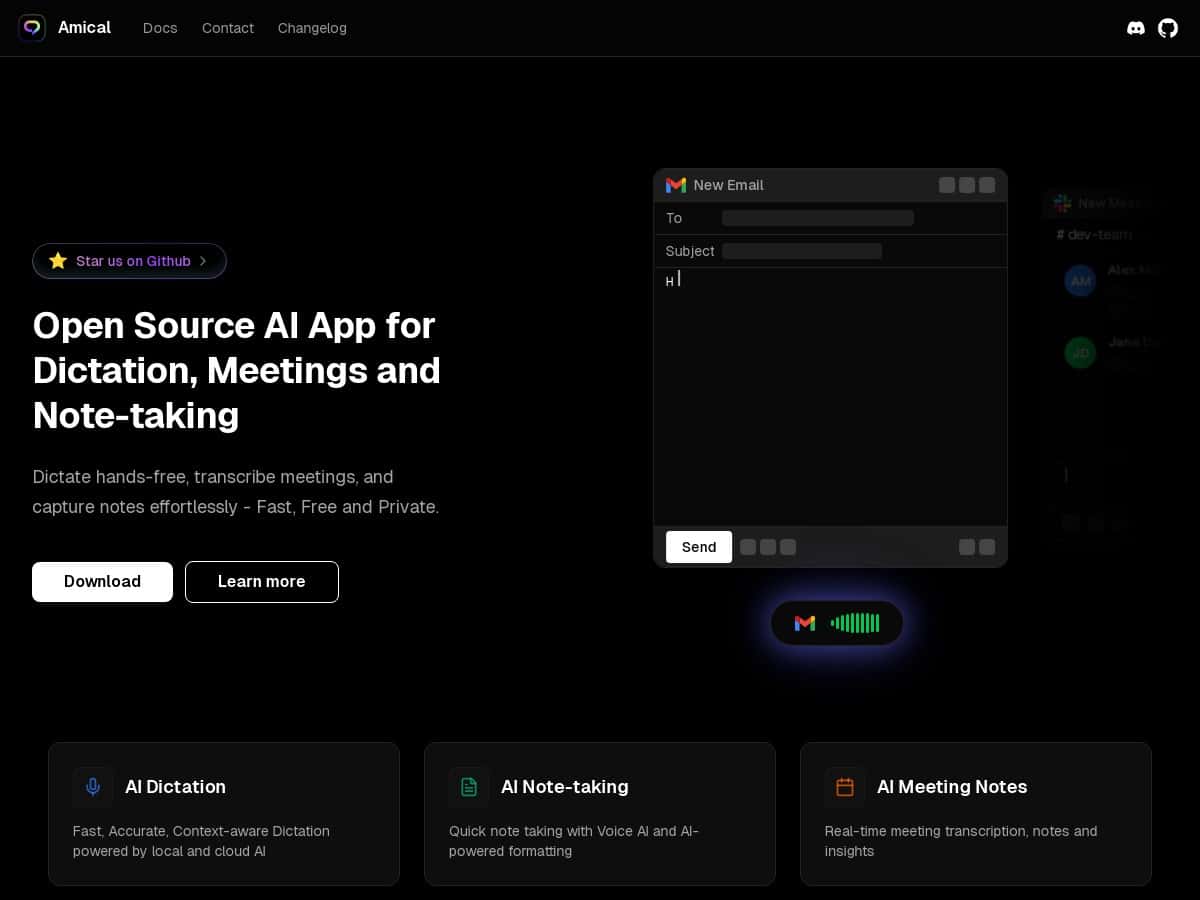
If you care about voice dictation but don’t want your audio floating around the internet, Amical is the kind of project I actually get excited about. I tested it as a daily “get my thoughts down fast” tool—emails, meeting notes, and quick drafts—and I came away feeling like it’s genuinely usable, not just a cool demo.
That said, it’s not plug-and-play for everyone. The first time you set it up, you’ll probably spend a bit of time choosing models, wiring up vocab/formatting rules, and figuring out what works best for your mic and your language. Once I got past that, the transcription felt fast enough for real work, and the privacy angle is strong because you can run local options (depending on your setup).
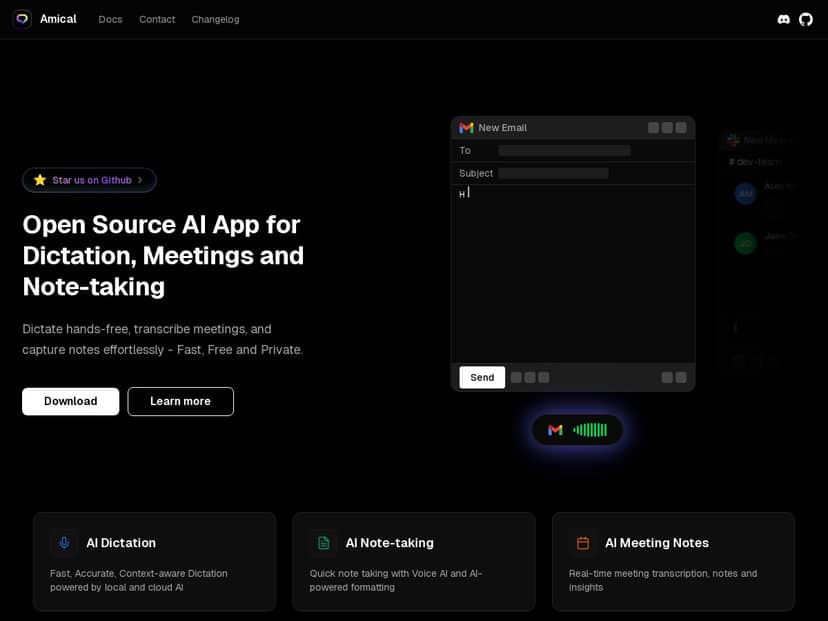
Amical Review: what I actually tested (and what surprised me)
I installed Amical on macOS and treated it like a real workflow tool for a few days—not a “try it once” experiment. My goal was simple: dictate short notes, transcribe a longer block of speech, and see how much cleanup I had to do afterward.
Setup (the parts that matter)
- Audio input: I used my Mac’s built-in mic first, then switched to a USB headset mic to see how sensitive the transcription was to background noise. Big difference, honestly.
- Model choice: I tested both a local model option and a cloud model option (when available in the app). The behavior was noticeably different—local felt steadier for privacy, while cloud was faster in my environment.
- Vocabulary: I added a small custom vocabulary list for names and technical terms I use in my writing. That’s where Amical started to feel “smart,” because it stopped guessing as much.
- Output formatting: I enabled context-aware formatting rules and tried dictating in a way that would normally produce messy punctuation (run-on sentences, “new line” style thoughts, and quick bullet ideas).
Performance notes (real scenarios)
Here’s what I tested and what I noticed:
- Short dictation (30–60 seconds): Accuracy was solid enough that I didn’t feel like I had to babysit every word. If I spoke clearly and paused between thoughts, it handled punctuation and capitalization pretty well.
- Meeting-style audio (2–3 minutes): When I introduced more filler words (“uh,” “like,” “you know”), the output still came through, but I had to do a pass to clean up duplicated phrases and a few misheard proper nouns.
- Noisy room test: With background noise, local mode was less forgiving than cloud mode. I didn’t get “garbage text,” but I did see more substitutions (especially for short words).
- Latency feel: Live transcription was fast enough that it didn’t break my train of thought. It wasn’t instant in the “type as you speak with zero delay” way, but it was close enough for real note-taking.
Privacy check (my practical takeaway)
I like privacy tools when they give you control instead of hand-waving. With Amical, the local model option is the big selling point, and it’s the reason I kept coming back to it. If you choose local processing, you’re reducing the amount of data that has to leave your machine. If you choose cloud models, you’ll want to understand what’s being sent and how the provider handles it. That’s not a dealbreaker, but it’s something you should verify before you start dictating sensitive stuff.
Key Features: the stuff I used every day
Amical’s feature list is broad, but here’s the version that’s actually useful when you’re trying to decide if it fits your workflow.
Real-time transcription (and how accurate it feels)
During my tests, real-time speech-to-text worked best when I spoke in short bursts. Longer monologues weren’t awful, but they did increase the odds of odd word substitutions. The moment I added custom vocabulary for my recurring terms, accuracy improved in a way that felt noticeable rather than “maybe it helped.”
Tip I’d recommend: if you write about specific topics (brands, product names, medical terms, etc.), don’t skip vocabulary setup. It’s the fastest way to get results that feel tailored to you.
Language support (beyond “it works”)
Amical supports over 50 languages, which is great if you’re multilingual. In my use, I didn’t switch languages constantly, but I did test another language briefly and noticed the app still performed like a real dictation tool—not just a “translation gimmick.”
Custom vocabulary for industry terms
This is one of those features that sounds generic until you use it. I added a handful of names/technical phrases I commonly dictate. After that, the transcription stopped trying to “correct” those terms into something similar-sounding.
What I liked: it made output more consistent, so editing after dictation took less time.
Switching between local and cloud models
This is where Amical gets interesting. Depending on what’s available in your environment, you can choose a local model for privacy or use cloud models for speed/quality.
My experience: cloud mode generally felt a bit more forgiving with noisy audio. Local mode felt better for control, but you’ll want decent hardware or you’ll notice slower responses.
Practical advice: if you’re on a laptop, try local mode first for short notes, then switch to cloud mode only when you need maximum accuracy (long meetings, heavy background noise, etc.).
Context-aware formatting (where it saves time)
Context-aware formatting is one of the reasons I didn’t just treat Amical as “transcribe and then clean everything.” I tested dictating content intended for different outputs (like writing-style text vs. more structured notes). The formatting wasn’t perfect every time, but it reduced the amount of manual punctuation and line breaks I had to add.
Example of what I did: I dictated in a “think in bullets” way, and then I let the formatting rules handle the structure. Instead of one giant paragraph, I got something closer to usable notes.
Voice commands and shortcuts
Voice commands are where dictation turns into a workflow tool. I used shortcuts to control the flow without touching the keyboard every time. When commands are configured well, it’s surprisingly smooth—especially for quick edits and repeated actions.
Small warning: if you’re new to configuring voice commands, expect a little trial and error. It’s not hard, but it’s not magic on day one.
Live audio and pre-recorded files
I tested both live dictation and a pre-recorded clip. Pre-recorded files are where transcription tools can shine because you can iterate faster—try a different model, tweak vocabulary, and compare results without re-speaking everything.
What I noticed: the model choice had a bigger impact on pre-recorded audio quality than I expected, especially with background noise.
Multi-platform support (what’s real vs planned)
Amical is positioned for desktop and mobile, but I kept my testing on desktop. If you’re waiting for mobile, check the latest status in the project updates before assuming it’s fully there.
Pros and Cons: who it’s best for (and who should look elsewhere)
Pros
- Privacy-forward options: local model support is a big deal if you’re dictating sensitive notes.
- Custom vocabulary works: adding recurring terms improved consistency in my output.
- Good real-time experience: live transcription was usable for quick notes and drafting.
- Formatting help: context-aware formatting reduced cleanup for me, especially with punctuation and structure.
- Open-source: you can inspect and understand what’s going on more than you can with closed tools.
Cons
- Setup can be fiddly: if you’re not comfortable picking models and configuring rules, it may feel like work at first.
- Model choice affects results: local vs cloud isn’t just a speed difference; accuracy changes too.
- Offline limitations: if offline support is limited in your setup, accuracy and feature availability may drop.
- Some advanced features are still evolving: you might find rough edges depending on the current release.
- Technical know-how helps: to get the best results, you’ll likely want to tune settings instead of using defaults.
How Amical compares to alternatives (quick, practical)
I’m not a fan of “best overall” claims without context, so I compared Amical against a few common options by the criteria that actually matter when you’re dictating.
- Accuracy on noisy audio: cloud models usually win; local models can struggle more with background noise.
- Setup complexity: Amical can be more setup-heavy than “click install and talk” tools, especially if you want local privacy.
- Offline capability: local model setups are the strongest argument for offline use.
- Latency: cloud tends to feel faster; local depends on your machine.
My take: Amical is a great fit if you want privacy control and you’re willing to spend a little time configuring vocabulary and model settings. If you want “instant dictation with minimal tweaking,” tools like Google Docs voice typing or a hosted service may still be easier—just know where your data goes.
Pricing Plans: is it really free (and what costs might show up)?
Amical is free because it’s open-source. In practice, though, “free” can still mean different things depending on whether you use local models or cloud models.
What I’d check before you rely on it:
- GitHub repo / release: confirm the exact repo and release you’re installing from (so you know you’re running the current code).
- Cloud usage: if you enable cloud models, there may be third-party costs or rate limits depending on the provider and how Amical is wired to it.
- Local hardware: if you go fully local, your “cost” is usually your machine’s capability (and sometimes time spent tuning settings).
If you’re planning to use it for work, I recommend you verify whether your chosen model path is fully local or if any part of transcription is routed through an external service.
Wrap up
Overall, I found Amical to be a strong option if you want dictation that can be privacy-focused and customizable. The biggest win for me was the combination of real-time transcription with vocabulary + formatting tweaks—those are the things that reduce editing time. The main downside is that it won’t feel effortless on day one; you’ll likely want to spend time setting up models and rules.
If you’re the type who likes controlling your tools (and you don’t mind a little configuration), Amical is worth your attention. If you just want a quick “talk, get text” button with zero setup, you might still prefer a simpler hosted dictation option—but then you’re trading away some of that control.