Table of Contents
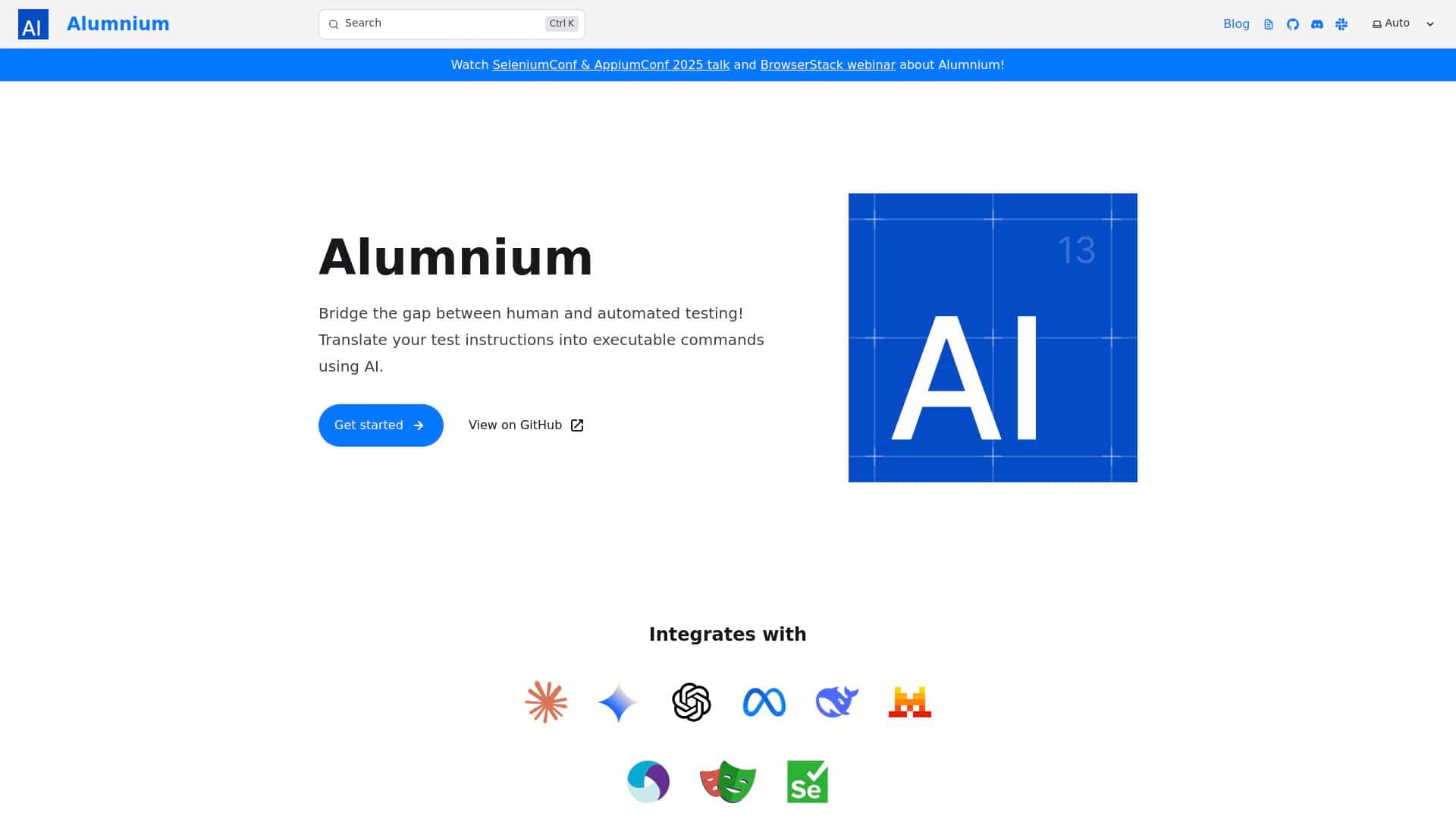
I’ve been testing Alumnium as an AI-assisted way to write test automation faster—without turning every test into a fragile “magic” script. The whole pitch is simple: you describe what you want in plain English (things like “do login” or “check homepage”), and the tool turns that into executable test code.
So I wanted to see a few things for myself: how the setup feels, whether the generated code actually runs, how much editing you need, and what breaks when your UI doesn’t behave nicely. My goal wasn’t to replace my framework—it was to cut down the boring parts and speed up iteration.
Alumnium Review: What It’s Like to Use for Real Test Automation
Here’s the best way I can describe it: Alumnium feels like it’s trying to “translate” your intent into the boring parts of testing—selectors, waits, basic assertions—while leaving you the ability to adjust the result when the app isn’t perfectly predictable.
Setup and what I actually had to do
My setup was pretty straightforward. I worked with a small sample web app and focused on a login flow + a couple homepage checks. The environment I used was:
- OS: macOS (local runs)
- Browser: Chrome
- Automation style: Python-based UI tests (so it matched the tool’s current Python focus)
In practice, the workflow looked like: define the scenario in plain language, generate code, run it, then fix the parts that were too specific or too vague. That last part is normal with any automation tool, but I wanted to know how much “fixing” you’d be doing.
Test cases I ran (and what changed after using Alumnium)
I started with three quick scenarios. The prompts below are close to what I typed, because honestly that matters with AI—if your instructions are sloppy, the output will be too.
- Scenario 1: “do login”
- Scenario 2: “check homepage loads”
- Scenario 3: “get user name shown after login”
Before Alumnium: I’d usually write the skeleton test, then hunt for selectors, then sprinkle waits until it stopped flaking. That’s the part that eats time.
After Alumnium: the tool produced working code faster than I could from scratch, especially for the “find element → act → assert” structure. But I still had to correct a few things (more on that in the limitations section).
Prompt → generated code (examples of what I corrected)
Let me give you a couple concrete “before/after” moments from my runs.
Example A (login):
Prompt: “do login with valid credentials and verify dashboard”
What I noticed: the generated test got the flow mostly right, but the “verify dashboard” step was checking the wrong text (it grabbed a header label that changed after load).
Fix: I updated the assertion to match a stable element/label and tightened the wait condition so it didn’t assert too early.
Example B (homepage check):
Prompt: “check homepage loads”
What I noticed: this was a little too broad. The AI produced an assertion that passed sometimes but failed when the app showed a cookie banner overlay.
Fix: I added a clear instruction like “accept cookie banner if shown” and the flakiness dropped immediately.
Example C (selector accuracy):
Prompt: “get user name shown after login”
What I noticed: the code used a selector that worked in one browser state but wasn’t resilient (it depended on a layout wrapper).
Fix: I switched to a more stable locator (data attribute / unique text container) and kept the rest of the generated logic.
Integration with common testing tools
Alumnium is positioned around web and mobile testing, and the vendor messaging mentions tools like Selenium, Playwright, and Appium. In my case, I was focused on Python UI tests, so the most noticeable win was how quickly I got usable Python code that fit my existing style.
One thing I liked: it didn’t feel like it was forcing a brand-new framework on me. It was more like “generate code that you can review and edit,” which is the only approach that makes sense in a real CI/CD pipeline.
Where it struggled (so you’re not surprised)
I ran into the usual AI test automation traps:
- Ambiguous prompts (“check homepage loads”) lead to broad assertions that can be flaky.
- Dynamic UI elements (cookie banners, loading spinners, A/B text variants) require either better instructions or manual selector tweaks.
- Edge cases still need human judgment. If your app has multiple user roles, feature flags, or conditional modals, you’ll likely edit the generated steps.
Still, compared to typing everything manually, I saved time—especially on the first draft. Once you’re editing anyway, you can also steer the next generation with clearer phrasing.
Key Features I Actually Used
- Natural language → test code: I could write instructions like “do login” and “check homepage loads,” and the tool translated that into runnable steps.
- Web + mobile testing support: the workflow is built around UI testing patterns, with mentions of Selenium, Playwright, and Appium for different contexts.
- Python-first (for now): in my testing, it aligned best with Python-based frameworks. The vendor also talks about future support for JavaScript and Ruby—so if you’re not on Python today, keep that in mind.
- Simple command style: the “do / check / get” style is actually helpful because it nudges you toward actionable steps instead of vague descriptions.
- Engineer-friendly output: the generated code isn’t a black box. You can review it, change selectors, and adjust waits.
Pros and Cons (Based on My Runs)
Pros
- Faster first drafts: the biggest time savings for me was generating the initial structure (navigation + actions + basic assertions). I wasn’t starting from a blank file anymore.
- Control stays with the engineer: “control” here means you can edit the generated code—fix selectors, change assertion targets, and adjust timing instead of accepting whatever the AI guessed.
- Better iteration loop: after a failure, I could rephrase the instruction (for example, adding “accept cookie banner if shown”) and re-generate without rewriting the whole test.
- Works alongside existing tooling: it fits into common Selenium/Appium-style workflows conceptually, rather than requiring you to throw away your current approach.
Cons
- Python frameworks only (current reality): if your team is heavily JavaScript/TypeScript-based, you may not get immediate value.
- Prompt quality matters a lot: “check homepage loads” is too vague. If you want reliable results, you need to specify what “loads” means (which element appears, what text is stable, etc.).
- Some UI edge cases still take manual tuning: overlays, conditional modals, and role-based screens are where I ended up editing more than I expected.
Pricing Plans (What I Could Verify)
I didn’t find stable, publicly listed pricing in the content I reviewed. Because pricing can change (and sometimes depends on seats/usage), I recommend checking the official Alumnium page directly for the latest plan details.
If you’re trying to estimate cost, here’s what I’d look for on the site:
- Free trial availability (if offered)
- Seat-based vs usage-based pricing
- Limits (test generations, runs, or model usage)
- Team features (shared prompts, versioning, review workflow)
Wrap up
Alumnium is best viewed as a shortcut for the parts of test automation that usually slow you down—writing the first version of a test, turning intent into steps, and getting you to “runable code” faster. For me, the value wasn’t that it magically solved flaky tests. It was that it helped me start closer to the finish line, then I could review and tighten things where the UI reality didn’t match the prompt.
If you’re already working in Python and you want a faster way to create and iterate on UI tests (especially for common flows like login and basic page checks), it’s worth a serious look. Just don’t expect it to replace good test design—because you still have to tell it what “correct” means.