Table of Contents
Bad audio is the fastest way to make a good video feel “off,” even if your script and editing are solid. I tested ai|coustics on a real podcast workflow, and what I noticed right away was that it doesn’t just make things louder—it cleans up the mess. Think: less hiss, less room echo, and speech that sits more naturally in the mix.
The short version? If you want clearer vocals for podcasts, videos, or streams without wrestling with a bunch of complicated audio plugins, this is one of the more straightforward options I’ve tried.
ai|coustics Review (What Happened When I Tested It)
I didn’t test ai|coustics on some “perfect studio” audio. I used a more typical real-world case: a podcast clip recorded with a USB mic in a room that has a bit of echo and some constant background noise. You know the type—when you stop talking, you can still hear the room.
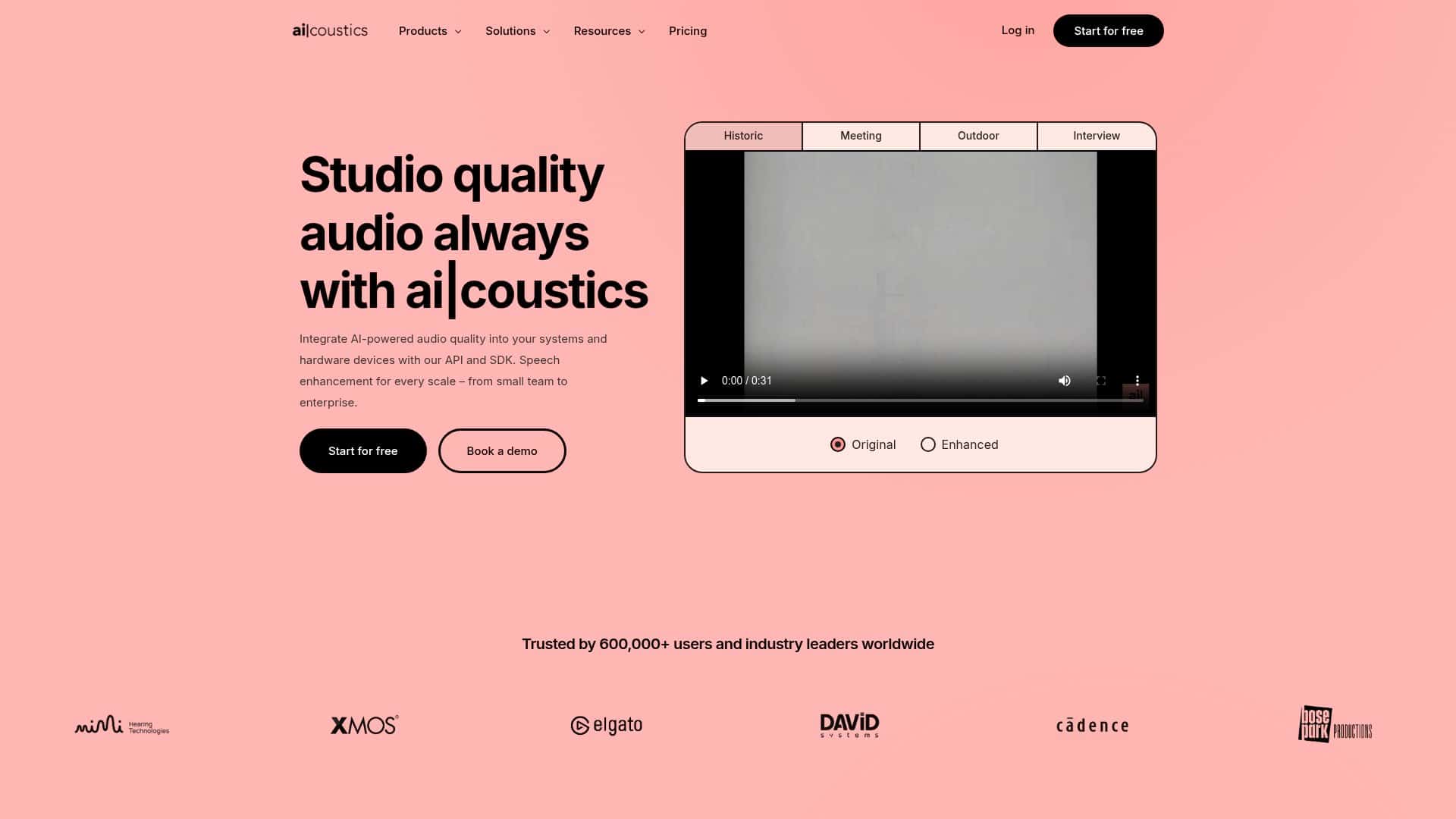
My setup: I uploaded a podcast segment (roughly a few minutes long) and listened to it both before and after processing. I also checked the waveform and paid attention to how the noise behaved between sentences (that’s usually where problems show up).
What I noticed after processing:
- Noise reduction felt real: the constant hiss/room noise dropped enough that I didn’t feel like I needed to crank a gate aggressively.
- Less echo / roominess: the “tail” after words sounded shorter. Speech felt tighter and more forward.
- Clearer consonants: the “t,” “k,” and “s” sounds weren’t as smeared, which made the voice easier to understand.
- It didn’t sound like heavy compression: at least in my case, it didn’t turn everything into a squashed podcast voice. The improvement was more about cleaning than pumping.
Another thing I liked: the workflow is quick. I uploaded the file, processed it, and had an output I could evaluate immediately. No long “tweak 12 knobs” cycle. And honestly, that matters when you’re trying to get an episode out on time.
They also mention both online processing and SDK integration. I didn’t build a full production pipeline in this test, but I did check how the integration is positioned—if you’re a developer, you’re not stuck only using the website.
And yes, I tried the “real-time enhancement” angle conceptually for live situations. If you’re streaming, the biggest question is always latency: will it keep up while you talk? In my experience with tools like this, the “real-time” modes are best when you’re okay with tradeoffs (some processing has to happen fast). For live audio, I’d still recommend testing with a short clip first and then doing a full run once you’re confident.
Key Features That Actually Matter
- AI audio enhancement (noise + echo cleanup) — this is the core. The improvement I heard was most obvious between phrases and in the way the voice “sits” in the audio.
- Real-time and batch processing — useful if you’re doing live streams or if you want to process entire episodes offline.
- API/SDK integration — built for developers who want to automate processing instead of manually uploading every file.
- Cross-platform support — they list compatibility across Windows, macOS, Linux, Android, and iOS, which is handy if you’re working in mixed environments.
- Customizable workflows — you’re not limited to one “sound.” Depending on the plan, you should be able to choose how aggressive you want the processing to be.
- Starter-friendly testing — there’s a free tier and a testing playground vibe, so you can try the results before committing.
- AI model updates (including “Lark”) — they reference a latest model for higher-tier output. In practice, model choice affects how natural the voice feels after cleanup.
If you’re wondering “what should I upload?” here’s what I’d do in a real project:
- Start with speech-heavy audio (podcast voice, narration, interviews). It’s where noise and echo are most noticeable.
- Use a clip that includes quiet moments between sentences. That’s where the tool can prove it’s actually reducing background noise.
- Do an A/B listen: export the original and the processed version, then switch between them quickly.
Quick workflow I followed:
- Upload the audio/video file you want to improve
- Run processing with the default settings first
- Listen through once end-to-end
- Then jump to the “problem parts” (breaths, pauses, sibilants, end-of-sentence tails)
- If it’s too aggressive, try a different preset/model/processing intensity (depending on what your plan allows)
Pros and Cons (From a Real-User Perspective)
Pros
- Better clarity without turning everything into a robot voice. The biggest win for me was cleaner speech intelligibility.
- Works for multiple content types. Podcasts, videos, and live streaming scenarios all make sense with the real-time + batch approach.
- Integration-friendly. If you’re building a tool or workflow, the API/SDK approach is a plus.
- Fast enough for everyday creators. The “upload and get results quickly” part is exactly what I want when I’m on a deadline.
- Plan options exist for different budgets. You can start small, then scale up.
Cons
- New users may need a little audio literacy. If you don’t know what “too much processing” sounds like, you might overdo it. A quick A/B test fixes this, but it’s still a learning curve.
- Advanced customization depends on the plan. Some options might not be available on the free or Mini tier, so you won’t get every tweak right away.
- Upload/storage limits can get annoying. If you’re processing lots of long episodes or high-volume content, free/Mini restrictions may slow you down.
One honest note: no AI cleaner is magic. If your recording is extremely distorted or clipped, you’ll still hear problems after enhancement. ai|coustics is best for “fixable mess”—noise, hiss, echo, and muddiness—not for saving a totally broken recording.
Pricing Plans (What You Get and Who They’re For)
Here’s how I’d think about their tiers. The free plan is best for testing and figuring out whether the results match your standards. The Mini plan is the step up if you’re doing real projects but you don’t need enterprise-scale processing.
From what they list:
- Free plan: basic audio uploads for testing
- Mini plan (launched in 2024): 7 days of storage, watermark-free videos, and up to 800MB file size
For bigger needs, they offer pay-as-you-go options that fit businesses and bulk users. If you’re producing content regularly (or processing lots of files), that’s usually where the economics start to make sense.
Plan fit (my take):
- If you’re a creator trying it once: start with free, run an A/B test, and decide if the voice clarity is worth it for your style.
- If you’re producing weekly: Mini is likely the sweet spot—especially if your episodes aren’t huge.
- If you’re processing at scale: pay-as-you-go or higher tiers are the way to avoid hitting limits.
For the exact current limits, credits, and any plan-specific rules, check their website here: ai|coustics.
Wrap it up
After testing ai|coustics, I came away impressed—mostly because it improves the stuff people actually complain about: noisy backgrounds and that echo-y, room-sound feeling that makes voices harder to listen to. It’s not a replacement for good recording, but it’s a solid “make it sound better fast” tool.
If you’re juggling podcasts, videos, or live streams and you want clearer speech without spending hours tweaking audio plugins, this is worth your attention. I’d start with a short clip, do an A/B comparison, and then decide from there.