Table of Contents
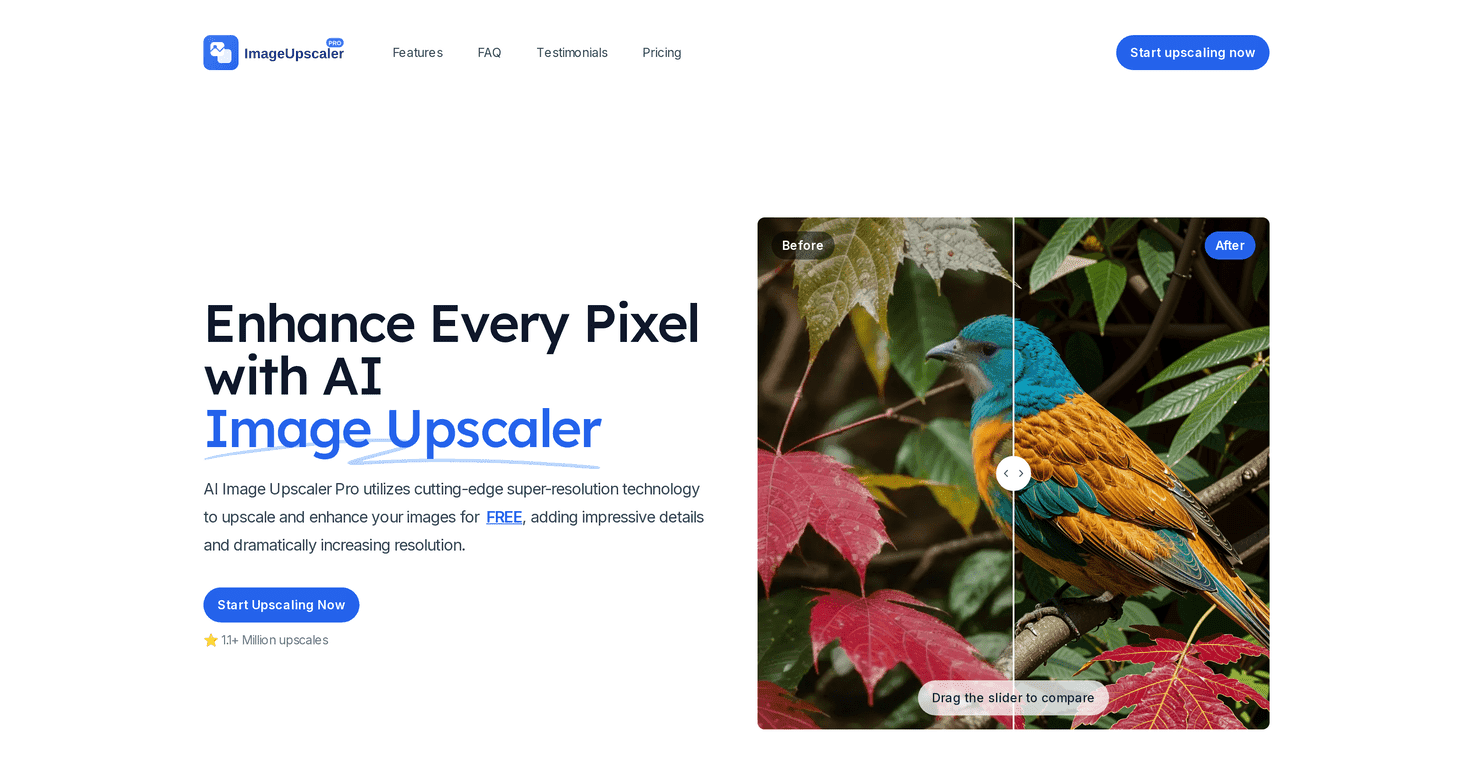
If you’ve ever tried to upscale an old photo and thought, “Why does it look blurry or weirdly over-smoothed?”, I get it. I tested AI Image Upscaler Pro to see if it actually improves image quality without turning everything into plastic-looking AI art.
Here’s what I liked right away: it’s an online tool. No downloads, no setup, no hunting for drivers. You upload your image, pick an output size, and you get an upscaled result that’s supposed to keep details intact. The site also claims upscaling improvements of up to 400%, so I was curious how that plays out with real photos (not just marketing examples).
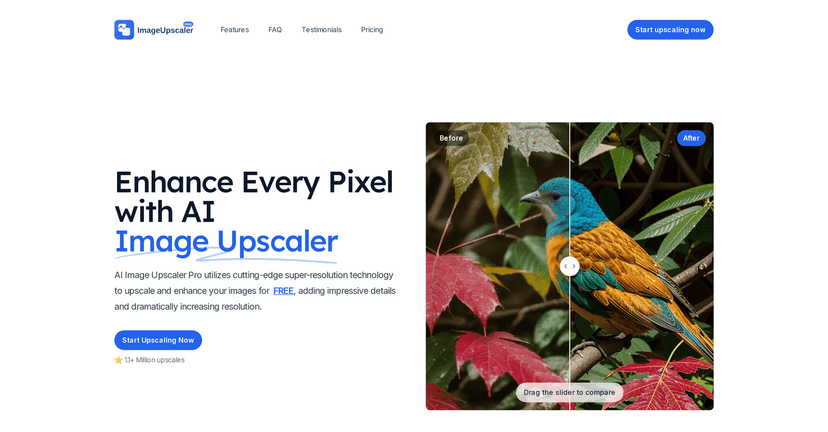
AI Image Upscaler Pro Review
AI Image Upscaler Pro is basically a web-based upscaler that uses AI to enhance photos—especially the kind that are too low-res to look good on modern screens, prints, or product pages. The promise is simple: upload a file and get a sharper, cleaner version that keeps the image looking natural.
In my experience, the biggest difference shows up in edges and textures. Things like hair strands, fabric weave, and building details tend to look more defined after upscaling. Colors also look more “settled” instead of flat. That said, it’s not magic—if your original image is heavily blurred or has aggressive compression artifacts, you’ll still see some limitations. The AI can improve, but it can’t resurrect information that isn’t there.
One more thing I noticed: the tool feels geared toward quick results. I didn’t have to tweak settings or mess with advanced parameters like you’d in desktop editors. For most people, that’s a win. For power users, it might feel a bit too straightforward.
Key Features
- AI-driven enhancement that aims for better clarity, cleaner edges, and more natural color distribution.
- Multiple input formats supported: JPEG, PNG, GIF, WEBP, HEIC. I tried a couple of common ones and it handled them without any fuss.
- Upscaling options up to 4K and 8K. If you’re preparing images for larger displays or exports, those higher output sizes matter.
- Fully online (no installation). Honestly, this is the main reason I used it instead of firing up another tool.
- Privacy promise: images are deleted from servers after 24 hours. That’s reassuring if you’re uploading personal photos or client assets.
- Batch processing feature coming soon. If you have lots of images, you’ll want this—more on that in the cons.
Pros and Cons
Pros
- Free access to basic features. I was able to test the workflow without paying first.
- Solid quality improvements for typical photos—especially where the original is just “a bit too small.”
- Quick processing. You upload, wait, download. No complicated setup.
- Works for personal and professional use. I can see it being helpful for social posts, portfolio images, and product thumbnails that need a sharper look.
- Supports several file types (JPEG/PNG/GIF/WEBP/HEIC), which reduces the hassle of converting files before uploading.
Cons
- Premium features may cost money once you move beyond the basic tier. If you upscale a lot, you’ll want to check the plan details early.
- No bulk/batch processing yet. This is a real drawback if you’re trying to upscale dozens (or hundreds) of images for a campaign.
Pricing Plans
AI Image Upscaler Pro’s pricing is pretty straightforward. Here’s how it breaks down:
- Basic Plan (Free): unlimited upscaling to 4K.
- Small Business Plan: $19, includes upscaling to 8K and priority processing.
- Enterprise Plan: $49, up to 16K resolution, dedicated support, and advanced API access.
If you’re only doing occasional upscales, the free tier is a nice way to test whether the results match what you want. If you’re a small business or agency dealing with client deliverables, the $19 option could be the sweet spot—especially because priority processing can save time when you’re on a deadline.
Wrap up
Overall, AI Image Upscaler Pro is one of those tools that makes sense when you need better image quality fast and don’t want to deal with a bunch of settings. In my testing, it’s best when the source image is already decent but just not high enough resolution. That’s where the AI shines—cleaner edges, improved detail, and colors that look more “finished.”
Just don’t expect it to fix severely damaged or extremely blurry images perfectly. Also, if you’re planning to upscale large batches, the lack of bulk processing right now is the biggest limitation. Still, for single images, quick exports, and general enhancement, it’s a practical option.
Promote AI Image Upscaler Pro