Table of Contents
Let me be honest—I don’t always want to sit there typing image captions, alt text, or descriptions from scratch. If I can upload a picture and get something usable back in seconds, I’m interested. That’s basically why I tested AI Describe Image (the AI Image to Text service) in the first place.
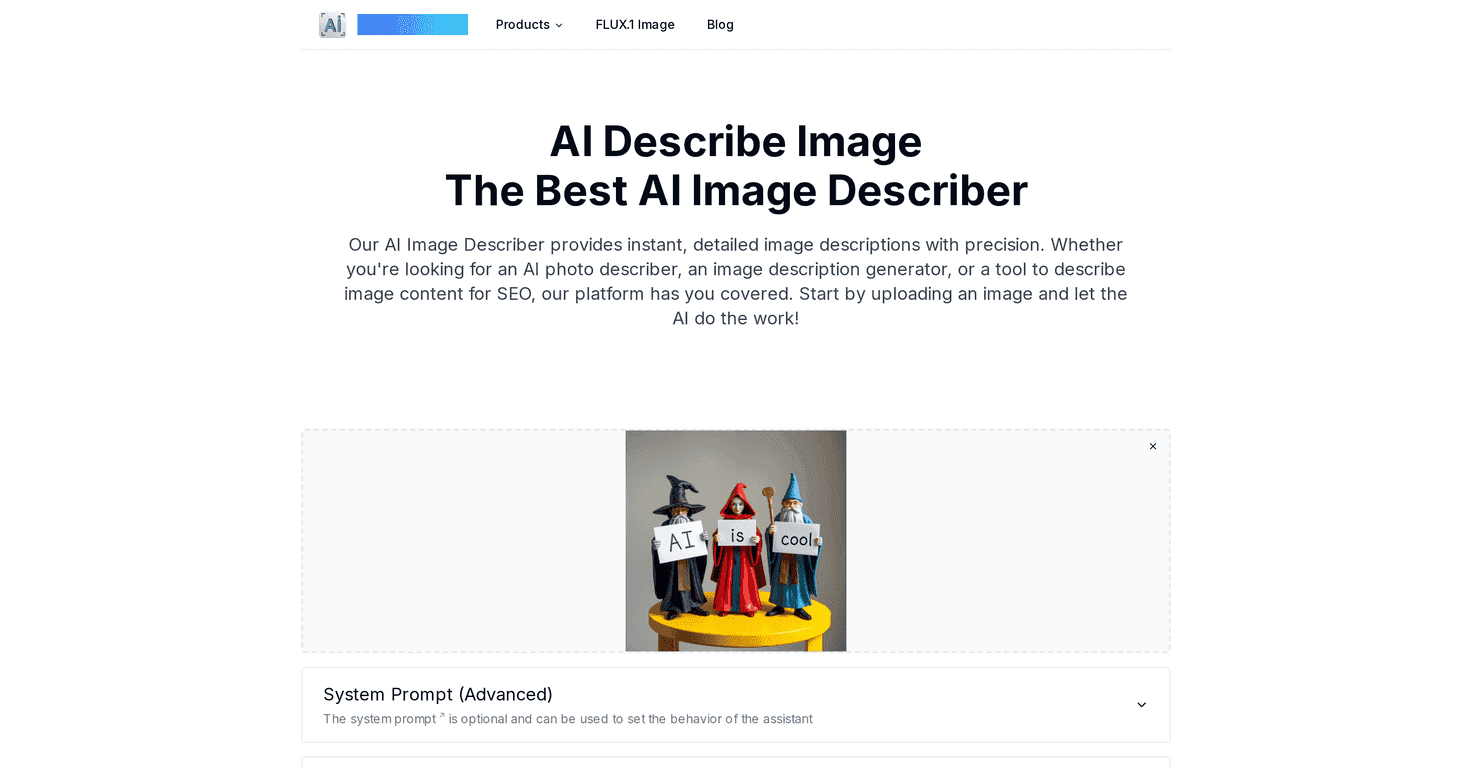
AI Image to Text turns your JPEG, PNG, or WebP files into text descriptions by analyzing what’s actually in the image. And when I say “usable,” I mean it can generate a detailed paragraph you can paste into a blog, use for accessibility (alt text / image summaries), or repurpose for marketing copy without starting from a blank page.
What stood out to me right away is the customization. It’s not just “here’s a generic description.” You can guide the output depending on what you need—caption style, tone, or even tasks like extracting text from an image. I also liked that it supports more than one kind of workflow: content creation, accessibility, and even developer-friendly output like responsive HTML for certain use cases.
Still, it’s not magic. If the image is blurry, low-contrast, or the text is too small, the output won’t magically become perfect. You’ll get better results when the image is sharp and the subject is clear. And if you want to go deep with advanced customization, you might need a couple tries to get prompts dialed in.
With that said, if you’re looking for an AI image to text tool that’s quick, practical, and easy to test, this is one I’d keep around.
AI Image to Text Review
Here’s what I’m really looking for in an AI image to text tool: speed, decent accuracy, and outputs I can actually use. AI Describe Image checks those boxes more often than not.
When I upload an image, it generates instant descriptions based on the visual content. For example, if you’re dealing with a product photo, it’ll typically mention the subject, key objects, and overall scene. For blog work, that’s enough to start drafting—then you can tweak the wording to match your brand voice.
It also supports text extraction, which is where things get interesting. If you have a screenshot, a sign, a poster, or any image with embedded text, the tool can pull the wording out and format it into something readable. In my experience, this works best when the text is fairly large and not heavily compressed.
And yes, it can help with marketing too. I tested the “ad copy” style output on a simple product graphic, and I got a few variations that were immediately usable as draft copy. You still need to review for accuracy (especially with numbers, spelling, or brand names), but it saved me time compared to writing from scratch.
One more thing I appreciated: the tool can generate responsive HTML when you’re working with design-to-code style tasks. I’m not claiming it replaces a full front-end workflow, but it can be a helpful starting point if you want a quick scaffold and then refine it.
So where does it fall short? The output quality depends heavily on the image quality. Low resolution, glare, heavy blur, and tiny fonts will always limit what any model can do. Also, if you want very specific customization, you may need to spend a minute learning how to phrase your request so the output matches what you’re aiming for.
Key Features
- Instant image descriptions that you can paste into a blog, doc, or accessibility workflow.
- Multi-format support for JPEG, PNG, and WebP.
- User-customizable prompts so you can steer the tone and the type of output you want.
- Text extraction from images (best with crisp, readable text).
- Ad copy generation for quick marketing drafts and variations.
- SEO enhancements through better image descriptions you can adapt into alt text or on-page copy.
- Responsive HTML generation for cases where you want code output as a starting point.
Pros and Cons
Pros
- Fast and easy to use. I didn’t have to fiddle with settings to get decent results.
- Works across multiple use cases. Descriptions, text extraction, and marketing-style copy all come from the same workflow.
- Customizable outputs. When you guide it (instead of accepting the default), the results feel more “on purpose.”
- Helpful for accessibility drafts. It’s a solid starting point for alt text and image summaries, especially when you need something quickly.
- Good accuracy when images are clear. With sharp images, the descriptions are usually detailed enough to be immediately useful.
Cons
- Image quality matters a lot. Blurry or low-resolution uploads will reduce accuracy, especially for small text.
- Advanced customization can take trial and error. If you’re being very specific, you may need to test a couple prompt variations.
- Future pricing is unknown. It’s currently free during the launch phase, but you’ll want to confirm pricing once it’s finalized.
- Always review extracted text. Like any OCR-style output, there can be mistakes—especially with stylized fonts or compressed images.
Pricing Plans
Right now, the service is free for all users during its launch phase. There’s no pricing structure listed yet, so you can test it without committing to anything. I’d recommend trying a few different image types (a product photo, a screenshot with text, and a banner/graphic) before you decide whether it fits your workflow.
Wrap up
For me, AI Describe Image is one of those tools that earns its keep fast. You upload an image, you get a description or extracted text, and you can move on. It’s especially useful if you create content regularly, need accessibility-friendly descriptions, or you just don’t want to spend 30 minutes writing alt text and captions manually.
Just remember: the tool can only be as good as the input. Clean, high-resolution images will get you the best results, and you should always do a quick review when text extraction is involved.
If you’ve been looking for an AI image to text solution you can actually use day-to-day, this one’s worth a try—especially while it’s free.
Promote AI Image to Text