Table of Contents
If you post on LinkedIn regularly, you already know the annoying truth: most people scroll fast. So when I’m trying to get attention, I don’t just want “another post.” I want something that actually looks put-together—clean layout, readable text, and visuals that make people stop for a second.
That’s where the Free AI Cheat Sheet & Infographic Generator from AI Carousels (the one at https://www.aicarousels.com/free-tools/linkedin-cheat-sheet-infographic-generator?utm_source=Automateed&utm_medium=Automateed&utm_campaign=Automateed&utm_id=Automateed) caught my eye. I tested it specifically for LinkedIn-style cheat sheets, and honestly? It’s one of those tools that feels simple enough to use the same day you find it.
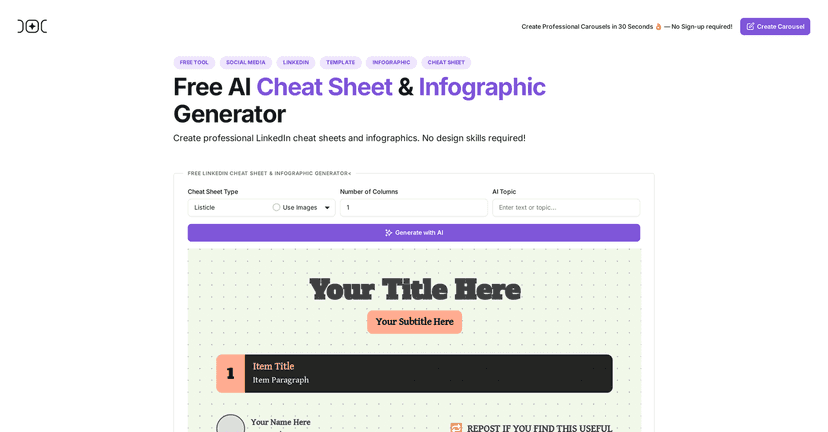
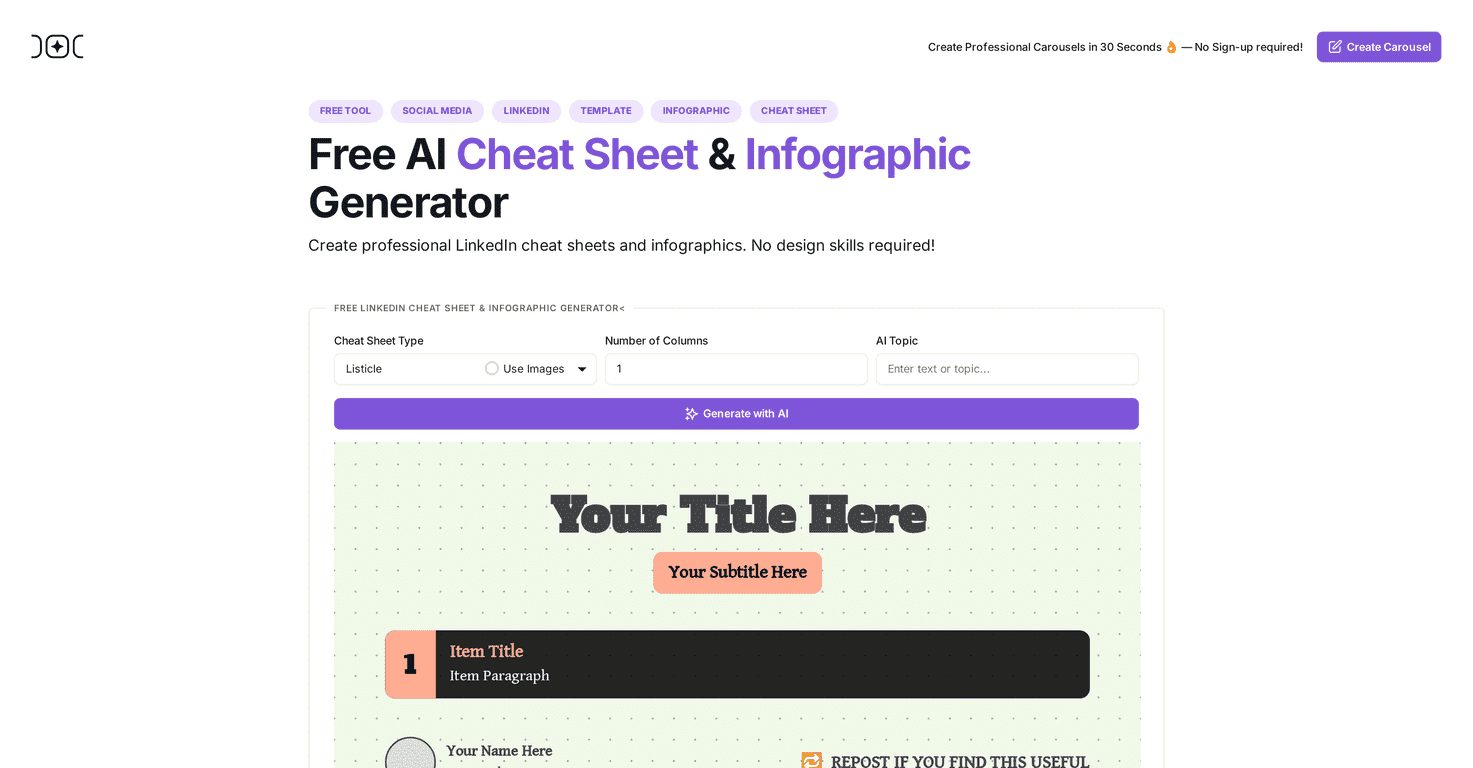
What I liked right away is that it doesn’t try to overwhelm you. There are templates that already look like “real” content—like Listicle and Do’s and Don’ts—so you’re not starting from a blank canvas and guessing font sizes for an hour. You pick a template, swap your text, and the design stays cohesive.
Another thing I noticed: the editor is interactive. You can click into the design and edit directly, which makes it way faster than tools where you have to bounce between panels and settings. And if you’re adding visuals to a cheat sheet, it helps the post feel more like a carousel and less like a wall of text.
One limitation I’ll call out: it’s primarily built for LinkedIn and Instagram. If you’re trying to repurpose into other formats, you may need extra tweaking. But for those two platforms? The outputs are clearly aimed at what people actually engage with there.
Key Features (What You’ll Actually Use)
- Cheat sheet templates that aren’t generic (including Listicle and Do’s & Don’ts) so you can publish faster.
- Customization that goes beyond text—you can adjust things like colors, fonts, and images so it doesn’t look like everyone else’s carousel.
- Interactive editing where you click and modify text right on the design. This is huge if you’re not into fiddling.
- Downloadable final designs so you can save the finished carousel and upload it wherever you manage content.
- Visual elements built into the layout—not just “text on a background,” which helps the content feel more skimmable.
Pros and Cons (My Honest Take)
Pros
- Easy to use—I didn’t feel like I needed a tutorial to get a decent result.
- Free to use with no sign-up wall. That matters if you’re just testing ideas.
- Template variety—Listicle and Do’s/Don’ts styles are especially handy for LinkedIn because they format naturally for scanning.
- Customization helps with branding. You can make it feel more “you” instead of a copy/paste look.
- Better engagement potential—not guaranteed, but when the design is cleaner, people are more likely to stop and actually read.
Cons
- Platform focus: it’s mainly tailored for LinkedIn and Instagram. If you want a bunch of other formats, you might have to manually adapt.
- Minor learning curve depending on how picky you are with design. Most people will be fine, but if you want precise control over everything, you may bump into limits.
Pricing Plans
Good news here: it’s entirely free. No sign-up required, and I didn’t hit any paywalls while using it. If you’re building a content pipeline and want assets without paying for another design subscription, that’s a big win.
How I’d Use It for LinkedIn (Quick Tips)
If you want the cheat sheet to perform like a real LinkedIn post (not just “pretty”), here are a few things I’d do:
- Keep each slide idea tight: aim for one main takeaway per panel. If you try to cram too much, people won’t read it.
- Use a strong hook in the first slide—something like “3 Mistakes I Made When…” or “Do This If You Want…” usually works better than vague intros.
- Write in plain language. Cheat sheets do best when they feel practical, not academic.
- Match the template to the content type: listicles for steps, Do’s/Don’ts for behavior, and so on. It’s faster and it looks more intentional.
- Download and preview before posting. I always do a quick check for readability and spacing after exporting, especially if I changed fonts or colors.
Wrap up
Overall, my experience with the AI Carousels Cheat Sheets tool is pretty positive. It’s the kind of generator that helps you ship LinkedIn-friendly visuals quickly—without needing design skills or spending money. If you’re trying to refresh your carousel strategy and you want something that looks polished right out of the gate, this is worth a try.
Just remember the one big constraint: it’s geared toward LinkedIn and Instagram. If that fits your goals, you’ll probably find it easier than most “AI design” tools out there.
Promote AI Carousels Cheat Sheets