Table of Contents
If you’ve ever bounced between ad platforms, spreadsheets, and a dozen “quick checks” you swear you’ll remember later, you already know the real problem isn’t effort—it’s context switching. I tested Ads Copilot as a Chrome extension to see if it could actually make campaign work faster, not just sound smart.

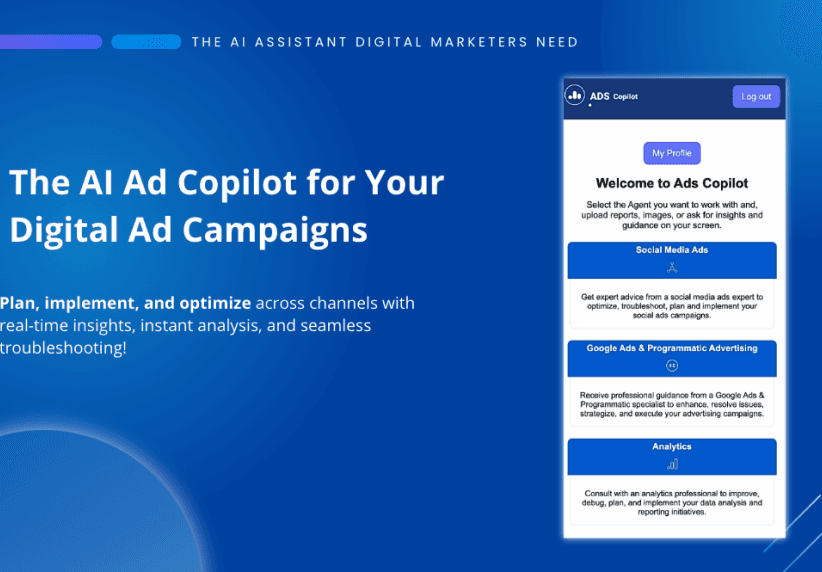
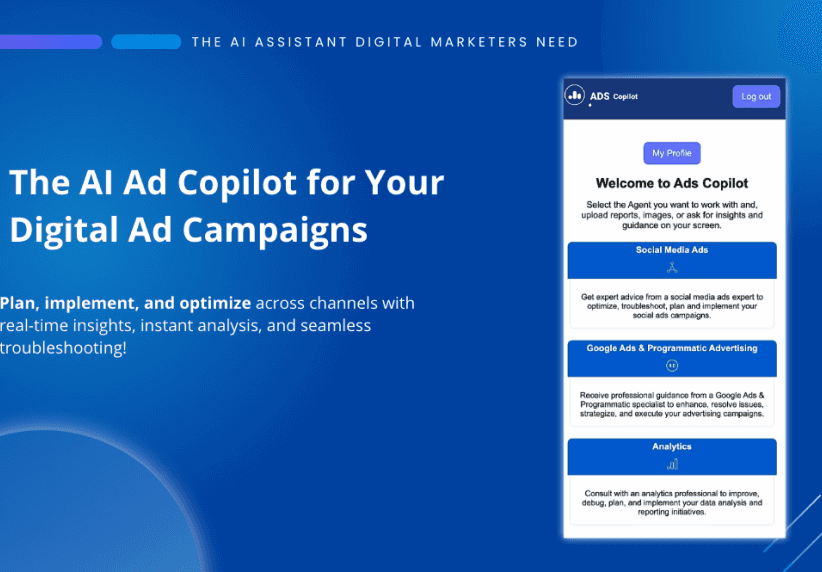
So what is it, in plain terms? Ads Copilot is an AI assistant built for marketers who live in ads—social, display, and programmatic. The pitch is simple: it helps you plan, troubleshoot, and optimize by pulling insights from what you’re looking at on-screen. And yeah, it’s convenient that it’s a browser extension, because that’s where most of the “daily grind” happens anyway.
What I noticed right away is that it’s not trying to replace your ad account. It’s more like a second brain you can ask questions to while you’re already doing the work. You can also upload reports and images for instant feedback, which is handy when you’re trying to explain performance to a teammate (or your future self).
That said, I don’t want to oversell it. If you’re expecting it to magically fix a broken campaign without you doing any analysis, you’ll probably be disappointed. But if you use it to speed up review cycles—creative checks, performance summaries, and troubleshooting—you’ll likely get real value.
Ads Copilot Review: Does It Actually Help With Ad Optimization?
I went into this review wanting to know one thing: can it reduce the time between “something looks off” and “here’s what I should do next”? In my experience, that’s where a lot of ad tools fall short—they either give generic advice or they make you leave your workflow to get anything useful.
Ads Copilot stays close to the action because it’s a Chrome extension. That matters. When you’re checking Facebook Ads Manager or Google Ads, you’re already in a UI full of tables, charts, and settings pages. Being able to ask for insights while you’re looking at the same screen is a big quality-of-life improvement.
Here’s what stood out to me most:
- On-screen analysis: It can analyze what’s on the page you’re viewing, so you don’t have to copy/paste every detail just to get started.
- Uploads for faster feedback: You can upload reports and images and get responses right away. I used this style of workflow when I had a messy export and didn’t want to manually summarize everything.
- Team-friendly output: If you’re collaborating, the ability to forward insights (instead of rewriting your notes from scratch) saves time.
Is it perfect? No. AI responses can still be only as good as the context you provide. If your report is missing key columns or your screenshot doesn’t show the metrics you care about, you’ll get less useful recommendations. But when you give it the right inputs, it can speed up the “first pass” of analysis a lot.
Key Features I’d Use Every Week
- Screen Reader — interact with online content in real time (useful when you’re reviewing pages quickly and want help interpreting what you’re seeing).
- Report Analysis — supports CSV and Excel uploads, so you can drop in performance exports and get optimization ideas without building your own summaries from scratch.
- Image Reader — pulls insights from uploaded campaign images. This is great when you’ve got screenshots of dashboards, creative variations, or error states you need to explain.
- Email Sender — forwards insights for team collaboration, which is handy if you don’t want to paste AI output into a doc manually.
One quick example from my workflow: when a campaign’s CTR drops but spend stays similar, I usually spend way too long trying to figure out whether it’s creative fatigue, audience mismatch, or tracking issues. Tools help, but they often force extra steps. Ads Copilot’s “ask while you’re looking” style reduces that loop. I’m not saying it replaces diagnostics—but it gets you to the right questions faster.
Pros and Cons (Real Talk)
Pros
- Saves time: It helps with planning and troubleshooting without you starting from a blank page every time.
- Works across platforms: It’s designed to be compatible with common ad ecosystems (including Facebook Ads and Google Ads), so you’re not locked into one environment.
- Real-time style insights: The on-screen analysis feature is the main reason I’d recommend it for day-to-day optimization.
Cons
- Chrome dependency: Since it’s a Chrome extension, you’ll need to use Google Chrome to access it.
- It’s not a substitute for skill: If you don’t already know what metrics matter (CPA vs ROAS, impression share, frequency, conversion lag, etc.), the recommendations might feel vague.
If you’re brand new to paid ads, you might still need to learn the basics elsewhere. But if you already run campaigns and just want a faster way to interpret and iterate, that’s where I think Ads Copilot shines.
Pricing Plans: Free Extension Access
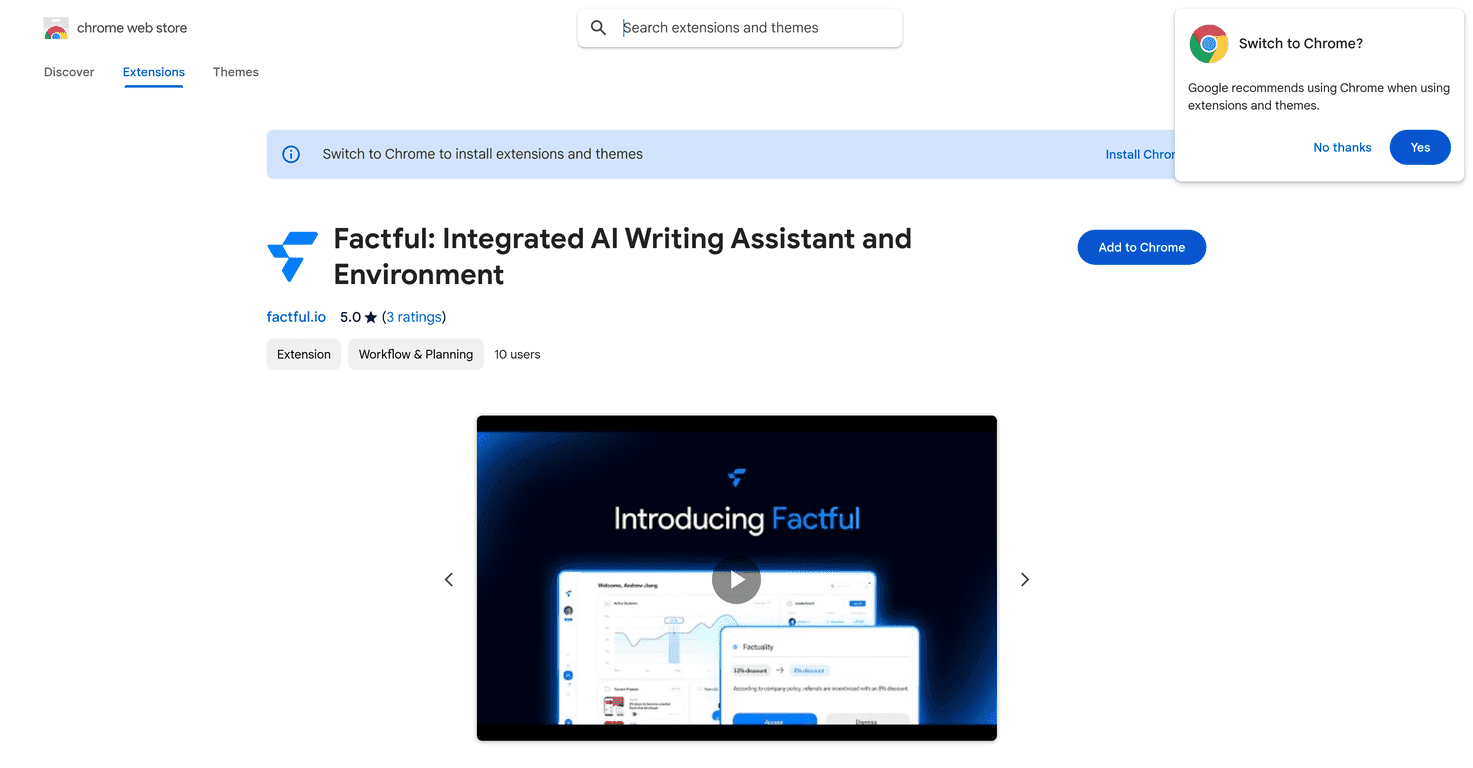
Ads Copilot is available for free as a Chrome extension. You can add it through the Google Chrome web store. For a lot of marketers, “free to try” is the difference between testing something and never touching it.
Just keep your expectations realistic: free tools can be great for quick wins, but you may still hit limits depending on how you use uploads and how often you request analysis. In my view, it’s best treated like an assistant that speeds up your workflow, not a magic button.
Wrap up
Ads Copilot is one of those tools that makes sense if you’re already living in ad accounts and you want faster answers while you’re reviewing performance. The screen-based insights and the ability to upload CSV/Excel reports and images are genuinely useful—especially when you’re trying to move from “what happened?” to “what do we do next?” without spending an hour on manual summaries.
If you’re looking for a practical AI ad campaign assistant (not just another chatbot), it’s worth trying. I’d recommend it most to marketers who iterate often and want to cut down the time spent compiling notes and interpreting dashboards.